
Contents
In this guide, we will explore together all the official methods, smart solutions, and technical tricks that allow you to apply how to make WhatsApp messages show one check on iPhone and Android, in addition to how to read WhatsApp messages without opening them to ensure that the other party does not know that you have received or read the message.
WhatsApp is considered the most widely used instant messaging platform globally, but with this increasing spread, many users face social pressures related to the speed of replying to messages and their constant availability online.
This leads to a genuine desire among a large sector of users to know how to make WhatsApp messages show one check to avoid embarrassment and maintain the highest levels of privacy without the need to delete the app or completely disconnect from the internet on their phone.
You may be interested in: Logging into WhatsApp Web from the Computer
Understanding Read Receipts Indicators in WhatsApp (What Do the Check Marks Mean?)
Before delving into the tricks and steps, it is essential to understand how to make the check mark in WhatsApp work dynamically according to Meta’s official protocols, as the platform’s help center clarifies the following:
- One gray check mark: means that the message has been successfully sent from your device to WhatsApp servers, but it has not yet reached the recipient’s phone (either because their phone is off or their internet is down).
- Two gray check marks: means that the message has successfully arrived at the recipient’s phone, but they have not yet opened and read the conversation.
- Two blue check marks: means that the recipient has opened the conversation and has already read the message (message read receipts).
The goal we aim for in this article is to keep the state on one gray check mark, so the sender thinks that your phone is out of coverage or that the WhatsApp app is currently closed.
How to Make WhatsApp Messages Show One Check in the Official Green WhatsApp
If you are using the official app and looking for how to make WhatsApp messages show one check in the green WhatsApp without resorting to modified applications that might get your account suspended, you can apply the following strategies:
Disabling Read Receipts (Official Partial Solution)
The official app allows you to hide the two blue check marks, which falls under the idea of hiding the read receipt in WhatsApp and read indicators, through the following steps:
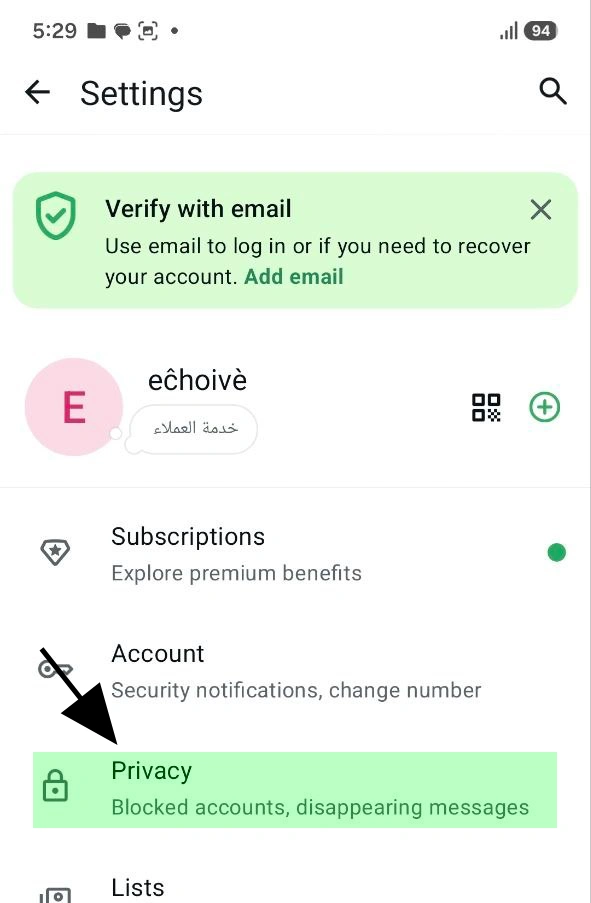
- Open WhatsApp and tap on the three dots at the top (for Android or iPhone) then select settings.
- Go to Privacy.
- Disable the Read Receipts option.
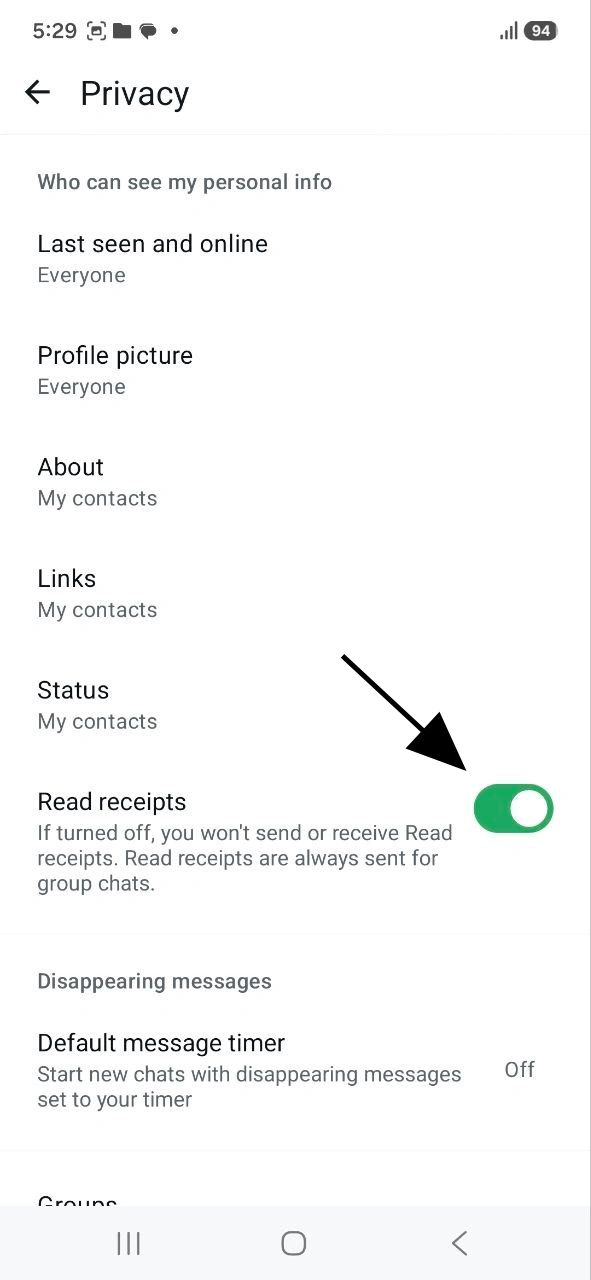
Important Note: This step only hides the blue color and makes them two gray checks, but to make it a continuous one gray check, follow the advanced methods below.
How to Make WhatsApp Show One Check on iPhone (Tested Methods)
iOS users frequently search for how to make WhatsApp show one check on iPhone or how to make WhatsApp messages show one check on iPhone due to the system’s strict restrictions. Here are the best effective solutions:
First: How to Disconnect the Internet from WhatsApp on iPhone from Settings
The easiest way to make WhatsApp messages show one check without turning off the internet for other applications on your device is to prevent the app from using cellular data:
- Go to your iPhone’s Settings.
- Scroll down until you find the WhatsApp app and tap on it.
- Turn off the green switch next to Cellular Data.
By this method, when anyone sends you a message while you are browsing the internet via 4G or 5G, they will see a one check on WhatsApp for iPhone because the app is completely denied access to the network.
Second: Stopping Background App Refresh
To prevent the iPhone from fetching messages as they arrive and generating the second check, do the following: go to Settings → General → Background App Refresh → turn off for WhatsApp.
How to Make Regular WhatsApp Show One Check on Android
For Android users, the options for hiding the second check on WhatsApp for Android are broader and more flexible:
Using Force Stop Feature
This trick is considered the strongest to make the app how to make WhatsApp show one check on Android work successfully without any external software:
- Long-press the WhatsApp app icon on your home screen, then select App Info.
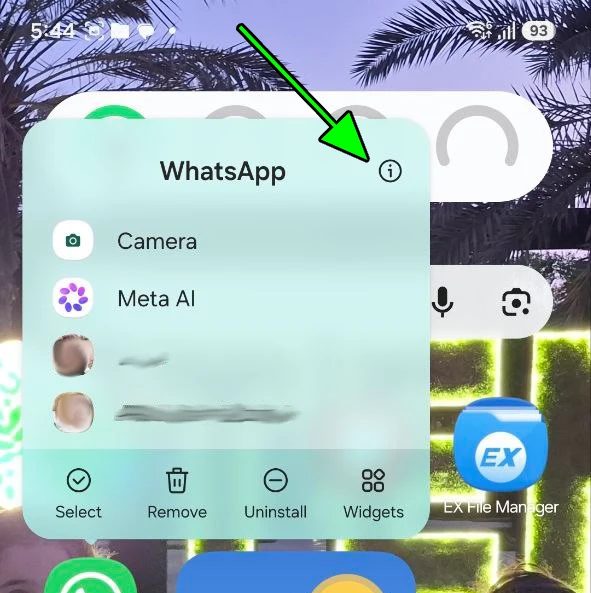
- Tap on the Force Stop option.
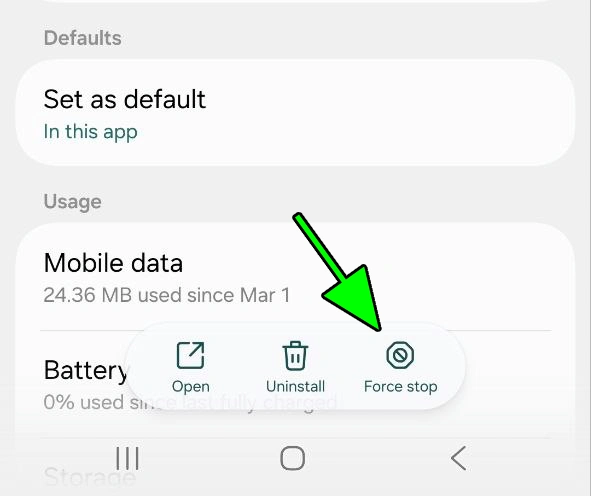
Once you click it, the app will completely stop running in the background of the phone and will not receive any messages, thus anyone messaging you will see a gray one check immediately until you manually reopen the app.
Preventing Background Data Usage
From the App Info page → go to “Data Usage” → disable Background Data. This achieves the goal of how to disconnect the internet only from WhatsApp for Android.
Reading WhatsApp Messages Without Opening Them and Without the Sender Knowing
If you don’t want to cut the internet and just want to view WhatsApp messages without the sender knowing and read them completely without activating the check marks, you can rely on the following smart techniques:
A) Using Screen Widgets for Android
WhatsApp widgets allow you to read very long messages without opening the app: tap on an empty space on the home screen → choose Widgets → select the WhatsApp box (4×2) and place it on the screen. You can now scroll and read all incoming messages without sending a read receipt (two checks).
B) Reading Messages from the Notification Bar and Pulling Down the Screen
Reading messages by pulling down the notification bar and reading them from outside is a free and excellent way to read WhatsApp messages without opening them on iPhone and Android without sending a read signal to the other party.
Check out How to Lock WhatsApp Chats and Protect Privacy.
Hiding Last Seen and Online Status in WhatsApp
Your privacy on the last seen in WhatsApp is not complete without setting up comprehensive stealth settings so that no one monitors your movements:
Steps to Hide Online Now in WhatsApp and How to Hide My Presence in WhatsApp:
- Go into settings then privacy.
- Tap on Last Seen & Online.
- Set the option “Who can see my last seen” to Nobody.
- Set the option “Who can see when I am online” to Same as last seen.
With this simple modification, you have completed the ultimate stealth plan that millions are looking for under the hashtag How to Hide Online Now in WhatsApp for iPhone and Android.
How to Make WhatsApp Show an Old Last Seen Date
Many ask: how to make WhatsApp show an old last seen date? In the official green version, once you choose “Nobody” the timing completely disappears. However, if you want to fix a specific old date (for example, freezing the appearance with last week’s date), this requires using third-party applications or some modified versions, but great caution is necessary as they may violate security standards and lead to your number being banned from Meta servers.