Contents
Many companies and users seek to simplify the process of switching between browsers without losing vital data such as passwords and extensions that they rely on daily.
In this article, we will discuss how to import passwords, extensions, bookmarks and favorates from Google Chrome to Microsoft Edge in one step, outlining the necessary requirements, detailed steps, and best practices to ensure a smooth and secure experience.
Related: Delete Browsing History from Google Chrome
Why You Might Want to Switch from Chrome to Edge
Before diving into the import steps, it’s worth noting the main reasons that drive users to prefer Edge over Chrome:
- Improved Performance and Memory Efficiency: Edge features a Chromium-based browsing engine but often utilizes system resources better.
- Integration with the Windows Environment: Enhanced security and compatibility with Microsoft services such as Office 365 and OneDrive.
- Built-in Additional Features: Such as the Smart Clipboard and Read Aloud feature.
- Enhanced Privacy Protection: Intelligent tracking prevention to block ads trackers and prevent unwanted messages.
You May Also Like: Google Chrome Shortcuts for Android and Computer
Conditions and Requirements Before Starting
To ensure a smooth and problem-free import process, make sure the following conditions are met:
- Update Google Chrome to the latest available version.
- Install the latest version of Microsoft Edge (the Chromium-based version).
- Sign in to your Microsoft account within Edge.
- Close sensitive or temporary extensions in Chrome to avoid conflicts.
Steps to Import Passwords and Extensions from Chrome to Edge in One Step
1. Open Microsoft Edge Browser
Start by launching Edge on your device, and then ensure you are signed into your Microsoft account via the profile icon in the upper right corner.
2. Go to the Import Page
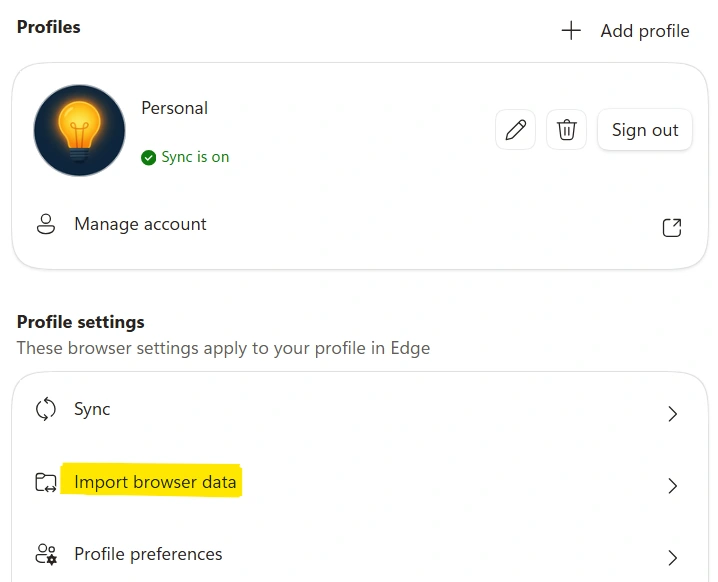
Click the three-dot menu in the upper right corner, then select “Settings”. Next, go to the “Profiles” section and click on “Import browser data”.
3. Select Chrome as the Data Source
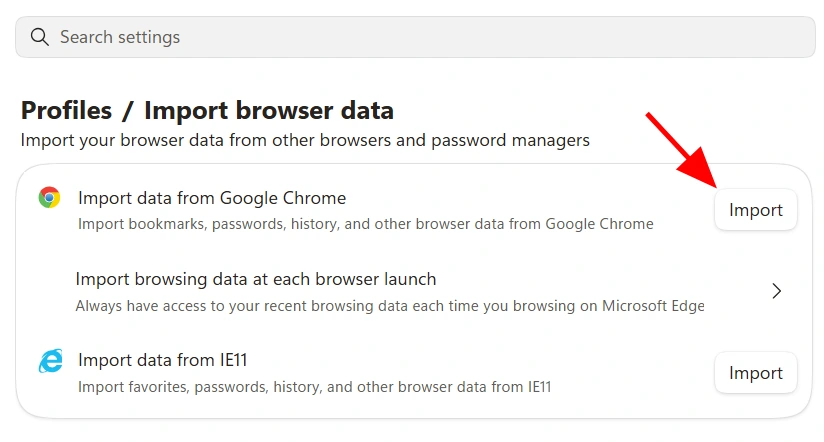
In the dropdown window for browsers, select Google Chrome as the source, and a number of importable options will appear.
4. Specify the Data to Import
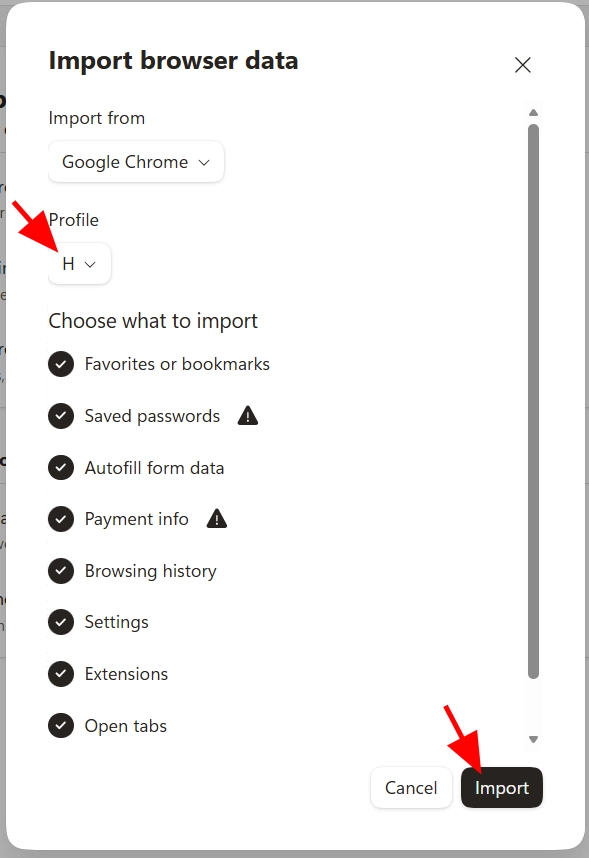
Make sure to select both “Passwords” and “Extensions” as well as any other data you wish to transfer, such as: Bookmarks and Browsing History.
Ensure you select the correct account in the Profile section and then click Import.
5. Start the Import Process and Monitor Progress
Click the “Import” button, and the transfer process will commence. It may take a few seconds to a few minutes depending on the amount of data and extensions being imported. It’s recommended not to close the browser or interrupt the internet connection during this process.
Benefits of Unified Import
Upon completing the import process in one step, you will gain many advantages:
- Time and Effort Savings: You don’t need to import passwords and extensions separately.
- Instant Compatibility: Extensions work on Edge with the same settings and data they had in Chrome.
- Stability and Security: Edge relies on the open-source Chromium platform, ensuring consistent operation with strong security support.
Tips and Best Practices During and After Importing
To ensure the best possible experience after transferring data, we recommend the following:
- Review the Extensions List: Make sure to update extensions or remove those that are no longer supported in Edge.
- Check Passwords: Open the password manager in Edge and verify their integrity and validity.
- Adjust Privacy Settings: Review the protection options under Settings > Privacy, search, and services and adjust them to suit you.
- Make a Backup: Use the “Sync across account” feature to back up to the cloud.
Good Practices for Importing
– Use multi-device syncing: After importing, enable the sync feature so that passwords and extensions are available on all your devices linked to your Microsoft account.
- Try the Collections feature for saving pages and ideas in an organized manner.
- When reading long articles, activate Read mode to facilitate concentration.
– Use protection extensions: such as Microsoft Defender Browser Protection for an extra layer of security while browsing.
Import favorites from Chrome to Edge
Direct Import Method:
- Open Microsoft Edge and click the three-dots menu (…) in the top-right corner.
- Select Favorites > click the three dots (…) inside the menu > select Import favorites.
- Choose Google Chrome from the drop-down list, check Favorites or bookmarks, and click Import.
Manual HTML Method (Alternative):
- Open Chrome, press
Ctrl + Shift + O, click the top-right three dots, and select Export bookmarks to save an HTML file. - Open Edge import settings, choose Favorites or bookmarks HTML file, and upload the saved file.
Import bookmarks from Edge to Chrome and vice versa
From Edge to Chrome:
- Open Google Chrome, click the three dots (…) at the top right, and go to Bookmarks and lists > Import bookmarks and settings.
- Select Microsoft Edge from the drop-down list.
- Check Favorites/Bookmarks and click Import, then click Done.
From Chrome to Edge :
- Open Microsoft Edge, click the three dots (…) at the top right, and go to Settings > Profiles > Import browser data.
- Click Import next to Import data from Google Chrome.
- Ensure Favorites or bookmarks is selected, then click Import.
Questions About Data Importing
Will the data be deleted from Chrome after importing?
No, the import process does not delete data from the original Chrome browser; it merely copies it to Edge. Your files and workflows in Chrome remain unchanged.
What if the import of extensions fails?
In this case, check the supported versions of extensions in the Microsoft store or Chrome Web Store. You can manually download the extensions or enable “allow extensions from other stores” in the Extensions settings.
Can saved accounts (licenses) in extensions be imported?
Edge’s ability to import extension licenses depends on how the extension stores the information. If licenses are stored locally within extension files, they may transfer successfully; otherwise, you will need to re-login or activate manually.
How do I prevent Chrome from appearing when opening links in Edge?
To set Edge as the default browser, go to Settings > Apps > Default apps and choose Microsoft Edge to set it as the default browser for all types of links.
Are encrypted or master password-protected passwords transferred?
Edge allows importing encrypted passwords as long as you have entered the master password in Chrome within the password manager. Otherwise, it will prompt you to enter it manually during export.
By following the previous steps and recommended practices, you can efficiently and securely transfer from Chrome to Edge at the click of a button. Enjoy a seamless and fast browsing experience while keeping all your favorite data and extensions intact.