Contents
Knowing the type of processor in different devices is a fundamental step for assessing device performance, compatibility with software, and determining the potential for upgrading or replacing components. Whether you want to install a program that requires certain processing resources, keep up with the latest games, or even optimize power consumption, understanding the type and model of the processor helps you make the best decision.
In this article, we detail how to recognize the type of processor in laptops, desktops, and smartphones, along with additional tips and frequently asked questions.
You might be interested in: Solve the issue of high CPU temperature during games and stress
The Importance of Knowing the Processor Type
The CPU plays the heart-pounding role inside any computer or smartphone. It is responsible for executing the arithmetic and logical processes on which applications and the operating system depend. Some of the main benefits of knowing the type of processor include:
- Checking the compatibility of programs and games with the device’s resources.
- Assessing device performance during multitasking or design and editing applications.
- Making a decision to upgrade or replace components when the device needs to enhance its capabilities.
- Optimizing power and cooling settings to ensure longer battery life and reduce heat.
How to Check the Processor speed, Generation in Laptops and Computers
The method differs depending on the operating system installed on your device. Below is an explanation of the most important ways to detect the processor type across common systems.
Windows System
This is How to Check the Processor speed, Generation in Windows 11 or Windows 10:
- Open the “Start” menu and then select “Settings”.
- Go to “System” and then to “About” at the very bottom.
- Under the “Device Info” section, look for “Processor” where the Generation (12th in our photo), brand, model, and frequency speed (1.3 GHz in our photo) appear.
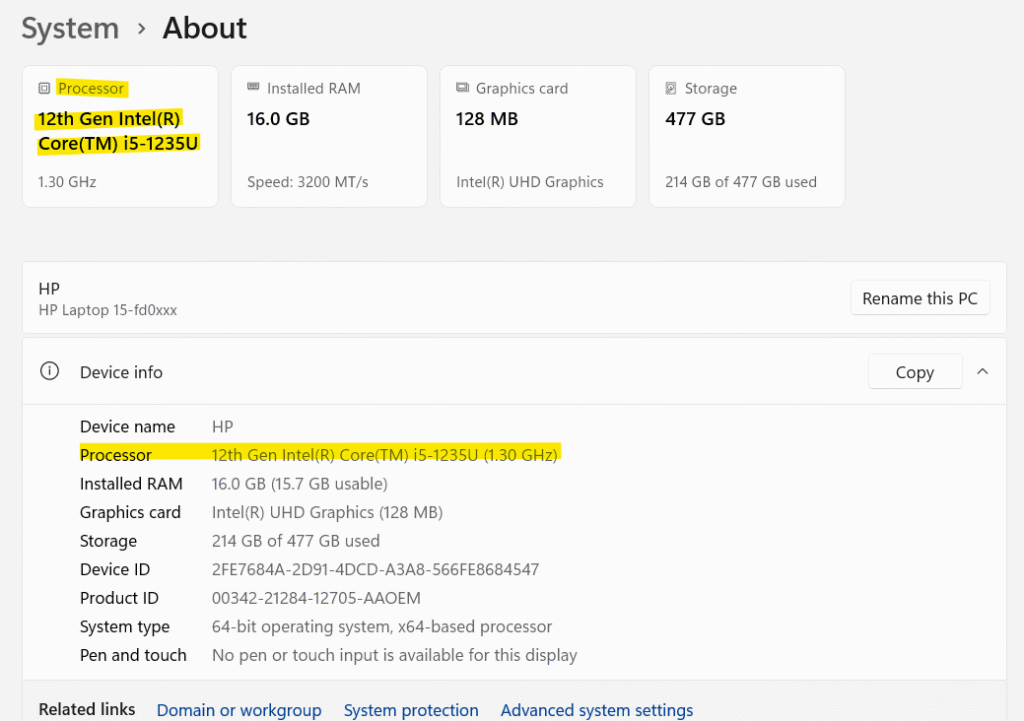
You can also use the “System Information” tool by typing msinfo32 into the search box and then look for the Processor. This tool provides you with deeper details including the number of cores and support for Hyper-Threading and Virtualization technologies.

Check out the article: How to speed up the Edge browser and reduce its CPU resource consumption
macOS System
- Click on the Apple icon in the upper-left corner.
- Select “About This Mac”.
- A window will appear displaying the processor name, number of cores, and speed.
For more detailed technical specifications, you can click on “System Report” and then choose “Processor” from the “Hardware” menu.
Linux System
You can rely on the terminal with the command:
uname -a
Or for in-depth details:
lscpu
This command displays processor information including type (e.g., Intel or AMD), number of cores, frequency speed, and support for various technologies.
How to Check the Processor speed, Generation in Smartphones
Smartphones include different processors adopted by companies in Android and iOS systems. Here are the steps to check in each system:
Android System
- Open “Settings” on your phone.
- Go to “About Phone” or “Device Information”.
- Look for “Processor” or “Chipset” where the processor name appears like Snapdragon or Exynos or MediaTek with mention of the core and frequency.
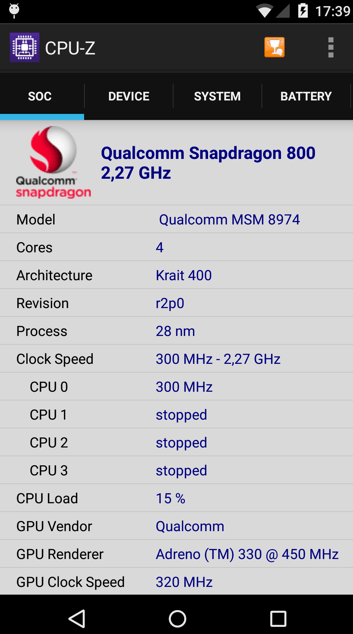
Another alternative: If you don’t find any information about the processor in About Phone, you can use lightweight applications on the Google Play Store such as CPU-Z or AIDA64 to read details about the processor, memory, and graphics unit professionally.
iOS System
1. Open “Settings” and then select “General”.
2. Go to “About” and look for the “Model” which you can search online to find out the processor used (e.g., A14 Bionic or A15 Bionic).
Apple does not provide processor details directly in the settings list, so searching for the Model Number is a necessary step to know the type of SoC (System on Chip) used.
Additional Tips
- Update Drivers: Keep your processor drivers updated from the manufacturer’s website for optimal performance and system stability.
- Monitor Performance: Use tools like Task Manager in Windows or Activity Monitor in macOS to track processor usage and adjust unnecessary processes.
- Good Cooling: Especially in laptops, ensure that the ventilation openings are clean and not obstructed to avoid overheating and its negative impact on the processor.
- Utilize Battery Power: On phones, choose “Battery Saver” settings that reduce the processor frequency when high performance is not needed.
- Upgrade When Necessary: When purchasing a laptop or computer, review the type of processor, number of cores, and the appropriate technology generation for your use (e.g., using a modern generation for design tasks or gaming).
Frequently Asked Questions
Q: Why does processor performance differ from one device to another even with the same model?
A: Performance depends on several factors such as memory speed, motherboard type, cooling system, and default power settings.
Q: Can the processor be replaced in a laptop?
A: In most modern laptops, the processor is soldered to the motherboard and cannot be replaced. Changes are usually limited to desktop computers.
Q: How do I know if the processor supports Hyper-Threading or SMT?
A: In Windows, you can check for “Threads” lines using the System Information tool or use lscpu in Linux to search for “Thread(s) per core.”
Q: Does the type of processor affect battery life in phones?
A: Yes, modern processors combine high performance with energy efficiency, so the newer the processor, the lower its battery consumption tends to be.
By using the steps and techniques we have reviewed, you can easily know the type of processor in your devices, assess its performance, and adjust its settings according to your needs, enhancing your daily usage efficiency and helping to protect your device from potential issues.