We will discuss how to log in to YouTube Studio through the desktop and how to enable 2-Step Verification for added security to our YouTube channel, and to secure the ownership of the Google account linked to the channel in case someone takes over our account.
Read also: Google WhatsApp Login (WhatsApp Web)
How to Log In to YouTube Studio
You can easily log in to YouTube Studio from the desktop after opening the YouTube website, logging into your account, and following these steps:
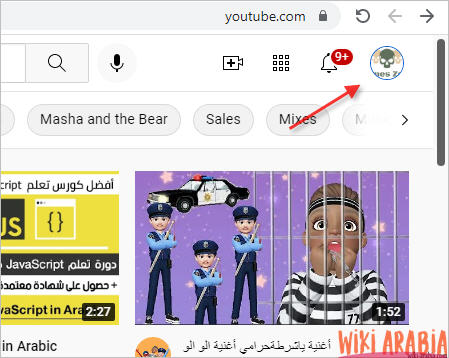
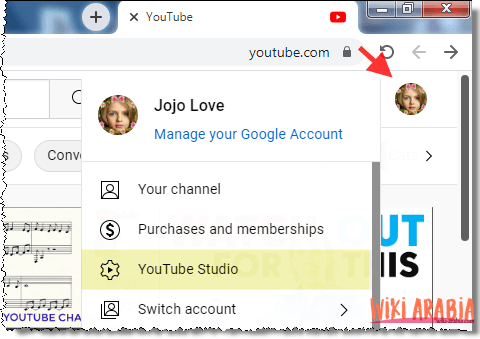
- After logging into your YouTube account, click on your profile picture button.
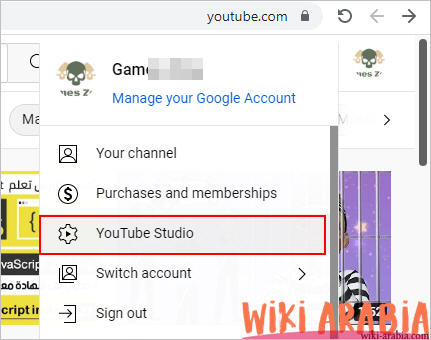
- A menu will appear; choose YouTube Studio from it.
- You can bypass the above by directly accessing the YouTube Studio Login Link.
Logging in to YouTube Studio via 2-Step Verification
2-Step Verification is a feature used to add extra protection to your YouTube channel when logging in, which Google applies to all types of accounts. It relies on additional protection to verify the user’s identity in addition to the password, such as verifying the device you are logging in from, sending a message to your phone number to confirm your identity, or other methods that you can choose individually or combine.
You can enable 2-Step Verification on YouTube or in the primary Google account for the channel by following these steps:
Time needed: 4 minutes
Logging in to YouTube Studio via 2-Step Verification
- Logging into YouTube Studio
Go to YouTube after logging in, then click on the account or channel icon and select YouTube Studio (You can go directly to your Google account and then to Settings)
- Enabling 2-Step Verification from YouTube Studio
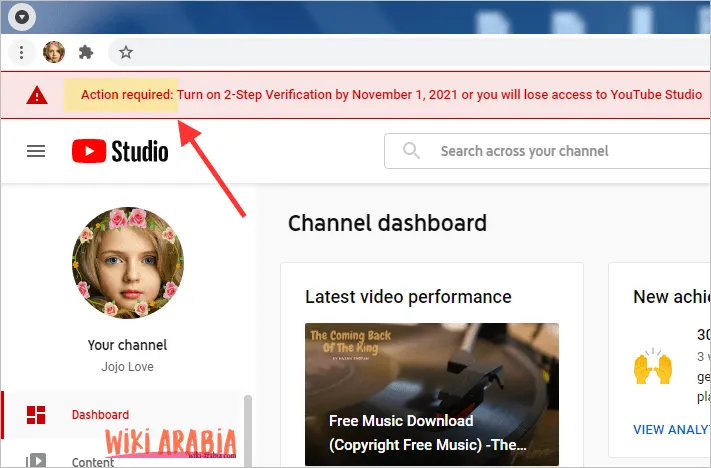
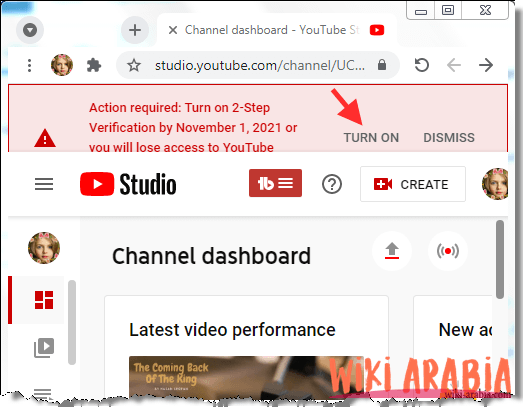
In YouTube Studio, you will see the message appearing at the top; click on Turn On
- Logging into the Google Account Linked to the Channel
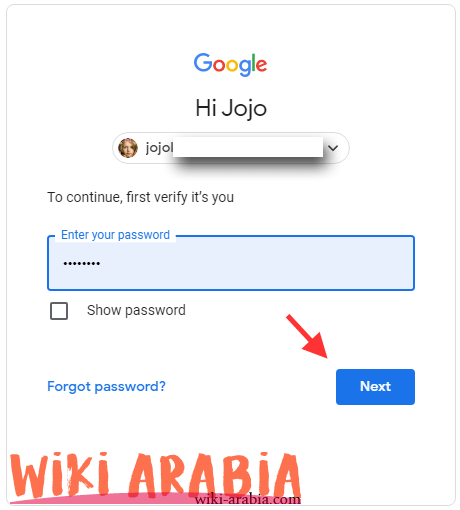
You may be asked to log in to your account again. Enter your password.
- 2-Step Verification Page – Get Started
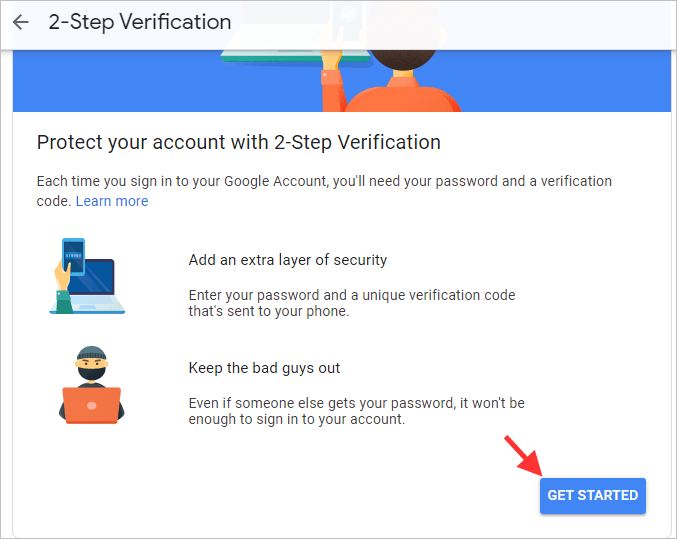
The 2-Step Verification page will appear; click Get started
- Selecting Phone-based 2-Step Verification
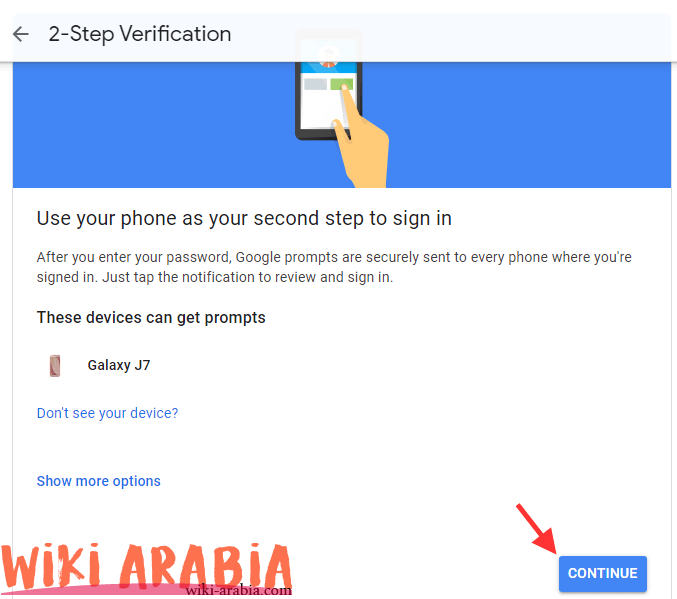
Now YouTube will tell you about the phone being used as a verification method. Click Next.
- Option to Choose Methods Other Than Phone for 2-Step Verification
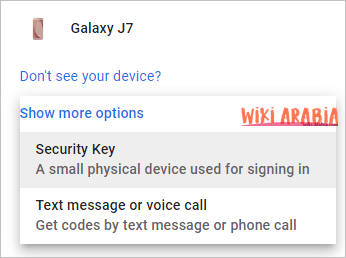
Returning to the previous step, you can click on Show more options to view other 2-step verification options.
- Confirming Phone Number
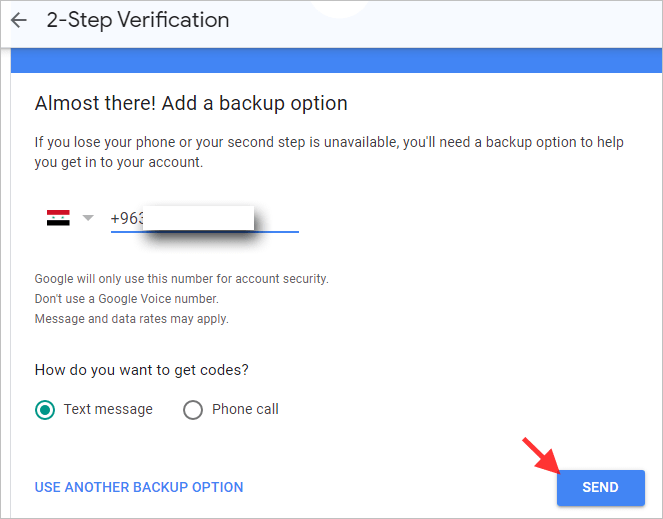
Of course we chose the phone. A page will appear showing your phone number and the verification choice of either Text message or phone call, then click the Send button. You can choose whatever you prefer. If your phone number is temporary, you can click on use another backup method and this is what we will choose in our example (it is up to you).
- Verification Codes
A list containing verification codes will appear, which you must enter to verify your identity when logging in. Click download and save the codes in a safe place.
And if you chose to send a text message or a call, you must enter the code sent to you.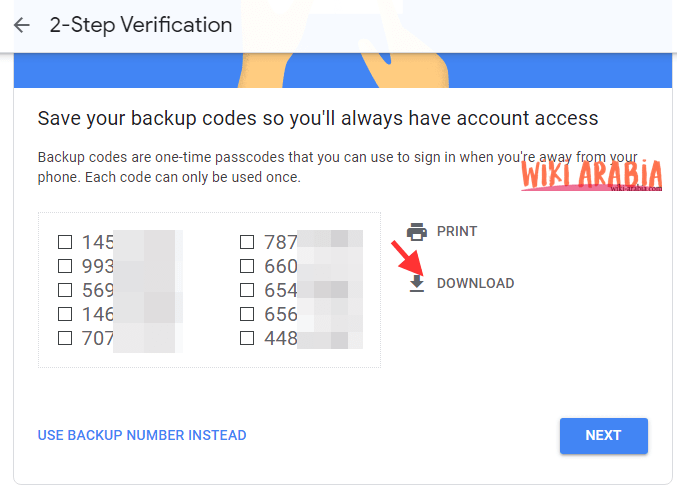
- Enabling 2-Step Verification
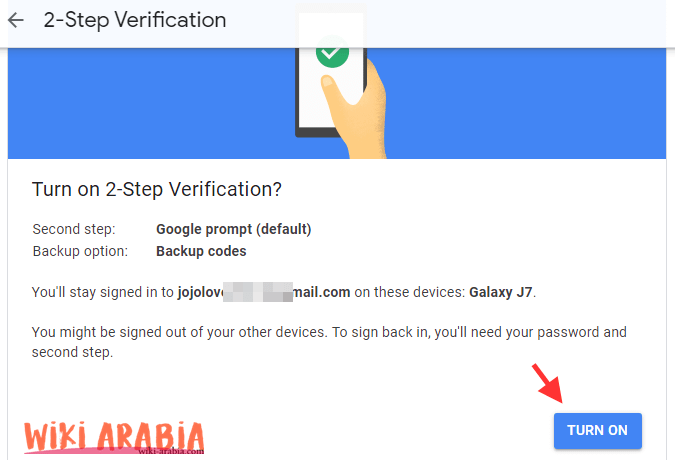
Now click run or Turn on.