Contents
The “LINE” application is one of the most popular instant messaging applications in the world, offering comprehensive communication features through text messages, voice calls, and video calls, along with stickers and daily updates.
Using the desktop version on a computer is an important step for those who want to manage their conversations easily while working or studying. In this article, we elaborate on how to log into LINE on a computer using either email or mobile number, while providing security tips and frameworks to solve common issues.
You may also be interested in: Login to Instagram via Google – Instagram Web
Why is using LINE on PC preferred?
The importance of the desktop version of the LINE application lies in the following:
- It gives users the freedom to type quickly using the keyboard.
- It facilitates transferring files and documents to and from conversations.
- It allows for instant follow-up of conversations within a professional work environment without the need to switch to a smartphone.
- It provides a larger screen displaying details of stickers and media more clearly.
Basic Requirements for Logging into LINE on PC
Before you start the login process, ensure you have the following on your device:
- A new account cannot be created directly from your desktop version on the computer; you must have an activated account on your smartphone.
- Ensure you have downloaded the official LINE app for PC (either for Windows or Mac) from the authorized site, or installed the Google Chrome extension (LINE for Chrome) if you prefer direct browsing.
- If you are using a shared computer with others, it is highly recommended to log out immediately after use to maintain your privacy.
Read also: Login to Snapchat Web via Google for PC
Methods of Logging into LINE on PC
The platform offers you three main methods to access your desktop account:
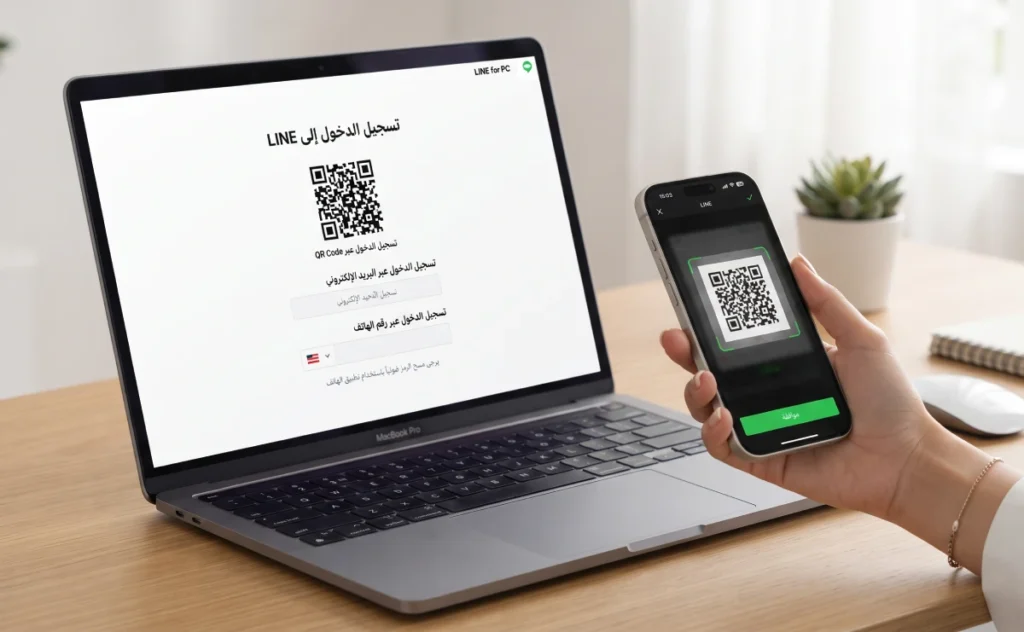
1. Login via QR Code
- Open the LINE application on your computer.
- Open the LINE application on your smartphone, and enable the QR code scanner.
- Scan the QR code displayed on your computer screen with your phone’s camera.
- Click on the “Login” option via your phone to confirm the process.
Note: If the code expires, click on the refresh icon to generate a new code and scan it immediately.
Related: Login to WhatsApp Web for PC via Google
2. Login using Email and Password
- Open the LINE application on the computer.
- Enter the email and password registered in your account earlier, then click the Login button.
- If you forgot your email, you can use your mobile number to recover the account and log in again.
Helpful Tips:
- You can activate the “Log me in automatically” option to avoid re-entering data in the future.
- If you forget your credentials or have not linked an email to your account yet, you will need to review and update your account information through the app settings on your primary phone.
3. Login using Biometrics
This feature allows you to use the fingerprint or face recognition previously registered on your phone, offering you a more secure and faster login experience compared to traditional methods.
Additional Security Verification Procedures (When Logging in for the First Time)
You may see a “Verification Code” interface on your computer screen if you are logging in for the first time or after reinstalling the app. To complete this:
- Open the LINE application on your primary smartphone linked to the account.
- Enter the verification code shown on the computer screen in the designated area on your phone.
- Verify the device trying to log in, then check the confirmation box and click “Verify”.
Important Alerts:
- The code must be entered within a maximum of 3 minutes before it expires.
- If the verification code screen does not appear on your phone, restart the mobile app and try logging in again on the computer.
Logging Out of LINE from the Desktop
- Open the LINE application on the computer.
- Click on the settings icon or menu located at the bottom of the main menu.
- Select “Log out”.
Solutions to Common Login Problems
You may encounter some common problems during the login process, such as:
Error in Password or Email
- Make sure you are not mixing uppercase and lowercase letters.
- Ensure you have a good internet connection.
- Recover your password via the “Forgot Password” option in the login window.
Not Receiving SMS Verification Message
- Check the accuracy of your mobile number and ensure the country code is entered correctly.
- Make sure you have good mobile network coverage.
- Wait a few minutes, or re-request the message if you have not received it after 5 minutes.
Chat Syncing Failure
- Make sure to update the LINE app on your phone to the latest version.
- Close the app and restart it on both phone and computer.
- Use a different internet network if the issue persists.
Verification Code Login Failure to LINE
If you encounter any issues like this, update the LINE app on your phone to the latest version and carefully follow the above login steps.
You may be interested: Solution for not receiving the WhatsApp activation code
Best Security Practices When Logging into LINE on PC
To keep your account and personal information secure:
- Use a strong password consisting of uppercase and lowercase letters, numbers, and symbols.
- Enable two-factor authentication (2FA) if available in your account settings.
- Do not share your login details with others.
- Be sure to log out (Log out) when finished, especially if you are using a shared device.
Additional Tips
- Use the cloud backup feature for your chats via Google Drive or iCloud so you don’t lose them when switching devices.
- Download the official LINE stickers or special stickers from institutions and companies to enhance your interaction with friends and colleagues.
- Explore the “Timeline” feature to follow friends’ updates and participate in discussions on PC with a larger interface.
- Create group chats for friends or work teams to increase productivity and quick coordination.
Frequently Asked Questions (FAQ)
Can I log into one LINE account on multiple computers?
Yes, you can log into the same account on two or more devices, but syncing may take some time depending on internet speed.
What should I do if I forget the registered email?
– Use the mobile number to proceed with the recovery and registration processes.
– Contact LINE support through the form available on the official website to verify account ownership.
Does LINE on PC support voice and video calls?
Yes, you can make and receive voice and video calls through the desktop version with the same quality as the smartphone.
Do conversations get deleted when logging out?
Conversations are not deleted from LINE’s servers, but they do not appear in the app until you log back in.
Why was I suddenly logged out of the LINE app on my secondary device?
The system may automatically log you out of your account on the secondary device for the following reasons:
- Logging into your account from another secondary device.
- Modifying the email, password, or phone number through your primary device (Note: Changing the phone number is exclusive to users in Hong Kong, Japan, Korea, Taiwan, or Thailand).
- Manually logging out from the secondary device via the “Devices” section in your account settings on the primary device.
- Deleting your LINE account or transferring its data to another device.
- Deactivating the device lock method from your primary account.
- A technical failure or internet connection issue.
- Having the app on the secondary device idle for too long without use.
If you experience an issue logging out from the secondary device, please try logging in again.
In this way, we have provided a comprehensive and detailed guide explaining how to log into LINE on PC either using email or mobile number, highlighting best security practices and solutions to common problems. By following these steps, you will be able to use LINE efficiently and smoothly in a workplace or home environment.
Read also: Login to Telegram Web via Google
Source: line.me