Contents
Sometimes we may want to block visitors from an entire country from accessing our website for various reasons. These include security reasons or an attack from certain bots coming from a specific country.
Today, we will learn the best and fastest ways to block visitors from a certain country from accessing our website.
Related: Best Browsers to Open Blocked Sites
Why You Might Need to Block Visitors from a Certain Country?
Blocking visitors from an entire country may seem like a drastic step at first, but it is often a necessary security and regulatory measure to protect your website and its stability.
One of the most significant reasons that drive website owners to take this step is the noticeable rise in fake traffic or bot visits that provide no real value but consume server resources.
More importantly, a massive influx of fake visits from specific countries can mislead advertising network algorithms like Google AdSense, resulting in views with a zero profit rate, and potentially exposing your account to the risk of suspension due to suspected invalid clicks or interactions.
Therefore, geographic blocking becomes an effective means to filter traffic and focus on the real target audience.
Here are the best and fastest methods available to implement this block, ranked by suitability.
Check out: Easiest Website to Access Blocked Sites for Free Without Programs in 2026
1. Blocking via Cloudflare Service
If your website is linked to the Cloudflare service (which is free and offers excellent protection), you can easily block the targeted country in just a few steps without putting pressure on your server:
- Log in to your Cloudflare dashboard.
- Select your website domain.
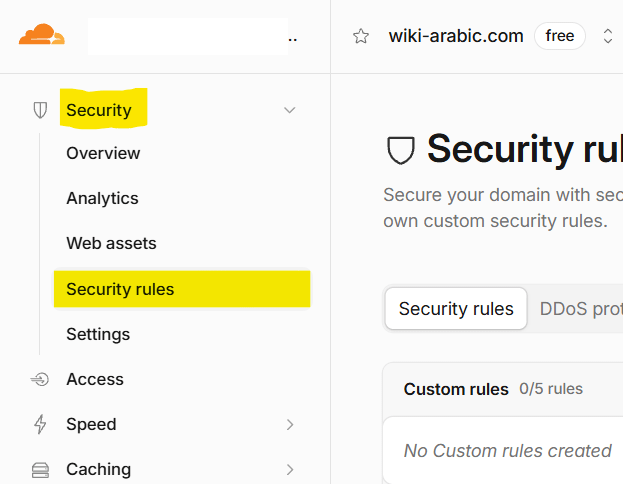
- From the sidebar, go to Security. Then select Security Rules.
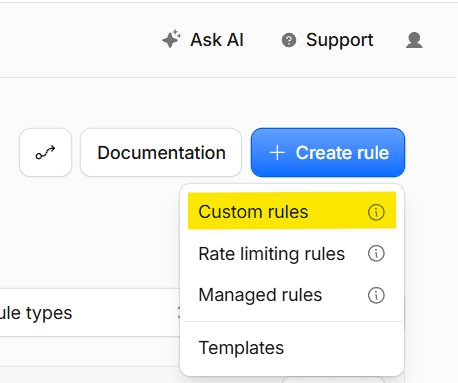
- In the upper right corner, click on Create rule+ and then select Custom rules.
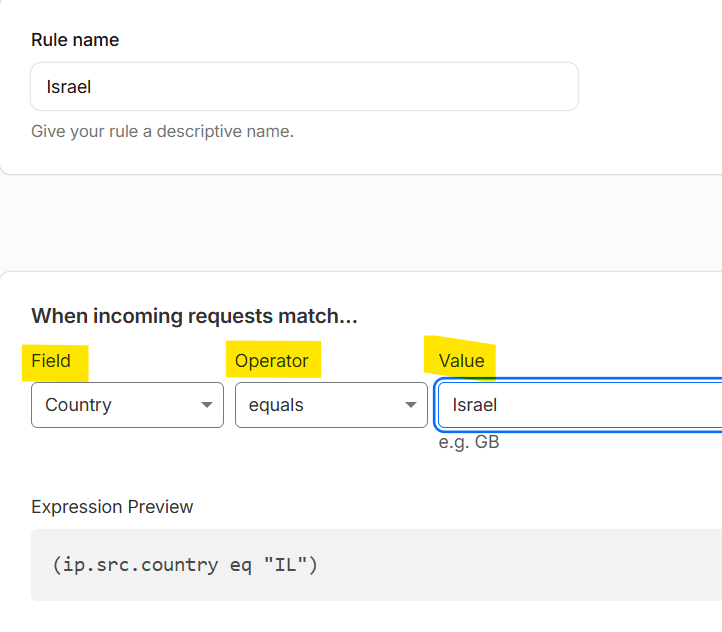
- In the Rule name field, name your rule (e.g.:
Block Israelor Israel) or block the state entity. - In the Field box, select Country.
- In the Operator field, choose Equals.
- In the Value field, choose Israel.
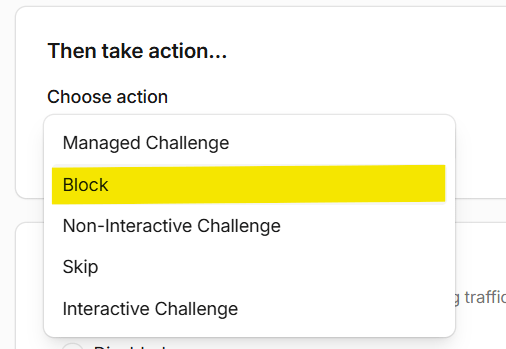
- In the Choose action field, choose Block. And note there are 5 crucial options because the block option must be the last choice; we will explain that later.
- Click Deploy to start the block.
Explanation of Blocking Options Based on Visitor’s Geographic Location
Here are explanations of the available Choose action options in Cloudflare that will be taken against visits from the specified country:
- Block: This is the required option for our case. It prevents the visitor from accessing the website entirely and displays an error page indicating that access is blocked.
- Managed Challenge: Cloudflare automatically evaluates the visitor; if they are a real human browser, they are quietly let in, and if there’s suspicion that it’s a bot or a suspicious search engine, a verification test (like a light Captcha) appears to ensure they are human.
- Interactive Challenge: Forces any visitor coming from this country to solve a visual verification test (like clicking on images or verification codes) before being allowed to enter the site.
- Non-Interactive Challenge: Checks the visitor’s browser and behavior in the background without disturbing humans, and if any automated behavior is detected, it is blocked immediately.
- Skip: Used if you have general rules that you want to exclude this country or condition from.
Read also: How to Change Your Geolocation and IP for Free on iPhone Without VPN Software
2. Blocking through the .htaccess File
This method (if your site runs on an Apache/cPanel server)
If you are not using Cloudflare and want to block visits through the hosting server directly, you can use codes based on country codes (GeoIP).
Note: This method requires the GeoIP library to be enabled on your hosting server.
Open the .htaccess file located in your website’s main folder and add the following code:
Apache
<IfModule mod_geoip.c>
SetEnvIf GEOIP_COUNTRY_CODE SG BlockCountry
Deny from env=BlockCountry
</IfModule>
Replace the code SG, which represents Singapore in our example, with the code of the country you wish to block.
3. Blocking Visitors from a Country on My WordPress Site
If your site is designed with WordPress, you can use custom plugins to manage security or geographic blocking easily from the dashboard:
- Install either of the two plugins iThemes Security or Wordfence Security: These plugins have geographic blocking features based on the IP of the country from which the visits come (Country Blocking).
There are specific blocking plugins such as IP Geo Blog or Country Blocker.
Blocking Visitors from a Country Using PHP Code
To block using PHP and rely on free libraries to determine the country via the visitor’s IP address, you can use the free MaxMind GeoLite2 libraries (which require downloading a database in .mmdb format), or rely on ready-made light free APIs that do not require storing massive files on the server.
Here’s the easiest and fastest way to block visitors from a country using a free API (like ipapi or ip-api) that determines the country directly based on the IP without needing to download heavy databases.
This is the PHP code to block visitors from a country but of course, replace the code SG with the code of the country you want to block. (But where to place the code? Follow along)
<?php // Function to get the visitor's real IP address function get_client_ip() { $ipaddress = ''; if (isset($_SERVER['HTTP_CLIENT_IP'])) $ipaddress = $_SERVER['HTTP_CLIENT_IP']; else if(isset($_SERVER['HTTP_X_FORWARDED_FOR'])) $ipaddress = $_SERVER['HTTP_X_FORWARDED_FOR']; else if(isset($_SERVER['HTTP_X_FORWARDED'])) $ipaddress = $_SERVER['HTTP_X_FORWARDED']; else if(isset($_SERVER['HTTP_FORWARDED_FOR'])) $ipaddress = $_SERVER['HTTP_FORWARDED_FOR']; else if(isset($_SERVER['HTTP_FORWARDED'])) $ipaddress = $_SERVER['HTTP_FORWARDED']; else if(isset($_SERVER['REMOTE_ADDR'])) $ipaddress = $_SERVER['REMOTE_ADDR']; else $ipaddress = 'UNKNOWN'; return $ipaddress; } $visitor_ip = get_client_ip(); // Exclude localhost or local IP during testing if ($visitor_ip != '127.0.0.1' && $visitor_ip != '::1') { // Use a free service to get country information (like ip-api) $response = @file_get_contents("http://ip-api.com/json/{$visitor_ip}?fields=status,countryCode"); if ($response) { $data = json_decode($response, true); if (isset($data['status']) && $data['status'] == 'success') { $country_code = $data['countryCode']; // If the country is Singapore (code SG) block it if ($country_code === 'SG') { header("HTTP/1.1 403 Forbidden"); echo "Access Denied: You are not allowed to view this site."; exit(); } } } } ?>For WordPress Sites
If you own WordPress: You can place this code at the beginning of your site’s main header file (like header.php or the main entry file).
For General Sites (WordPress and others)
Create a file named something like block_sg.php and put the previous code in it. You have two options to ensure that the code is executed on all pages of the site:
First option: If your site runs on an Apache server, you can make the server execute this file automatically in the background of every requested PHP page without needing to modify any core programming files. Add the following line to the .htaccess file in the root of the site:
php_value auto_prepend_file "/path/to/your/block_sg.php"(Note: Replace the above path with the actual full path of the file on the server).
Second option: If your site relies on a single main entry file through which all requests go (like index.php or a general configuration file called at the beginning of every page), it is sufficient to place just one line at its beginning:
include_once 'block_sg.php';These methods make the blocking process entirely centralized and outside of design or header files.
You might be interested in: Know your IP Address