Contents
In this article, we will learn how to update the Google Chrome browser for PC and mobile for free, whether on Windows 10, Windows 11, or mobile operating systems.
Why You Should Update Google Chrome
Updating Google Chrome is very important—it is not just a technical detail, but an essential component for security and performance. Below, we summarize the main reasons why updating Google Chrome is absolutely necessary:
Security: Protection Against Viruses and Hacking
The primary reason to update Chrome is security, especially to safeguard your saved passwords and bank account details on your computer.
- Google releases frequent updates to patch security vulnerabilities discovered by researchers and attackers.
- Delaying updates leaves these vulnerabilities open, making them susceptible to exploitation for hacking your device or stealing your data.
- Security updates usually happen automatically, but restarting the browser is necessary to apply them.
Read about creating a Google page
Performance and Speed Improvements
- Every new version of Chrome includes optimizations for page loading speed, RAM consumption, and power efficiency. (And yet, it still gobbles up RAM ^^)
- Updates help run modern websites smoothly.
- They also fix bugs that might cause slow browsing or unexpected crashes.
Updating Chrome regularly makes browsing faster and more stable.
New Features and Better User Experience
- Updates introduce new functions and features such as:
- Built-in AI tools (Google AI).
- User interface enhancements (a cleaner, more intuitive design).
- Better password and notification management tools.
- These features make using Chrome more productive and convenient.
Compatibility with the Latest Websites and Technologies
- Some websites use the latest web standards (HTML5, CSS3, WebAssembly…).
- If your browser is outdated, certain pages or web apps may crash or display incorrectly.
- Updating ensures Chrome supports modern web technologies seamlessly.
Fixing Previous Errors and Issues
- Sometimes issues occur with tabs, login sessions, or video playback.
- Regular updates contain bug fixes that enhance the overall user experience.
How to Update Google Chrome for PC
Here is how to update the Google Chrome browser on Windows 7, Windows 10, or Windows 11 (the process is identical across all versions):
Time needed: 1 minute
How to update Google Chrome for PC
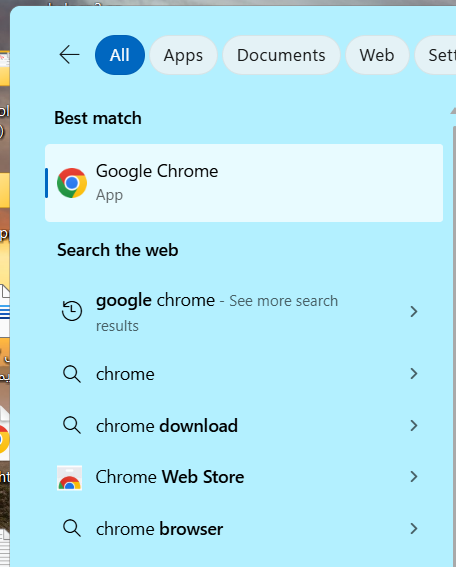
- Opening Google Chrome
First, search for “Chrome” in your computer’s Start menu, and you will find the browser icon as shown in the image. Click it to open the browser.
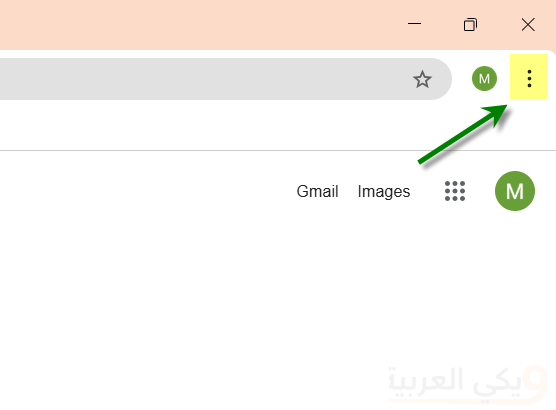
- Opening the Google Chrome Menu
In the upper corner of the browser, locate the menu button (⋮) (represented by three vertical dots).
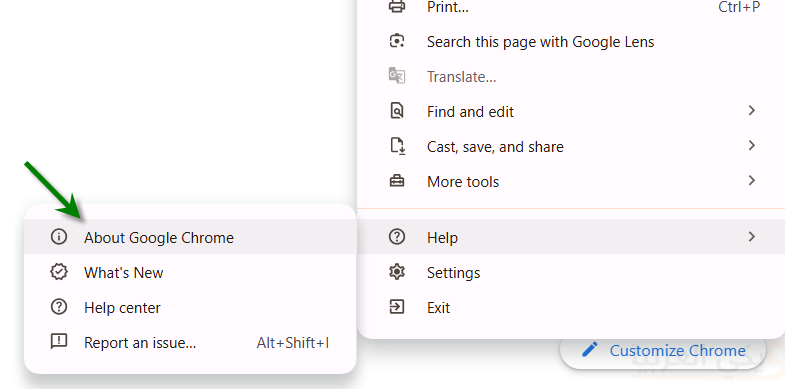
- Current Google Chrome Version
Now the browser menu will open. Near the bottom, click Help then select About Google Chrome.
- Updating Google Chrome on PC
The browser will now display your current Google Chrome version. If you see “Chrome is up to date”, no action is needed as you are on the latest release.
However, if an Update or Relaunch button appears, click it to restart the browser with the update applied.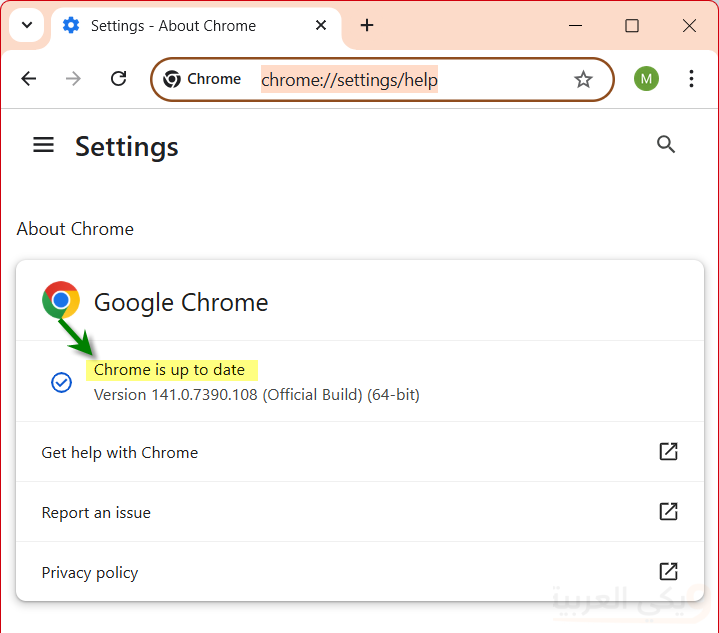
In older versions, you had to click the button and wait for the installer download to complete in your Downloads folder. You would then open Downloads, run the setup file, and follow the instructions.
Alternatively, you can find the installer in Chrome’s top download bar.
You may also like: Delete search history in Google Chrome
Quick Method to Update Google Chrome
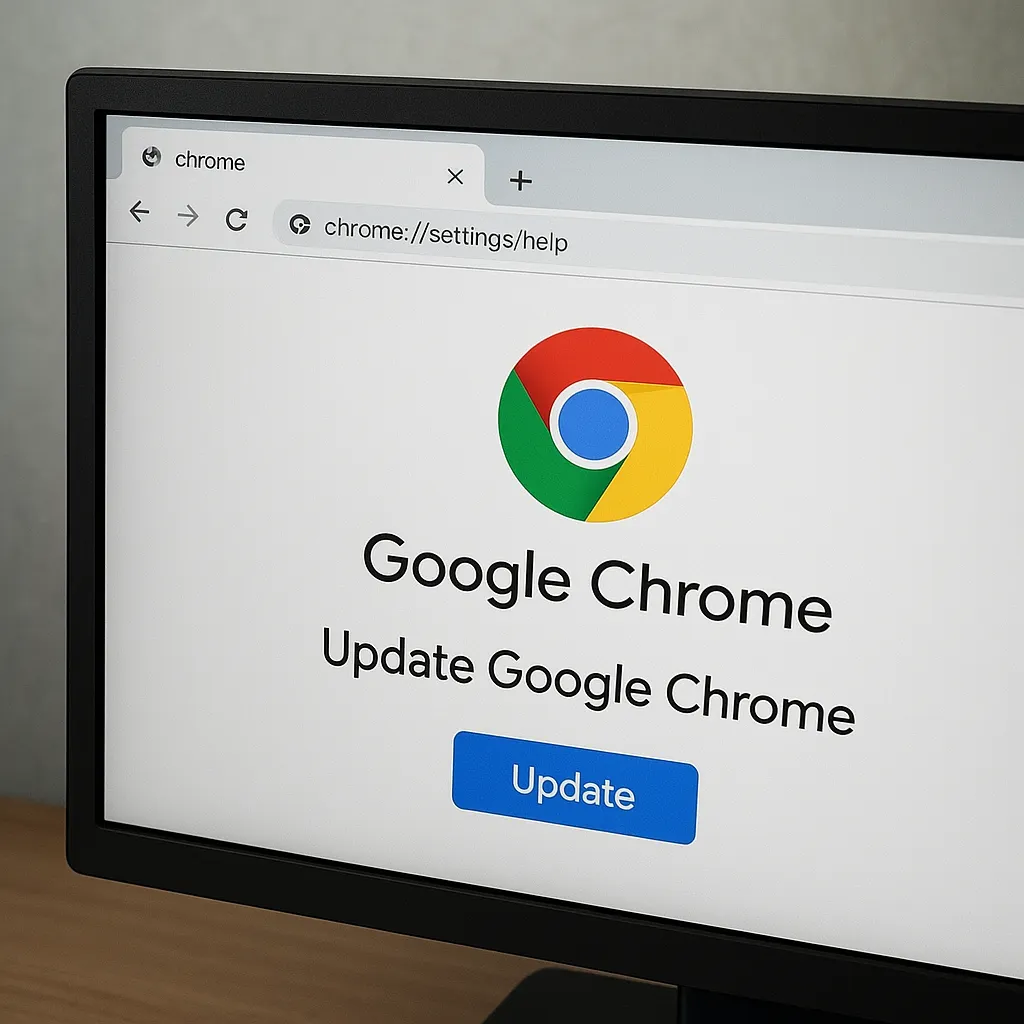
You can update Chrome directly by pasting the following link into your address bar: chrome://settings/help and then clicking the Update button if your installed version is not up to date.
Updating Google Chrome on Windows 7
Unfortunately, Google has ended support for Windows 7.
Don’t worry, the solution is to search for Google Chrome alternatives on Windows 7. In the next section, we provide 3 alternatives.
Currently, you cannot update Google Chrome on Windows 7. If you have Chrome installed on Windows 7, you will see a perpetual notification banner every time you open the program.
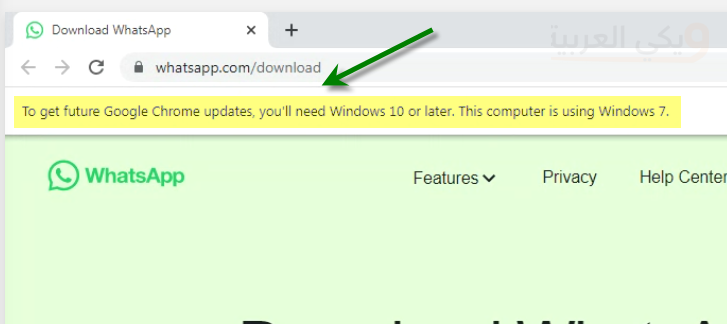
This notification means Google has discontinued Windows 7 support and recommends upgrading to at least Windows 10 to receive Chrome updates.
Note: The last Chrome version to support Windows 7 was Version 109. Currently, as of writing this article in October 2024, the browser is on Version 141.
Google Chrome Alternatives on Windows 7 (32-bit)
Here are the top alternative browsers to replace Google Chrome on older systems like Windows 7 (32-bit):
1. Firefox Browser (Extended Support Release – Firefox ESR 115)
- Details: This is the premier, most secure, and stable option for Windows 7. Mozilla designated version 115 as the final release supporting Windows 7 and 8.1, providing regular security patches through the Extended Support Release (ESR) channel so you can browse modern sites reliably.
- Download Link
2. Pale Moon Browser
- Details: A free, open-source browser built on an independent engine (derived from legacy Firefox developments). It is engineered specifically for older devices and deprecated operating systems like Windows 7 (both 32-bit and 64-bit), consuming far fewer resources than Chromium-based browsers.
- Official Pale Moon Link (Tested by the Wiki-Arabic team).
3. K-Meleon Browser
- Details: An extremely lightweight and fast browser based on Mozilla’s Gecko layout engine. It features exceptionally low RAM usage, making it ideal for low-spec PCs running Windows 7 that struggle with resource-heavy browsers.
Important Technical Note: Most modern Chromium browsers (such as Google Chrome, Microsoft Edge, etc.) have completely severed support for 32-bit systems and Windows 7 long ago. Relying on the alternatives listed above or ESR versions is the remaining practical solution for stable internet browsing.
Updating Google Chrome via the Official Google Chrome Website
If Google Chrome is not installed on your computer at all, you will need to download it using another browser. Simply head over to the official update/download link: https://www.google.com/chrome/
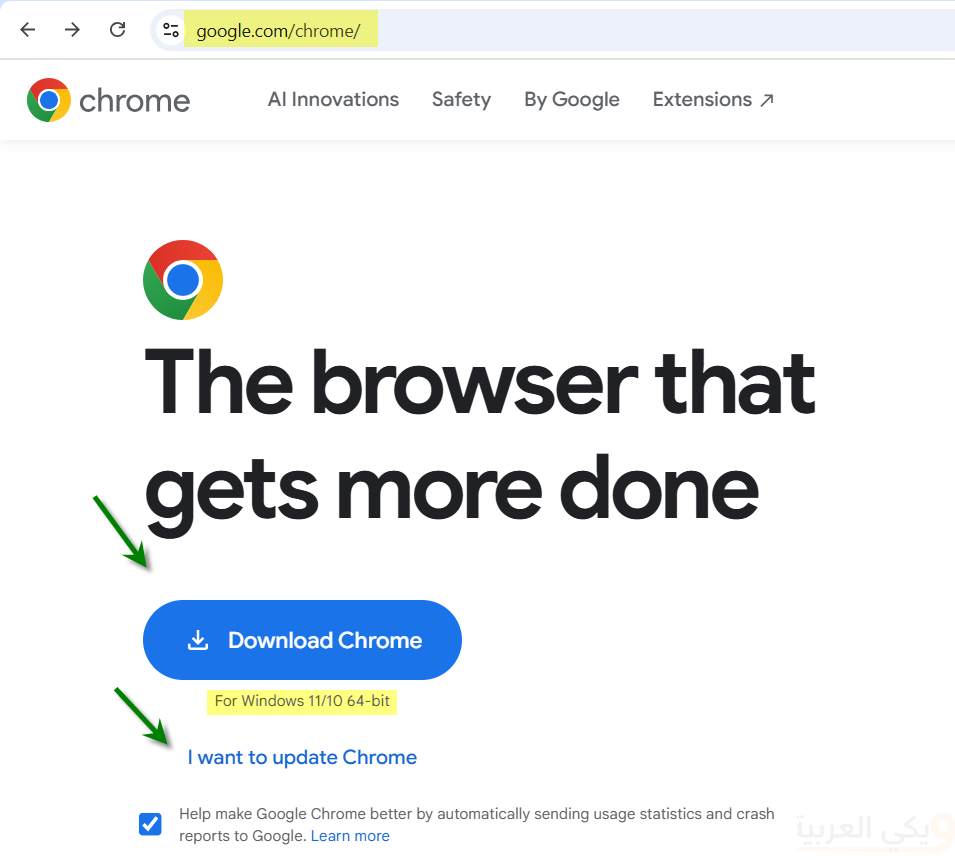
In the screenshot above, you will notice the Download Chrome button, along with an I want to update Chrome link if you already have Chrome installed and only wish to update.
Note that the label “For Windows 11/10 64-bit” automatically adjusts according to your operating system.
Read about enabling cookies in your browser
Updating Google Chrome on Android and iPhone
First, you can scan the QR code below using your camera to download Google Chrome from the official website:

If the image code changes for any reason, it is accessible via the same link: https://www.google.com/chrome/ in the corner.
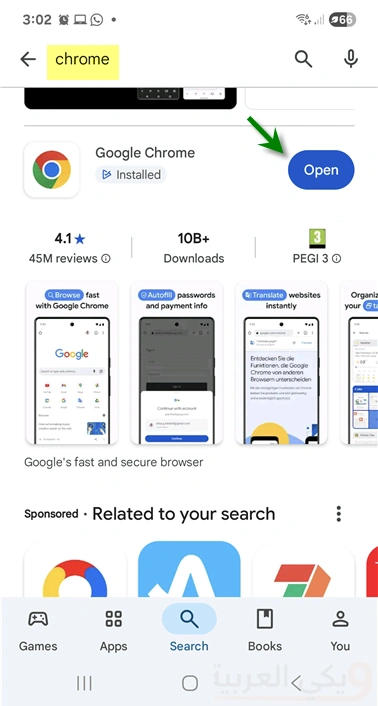
Method 2: The most convenient way to update Google Chrome on mobile is through your app store. Open Google Play on Android (e.g., Samsung, Google Pixel, or Huawei) or the Apple App Store on iPhone, search for “Chrome“, and tap Download or Update.
Note that in the screenshot below, the button says “Open”, indicating the app is already installed and updated to the latest version.
Read: Google Chrome shortcuts for Android and PC
Method 3: Steps for updating Google Chrome on mobile via store management:
- Open Google Play
- Tap your account icon in the top corner.
- Select Manage Apps & Device
- Tap Updates available
- Locate the Google Chrome icon and tap Update next to it if an update is available.
Open the menu (⋮) in the top-right corner.
Select Help then About Google Chrome.
The browser will automatically check for and install updates.
If an update is found, click Relaunch to apply it.