Contents
Many users of Windows 10 and 11 experience slow boot processes, which affects their daily usage experience and wastes precious time. Managing startup programs directly contributes to faster boot times and improved overall device performance.
This article will present effective and proven methods for managing Startup Programs to accelerate the boot process of Windows 10 and 11 based on several sources, along with detailed explanations and practical tips.
Check out the detailed article Method to Speed Up Windows 11
The Concept of Startup Program Management and Its Importance in Speeding Up Boot
Startup programs are applications and services that automatically run when the system starts. These programs consume processor and memory resources even before they start working, which delays the loading of the desktop and essential applications. By managing these programs and disabling or postponing unnecessary operations, you can:
- Significantly reduce boot time.
- Improve system responsiveness at startup.
- Extend the lifespan of hardware components by reducing their load during the boot phase.
Ways to Access the Startup Program List in Windows 10 and 11
Windows 10 and 11 offer several ways to control startup programs, including:
1. Task Manager
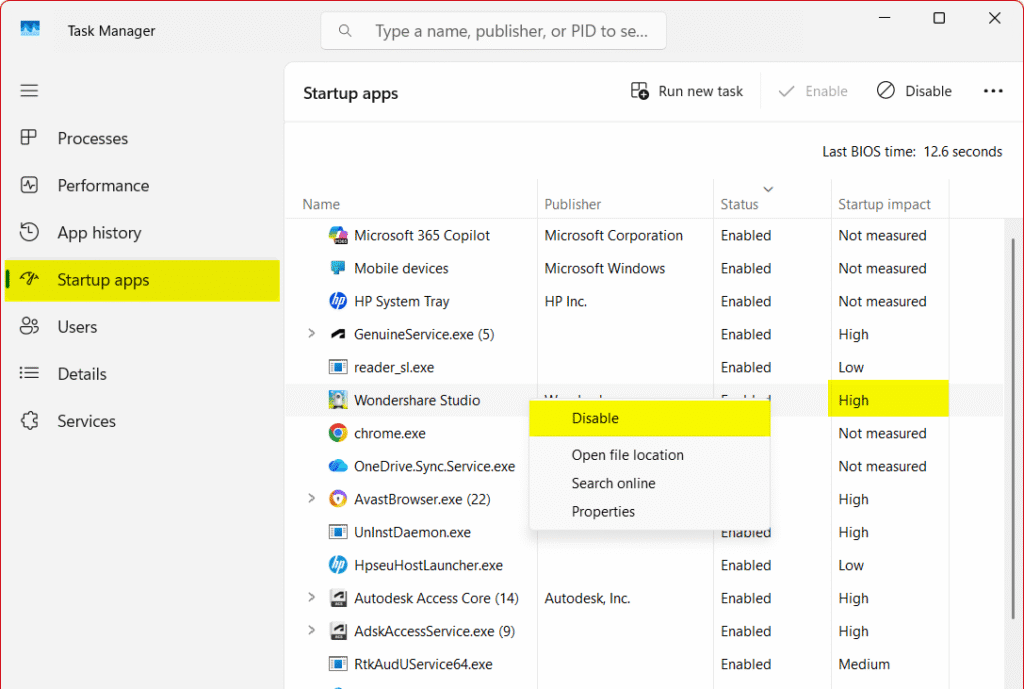
Press Ctrl + Shift + Esc then go to the Startup Apps tab. A list of programs will appear along with their impact ratings on boot (High, Medium, Low).
2. Windows Apps Settings
Open Settings then go to Apps then Startup. From here, you can easily enable or disable applications.
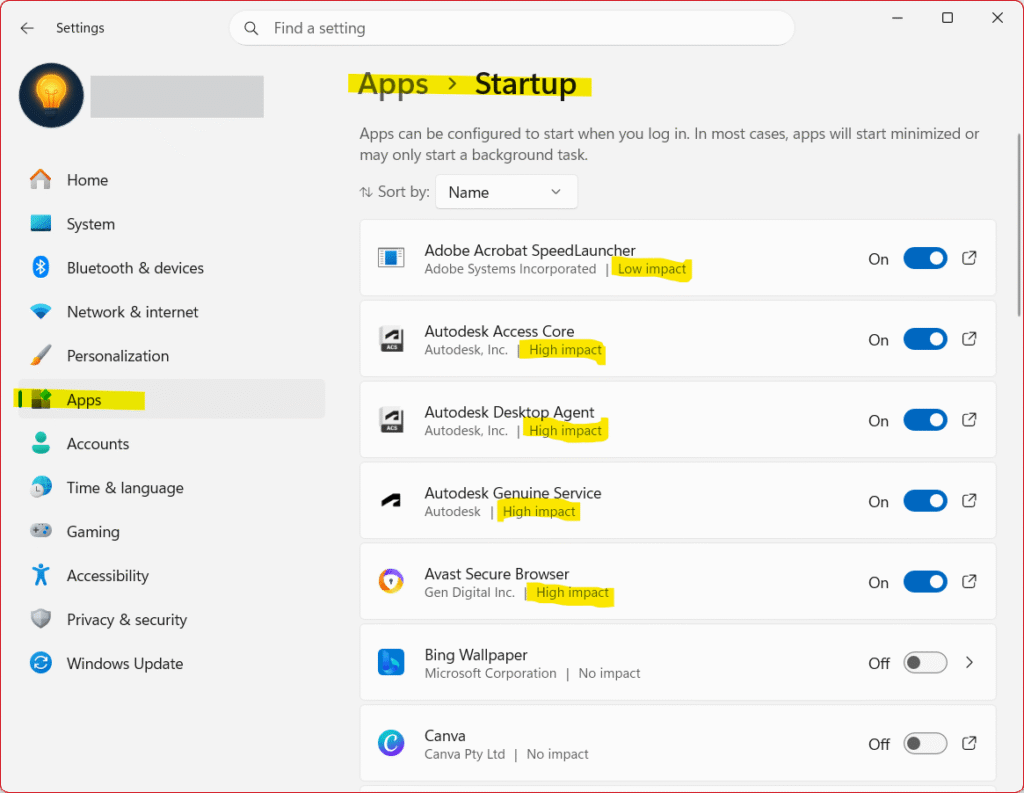
3. System Configuration Tool (MSConfig)
Press Win + R and type msconfig then open the Startup tab. You will be redirected to Task Manager by clicking on the Open task manager link or see the boot programs according to the system version.
Evaluating Startup Programs and Estimating Their Impact on Boot Speed
Before disabling any program, it is essential to understand its role and importance. Follow these steps:
A. Review the Impact rating in Task Manager:
• High Impact: Significantly delays boot.
• Medium/Low Impact: Might not significantly affect boot time.
• Not measured: Impact not assessed yet (unknown impact).
B. Check the program’s function: Is it a critical security program, or an automatic update tool that can be run later? (We will cover this in detail later in the article).
C. Consult specialized websites and reports for user and expert opinions on each program.
Disabling Unnecessary Programs or Delaying Their Launch
After evaluation, you can disable programs you do not need immediately at startup:
- In the Startup tab in Task Manager, select the program and press the Disable button.
- You can click on the Status column to sort programs by their status (Enabled/Disabled)
- Or you can click on the Impact column to sort them by their influence on boot.
- For applications that you need later, you can use delayed startup tools available in some professional applications.
Using this method (Delay Startup), programs will start after you log into the desktop with an interval you specify.
But which startup programs can you safely disable without causing issues?
Unnecessary Startup Programs That Can Be Safely Disabled
When installing programs and games on Windows 11, many of them quietly add themselves to the startup list to run automatically in the background, leading to unwarranted RAM consumption and significant slowness while operating the device.
To enhance computer efficiency and speed up its boot, you can safely disable applications that you do not need to run immediately upon starting the device (such as chat applications, game launchers, unused cloud storage programs, and automatic update tools), as this disabling will not affect the operation of the programs at all when opened manually later.
Table of Common Startup Programs Safe to Disable in Windows 11:
| Program Name / Common Process | Function of the Program in the Background | Why You Can Safely Disable It? |
| Microsoft OneDrive | Sync files to the cloud with Microsoft account. | If you do not rely on it daily, you can disable it and open it manually only when you want to upload or download files. |
| Microsoft Teams | The official chat and meeting application from Microsoft. | It uses a huge amount of device resources at boot, disabling it prevents annoyance; you can only open it when needed. |
| Google Chrome / Microsoft Edge | Background pre-launch modules for browsers. | They make the browser open faster by a fraction of a second, but they keep consuming memory all the time unnecessarily. |
| Spotify / iTunes | Common media players. | They start automatically to prepare the playlists, and disabling them improves performance without preventing them from working normally when you open them later. |
| Discord / Skype | Voice chat and messaging applications. | They open immediately to log you in and keep you connected, disabling them speeds up the system and you can open them only when you want to talk to your friends. |
| Steam / Epic Games Launcher | Famous game launchers and platforms. | They run in the background to check for game updates, and they are among the most resource-intensive programs right after you turn on the computer. |
| Adobe Update Startup Utility | Tool for checking updates for Adobe software (such as Photoshop). | It runs continuously in the background waiting for updates, disabling it is completely safe as you can manually update from within the programs. |
Tip: We always recommend leaving security programs (such as Windows Security), audio drivers (Realtek), and graphics drivers (Nvidia / AMD / Intel) as they are without disabling for ensuring the stability of core device functions.
Best Free Programs to Speed Up Windows Boot
In addition to built-in Windows tools, there are external programs that offer deeper control:
1. Autoruns
An advanced tool from Microsoft Sysinternals that displays all boot points: from Services, Scheduled Programs, browser add-ons, and more. You can directly disable or delete any item.
The program size is small at 3 MB and lightweight on the computer (Download Autoruns)
2. CCleaner
One of the most popular programs that provides many services such as uninstalling programs and cleaning the registry as well as offering a tab for managing boot programs with a simplified explanation for each process.
It also has an additional feature of cleaning temporary files to free up extra space.
Read the detailed guide on how to free up space on disk C
3. BootRacer
Measures boot time accurately and compares results after every modification you make, allowing you to monitor the effects of each action in real time.
Best Practices to Maintain Stable and Fast Boot Performance
To get the most out of startup management, it is advised to follow these steps regularly:
- Regularly update the operating system and device drivers to ensure software compatibility.
- Review startup programs once a month to ensure no new programs have been added without your knowledge (especially when installing free applications).
- Regularly scan the device for malware that might add itself to startup.
- Use a fast storage disk (HDD to drastically reduce system load times.
Additional Tips
To further improve boot speed and user experience, we recommend the following:
- Adjust BIOS/UEFI settings to enable Fast Boot and disable Legacy USB Support if not needed.
- Enable Hibernate mode instead of Shutdown if you want to quickly return to the previous session.
- Reduce the number of connected peripherals and media during boot such as USB Drives and external cards to speed up device checks.
Frequently Asked Questions
No, not at all. Disabling the program from the startup list means only preventing it from automatically running in the background when the computer starts. You can open and use the program manually at any time without affecting its performance.
As a general rule, you can disable any programs related to games, or chat applications (such as Discord or Skype), or browsers, or update programs (such as Adobe Updater). However, you should avoid disabling programs dependent on Microsoft, audio drivers and graphics (like Realtek or Nvidia), or antivirus programs (like Windows Security).
Search online for expert opinions if you suspect the importance of a certain application.
There is no difference in the end result; both serve the same function. However, the settings interface (Settings > Apps > Startup) in Windows 10 and 11 is generally easier and clearer for the average user, while the task manager provides additional technical details such as how much impact the program has on boot time (Startup impact), but even this has become available in (Settings > Apps > Startup) in Windows 11.
If the slowness continues, it may be due to other factors such as: a full hard disk (especially partition C), corrupted system files, or relying on an old hard drive of type (HDD); in this case, it is strongly recommended to upgrade to a fast SSD to see a massive difference in boot speed.
CCleaner offers an additional feature of providing a “simple explanation and evaluation” of each startup program’s function to help you make a decision, but the built-in Windows tools (Task Manager) are completely sufficient, 100% safe, and do not consume any extra resources from the device.
Disabling high-impact programs when not necessary is safe and beneficial, but it is better to keep security programs and system updates enabled to ensure safety and periodic updates.
Disabling prevents the program from starting automatically until you manually run it, while delaying (Delay) allows it to start after you log in to the desktop after a specific time period.
Enter Task Manager, startup tab, select the program and press the Enable button. You can also use MSConfig or the Autoruns tool to reactivate it.
Generally, these modifications do not negatively affect; rather, they may reduce unnecessary read and write operations during boot, especially when using HDD, which may prolong its lifespan.