Contents
With the continuous increase in cyber threats and malware, it has become essential to professionally adjust the settings of Windows Defender to achieve the highest level of protection while ensuring the best performance for your computer.
This article provides a detailed guide on the best Windows Defender practices and settings according to the recommendations of the most reliable global sources, as well as adding explanations and practical tips to help you improve your device’s security and speed at the same time.
Related: How to remove viruses and malware from Windows 11
What about Windows Defender Settings
Windows Defender is the security solution integrated with Windows 10 and 11, relied upon by millions of users worldwide. Although it is effective by default, manually adjusting the options enhances its ability to fight viruses and malware. The correct settings:
- Help with early detection of viruses and security threats.
- Reduce excessive consumption of device resources and speed.
- Ensure a smooth and improved user experience.
Downloading Windows Defender on Windows 11
Many users search for a download link for Windows Defender for Windows 11, but the technical truth is that the program comes integrated automatically as a core part of the system under the name “Microsoft Defender”.
If you are experiencing an issue with the disappearance of the program or it not working, you do not need to download an external file, but you can reactivate and repair it directly by following these steps:
- Go to Settings
- Privacy & Security
- Windows Security.
- Then click on Repair or reset the system to restore the entire security system free and securely.
Regularly Update Windows Defender
The first step to ensure maximum protection is to enable automatic updates for virus definitions and the scanning engine. The following is recommended:
Enable Automatic Updates
- Open the Settings > Privacy & Security > Windows Security > Virus & threat protection menu, and then make sure to turn on the option: Automatically download updates in the protection updates section.
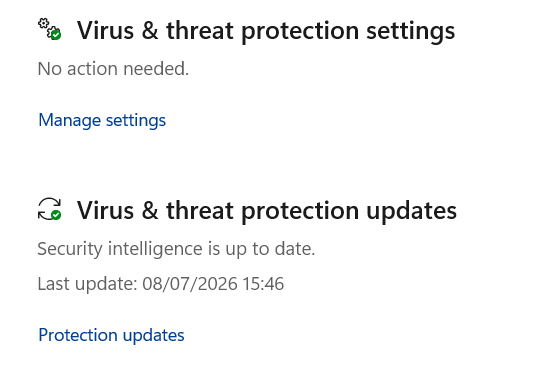
- The system will download the latest definitions as soon as they are available without you intervening.
Also read: How to update Windows 11 to the latest version
Regular Checks
- Schedule a manual scan at least once a month to check for pending updates.
- Open the Security Center and look for Definition Information and ensure that the last update date does not exceed 24 hours.
Enable Real-Time Protection
Real-time protection is the first line of defense. To enable it:
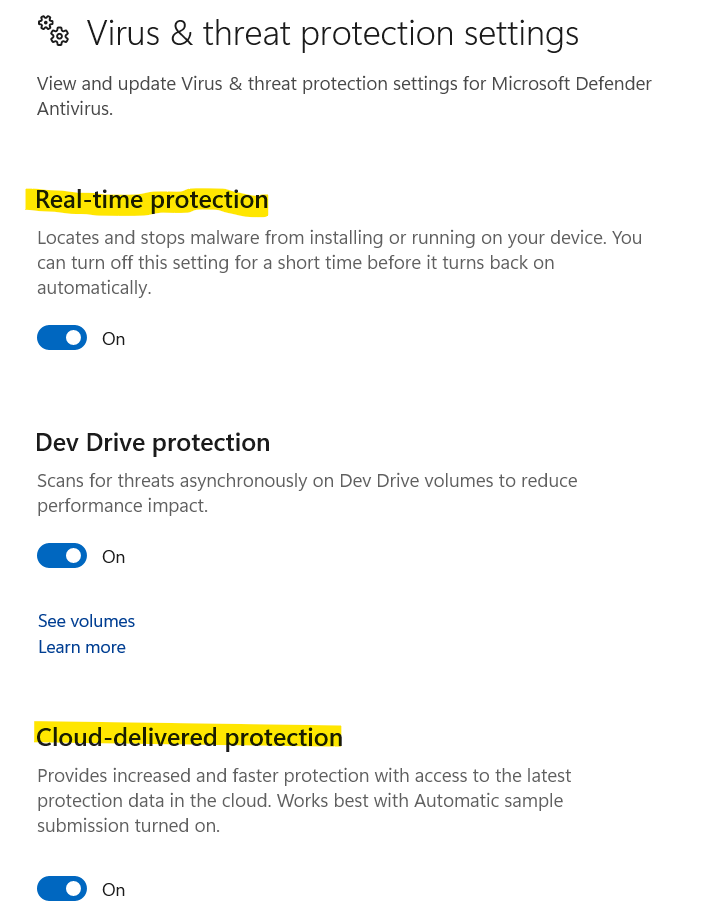
- Go to Windows Security > Virus & threat protection > Manage settings.
- Activate the following two options:
Real-time protection: to scan files when they are opened or downloaded.
Cloud-delivered protection: to benefit from faster cloud-based analytics.
By default, all settings are enabled. Make sure they are all enabled as shown in the image:
Advantages of Real-time Protection:
- Detect new threats as soon as connected to the internet.
- Stop malware before executing its malicious operations.
- Reduce the need for repeated comprehensive scans that consume device resources.
Customize Regular Scanning and Specify Files
Windows Defender runs automatically in the background to protect your device all the time, but you can adjust the periodic scan options according to your usage:
- Quick Scan: Focuses on scanning sensitive system areas and active files in memory, taking only a few minutes. (Windows performs it automatically during device idle times).
- Full Scan: Scans all hard drive files, recommended to manually run it once a month or when suspecting a virus infection.
Do you need to schedule the scan manually? The smart scan feature in Windows 11 automatically schedules quick scans without interfering with your work. However, if you wish to regularly schedule a comprehensive and deep scan effortlessly, you can use the built-in Task Scheduler tool to set a specific time (like the weekend) to run the automatic scan regularly.
Schedule the Scan
To schedule a weekly scan process:
- Search in the Start search bar for Task Scheduler.
- In the program interface, choose a basic task
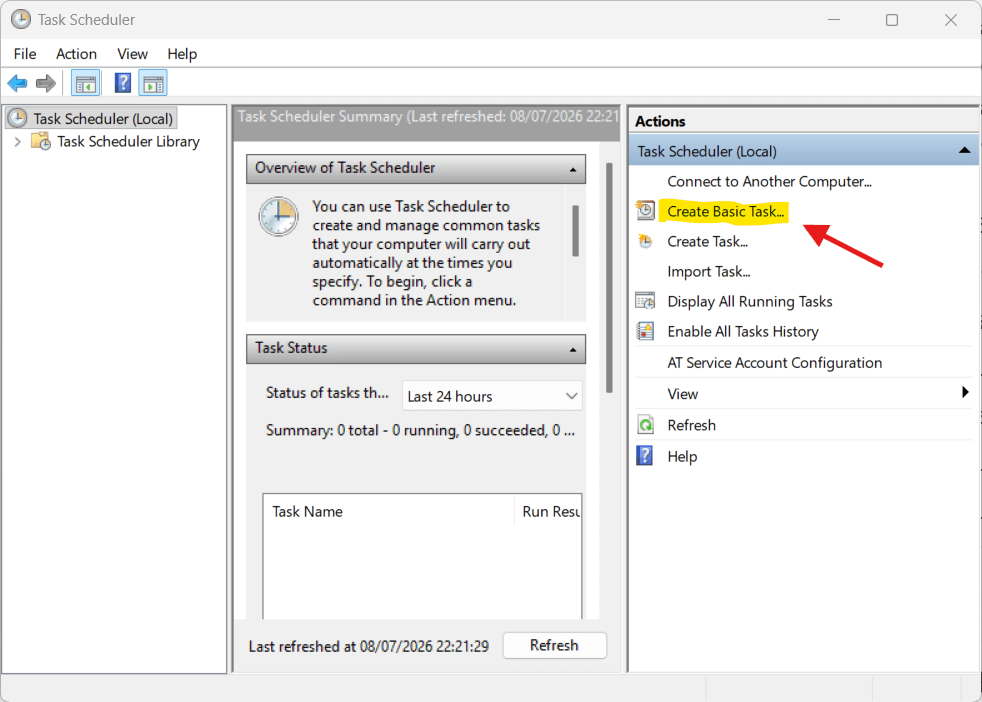
- Give the task a name like “Periodic Scan”.
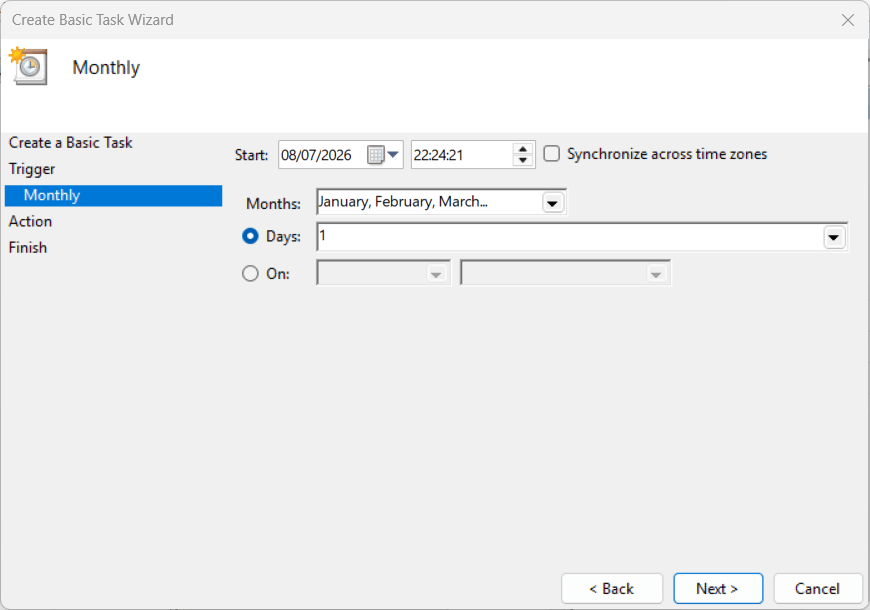
- In the next window, select Monthly and choose Every month and in Days for example, 1 of each month. Then select a time that does not interfere with your daily usage to avoid affecting performance.
- In the program/script field, type the command:
MpCmdRun.exe -Scan -ScanType 2. A confirmation message will appear. Click Yes then Next then Finish.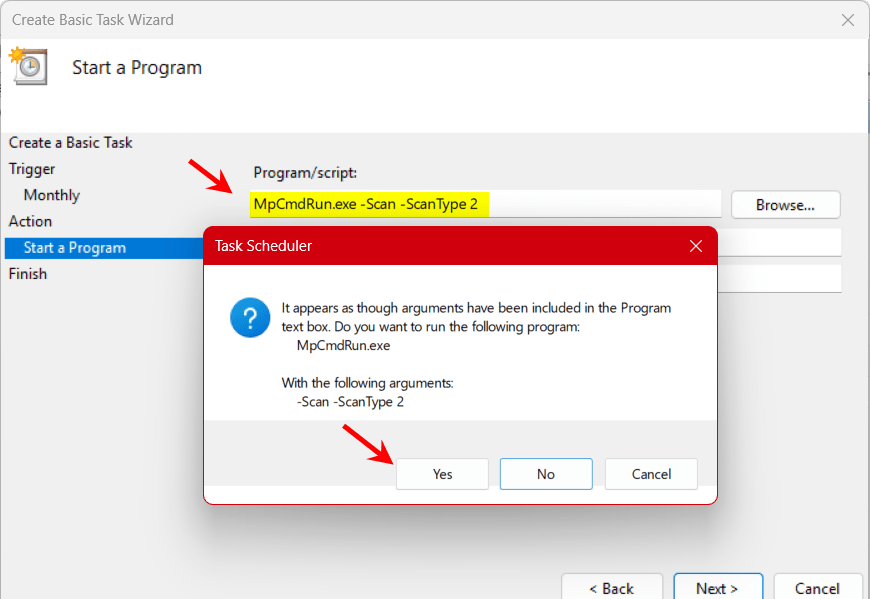
Set Performance Exclusions
To maintain device speed during scanning, you can exclude some large or trusted folders and files:
How to Add Exclusion
- Virus & threat protection → Manage settings → Exclusions → Add or remove exclusions.
- Add files or folders or file types you want to exclude.
The folders in the image are excluded by default:
Tips When Adding Exclusions
- Exclude folders containing development programs (IDE).
- Avoid excluding folders that receive files directly from the internet.
- Regularly review exclusions to ensure no new risks.
Benefit from Browser Security
Windows Defender includes the Exploit Protection feature to protect browsers and applications from exploiting vulnerabilities:
Set Exploit Protection
Open the settings and in privacy and security settings follow these steps:
- Open Windows Security > App & browser control > Exploit protection settings.
- Enable the following policies for vital applications:
Control Flow Guard
Data Execution Prevention (DEP)
Randomize memory allocations (ASLR)
SmartScreen Feature
Ensure that Windows Defender SmartScreen is enabled to notify you when visiting malicious sites or downloading suspicious files.
Use Cloud Protection and Send Samples
To improve detection rates, benefit from cloud analytics and automatic sample submission:
Enable Cloud Protection
- Under Virus & threat protection > Manage settings, enable Cloud-delivered protection.
- Enable Automatically submit samples to send suspicious samples to Microsoft labs.
Benefits of Cloud Submission
- Faster updates of detection policies.
- Ensure greater coverage of new malware.
- Reduce the chances of false positive errors.
Enhancing Performance and Speeding Up Computer
In addition to adjusting Windows Defender, here are some actions to enhance device speed:
- Close unnecessary programs at startup via Task Manager.
- Activate ReadyBoost in Windows if you have a fast USB flash drive.
- Use the Disk Cleanup tool to remove temporary files.
- Regularly update device drivers and software.
Related: How to speed up Windows 11 computer
Disabling Windows 11 Firewall (Windows Defender Firewall)
Some believe that the Firewall is the same as the Windows Defender antivirus, but the firewall is exclusively designed to monitor network and internet connections.
If you need to disable the firewall in Windows 11 to run a specific game or program that requires a private connection, you can do so by opening the Control Panel, then going to “Windows Defender Firewall”, and clicking on “Turn Windows Defender Firewall on or off” from the sidebar menu.
It is always advised to reactivate it immediately after you are finished to protect your device from network vulnerabilities and intrusions.
You may be interested in: How to disable mandatory Windows updates
Tips for Higher Security
- Adopt a strong password for your device and use two-factor authentication when possible.
- Do not click on unknown links or open suspicious email attachments.
- Keep a backup of your data in cloud service or external drive.
- Use trusted performance optimization programs with adjusted settings for better integration with Windows Defender.
Frequently Asked Questions
Yes, with the correct settings and regular updates to definitions, Windows Defender provides powerful protection that competes with many commercial solutions.
You can add the file or program to the exclusions after verifying its safety. It is also preferable to report it via Windows Security to improve databases.
In the default setting, it may consume some resources during scanning. Using exclusions for the games folder and scheduling scans outside playing hours significantly reduces the impact.
Local scanning relies on installed databases within the device; while cloud protection uses cloud server resources to identify threats faster and more accurately.