

Contents
Today we will learn how to recover and reveal the saved passwords in Google and Google Chrome. We will detail the most important “Password Manager” software.
We will also learn how to import and export passwords to an external file from the password manager in Chrome. We will check together if our passwords have been compromised or not in two ways.
We will touch on how to deal with passwords stored on mobile phones (Android) and how to recover them.
Managing digital accounts today is one of the biggest ongoing challenges in our daily lives. With the increase of electronic services and applications, it has become almost impossible to memorize dozens of complex strings of letters and numbers for each account. This is where smart tools come into play; automatic saving tools have become an essential part of the daily browsing experience, with integrated solutions in web browsers and operating systems leading the way.
What is a Password Manager?
Password Manager is a software or an encrypted service that acts as a secure digital vault. This vault stores your registration data, creates strong and unique passwords, and auto-fills them when accessing websites and applications. Its main objective is to eliminate the habit of repeating the same password for all accounts, a practice that exposes users to risks of sequential hacking.
Software Available for Windows and Mac
Options available to users vary based on their needs between standalone software and built-in tools in browsers:
- Dedicated and Standalone Software:
- 1Password & Bitwarden: These programs provide advanced encryption (Zero-Knowledge Architecture) and work seamlessly across Windows and Mac systems, with synchronization support across all devices.
- KeePass: An excellent option for Windows users who want a fully open-source and free solution stored locally without the need for the cloud.
- Integrated Managers in Browsers:
- Google Chrome: The most widely used solution, linking all your accounts to your email (Gmail) for real-time synchronization between computers and smart devices.
- Microsoft Edge: For Windows users, the Edge browser offers an excellent built-in tool based on a Microsoft account and provides features such as alerts for data leaks on the dark web.
- Safari (Keychain): A favorite for Mac and iOS users, featuring deep integration with the system and reliance on face or fingerprint recognition.
Related: How to create a strong and unbreakable password and remember it without writing it down
Recovering Saved Passwords in Google
When most users talk about “saved passwords in Google”, they are referring to the service integrated within the Google Chrome browser, which is officially called Google Password Manager.
This tool has evolved significantly to become a comprehensive management platform that not only saves passwords but also includes protection and periodic analysis of the strength of your data. It even issues alerts if your passwords are found in data leaks that occur from time to time. (We will teach you later how to test our passwords to see if they have been leaked).
How to Save and Manage Registration Data in Chrome
- Auto-save: When logging into a new site, the browser shows you a notification asking if you want to save the data. Once you agree, the record is encrypted and linked to your Google account.
- Auto-fill: On subsequent visits to the site, the browser suggests available accounts and fills in the username and password with the push of a button.
- Generate Strong Passwords: When creating a new account, the browser suggests a complex random password and saves it automatically without needing to remember it.
See: Changing your Gmail password on phone and computer
Accessing the Google Saved Password Manager
If you want to review your data, modify it, or reveal a hidden password, you can access the Google Password History in several ways:
Through the Browser (On Computer):
- Open the Google Chrome browser.
- Click on the three dots in the upper corner and select Settings.
- From the sidebar menu, select Autofill and passwords.
- Click on Google Password Manager.
- A list of all the sites will appear; to view or copy, the system will require you to enter your computer’s screen lock code to verify your identity.
Through the Web (From Any Device):
You can go directly to the official link passwords.google.com and log in with your account to easily view and manage all stored data.
Exporting Saved Passwords from Google Chrome
To export saved passwords from Google Chrome and save them on your computer, you can follow these steps:
- Access the password manager through settings as described in the previous paragraph.
- In the sidebar menu, click on settings.
- Look for the Export passwords option.
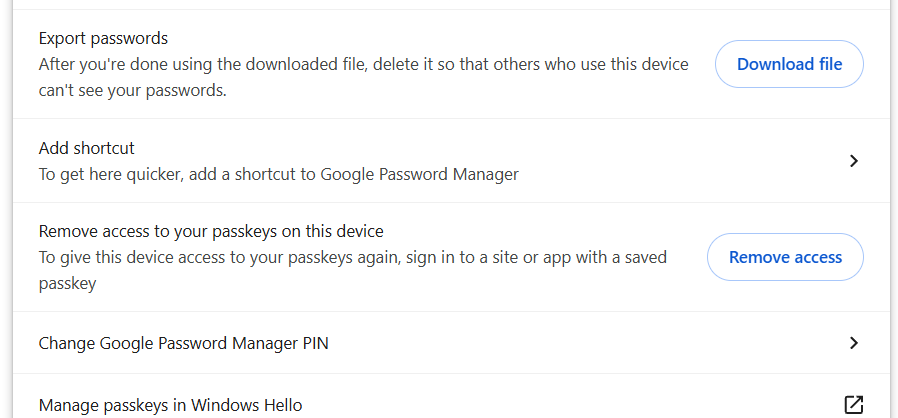
- Click the Download file button and save the file in a secure place on your computer or flash drive.
How to Import Passwords into Google Chrome
Importing saved passwords from an external file as mentioned in the previous section is easy.
- Access the password manager as you learned. Look for the “Import Passwords” option.
- Click the select file button.
- Select the file you previously saved.
Read Also: How to import passwords and extensions from Chrome to Edge
How to Know if Your Passwords are Compromised
The integrated service manager in Google features a Password Checkup feature. This service matches your stored data against databases exposed to leaks online and alerts you immediately in two cases:
- If one of your passwords is detected in a known security breach.
- If you are using weak or repeated passwords across multiple sites.
You can check if your passwords have been leaked or not by following the method below:
- Open the Google Chrome browser and click on the menu button with three dots and select settings at the bottom.
- Choose Autofill and then Google Password Manager.
- In the sidebar menu, click on Checkups.
- Wait for the check to finish and change any detected passwords.
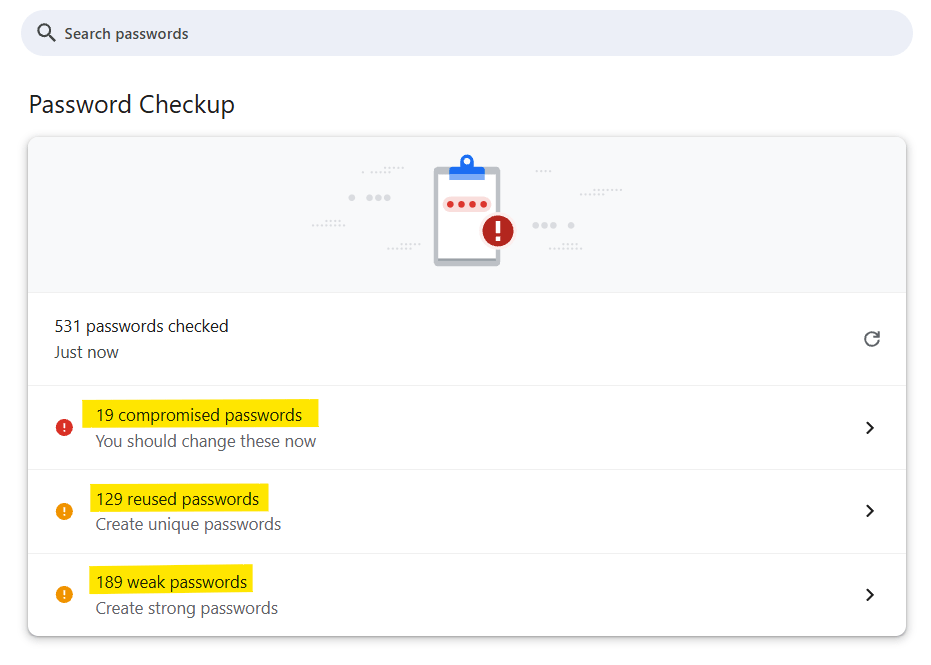
In the next report, the Google Password Manager indicates that 19 passwords were revealed to others “Compromised” and 129 passwords reused across your accounts. And 189 passwords are weak.
The second method can be identified in this article: Hacking Millions of Gmail, Yahoo, and Other Accounts. Check Your Email Now
This highlights three important points regarding your passwords that you should take into consideration.
Saved Passwords in Android
The Android operating system primarily relies on the Google ecosystem, making account and application management a convenient and interconnected process. The concept of saved passwords in Android extends to the applications installed on the phone and not just the browsed websites.
Dealing with Passwords Stored on Mobile
When using an Android phone, the system integrates with Google Play Services to provide a super-fast auto-fill experience within applications (such as Netflix, shopping apps, and banking services).
How to View and Manage Data on Android Device:
The interfaces vary slightly depending on the phone company (Samsung, Xiaomi, Google Pixel), but accessing the data generally follows these steps:
- Open the Settings application on your phone.
- Scroll down and select Google.
- Press the All Services tab, then select Autofill.
- Press Autofill with Google.
- Select Passwords.
- You will need a fingerprint or pattern to access and view the stored passwords on the phone or block certain apps from saving.
Creating a Shortcut on the Home Screen
To facilitate quick access to your data on smartphones, Android allows you to add a shortcut for the service manager on the home screen:
- From within the service manager settings on the phone, press the settings gear icon.
- Select Add shortcut to your home screen.
Best Practices to Protect Your Account and Saved Data
Despite the strong encryption provided by Google, the security of your data directly depends on the security of your personal account and phone. Here are the most important tips to enhance your protection:
- Enable Two-Factor Authentication (2FA): Always ensure to enable two-step verification for your Google account; accessing your email means accessing your data vault.
- Secure Your Phone and Computer: Always use a strong screen lock (password, fingerprint, or face) on your phone and computer, as the system requires this protection to view hidden codes.
- Review Connected Devices: Regularly check the devices registered to your account and disconnect any old or unrecognizable devices.
- Avoid Auto-fill on Shared Devices: If using a public or shared computer, avoid logging into your personal Google account to prevent your data from being saved locally.


