Contents
With the growing reliance on laptops in users’ daily lives, whether for work, study, or entertainment, the importance of maintaining battery efficiency and longevity becomes apparent. Over time and with repeated charge and discharge cycles, the battery begins to lose part of its original capacity, leading to reduced operating time away from the power source.
In this article, we detail how to check the status and battery life of a laptop on Windows 10 and 11, explaining the tools available both built into the system and via third-party applications, as well as providing a set of valuable tips to maintain battery performance for as long as possible.
Check out the article: 7 Common Mistakes That Ruin Your Phone’s Battery
The Importance of Knowing the Battery Status and Age in Laptops
Providing an accurate report on battery health helps the user predict when to expect a depletion of its core capacities and the need to replace or maintain it before a problem arises that leads to a sudden interruption in device operation.
On the other hand, understanding the actual battery life compared to its design life allows the use of appropriate power strategies and modes to maintain optimal performance. Moreover, regularly measuring battery health allows for a balance between performance and quality of life, especially when used in intensive work environments requiring resource-hungry applications.
Related: How to Format a Mobile Device Completely
How to Check Battery Status Using Windows Battery Report Tool in Windows 10 and 11
Microsoft provides a built-in tool in the operating system called Battery Report that gives the user a detailed report on the current battery capacity compared to the design capacity, number of charge cycles, and energy consumption over previous periods. This report serves as an essential reference for understanding the actual battery age and efficiency.
Running Command Prompt and Preparing the Report
To start the process of preparing the battery report:
- Open the Start menu, then search for “Command Prompt” and right-click to select “Run as administrator“.
- After opening the window, type the following command and press Enter:
powercfg /batteryreport /output "%userprofile%\battery-report.html“ - The system will create an HTML file containing all the data and save it in the user profile folder.
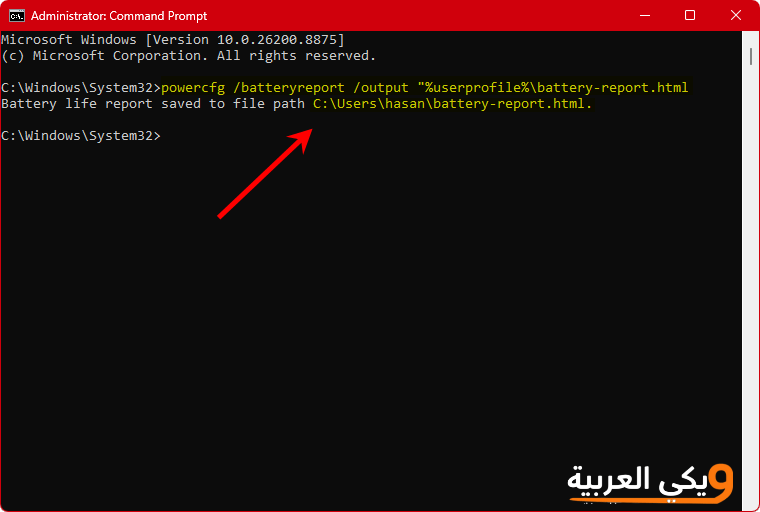
The file path will be provided. You can copy it from the command prompt, open Google Chrome, paste the link in, and press Enter to view the report.
Analyzing Key Information in Battery Report
This is what the battery report with the information provided to you looks like:
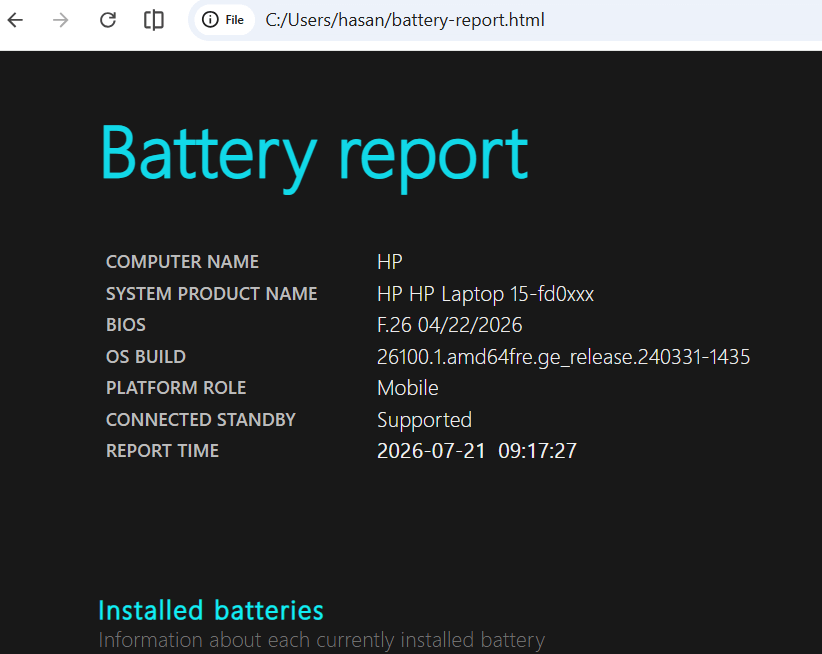
After opening the battery-report.html file in any web browser, you’ll find it a very long file that can be difficult to read; don’t worry, we have provided you with a tool that can analyze the report and give you a summary. However, before this, we will discuss the most important aspects of the report:
- Design Capacity vs. Full Charge Capacity: which shows the percentage of wear and decline in the overall capacity of the battery.
- Estimated battery life based on the maximum load capacity recorded previously.
- Battery usage: which displays the dates and times of charging and discharging and analyzes different usage scenarios.
By comparing the current full charge capacity with the original design capacity, you can deduce whether the battery needs to be replaced soon or if it still retains acceptable performance.
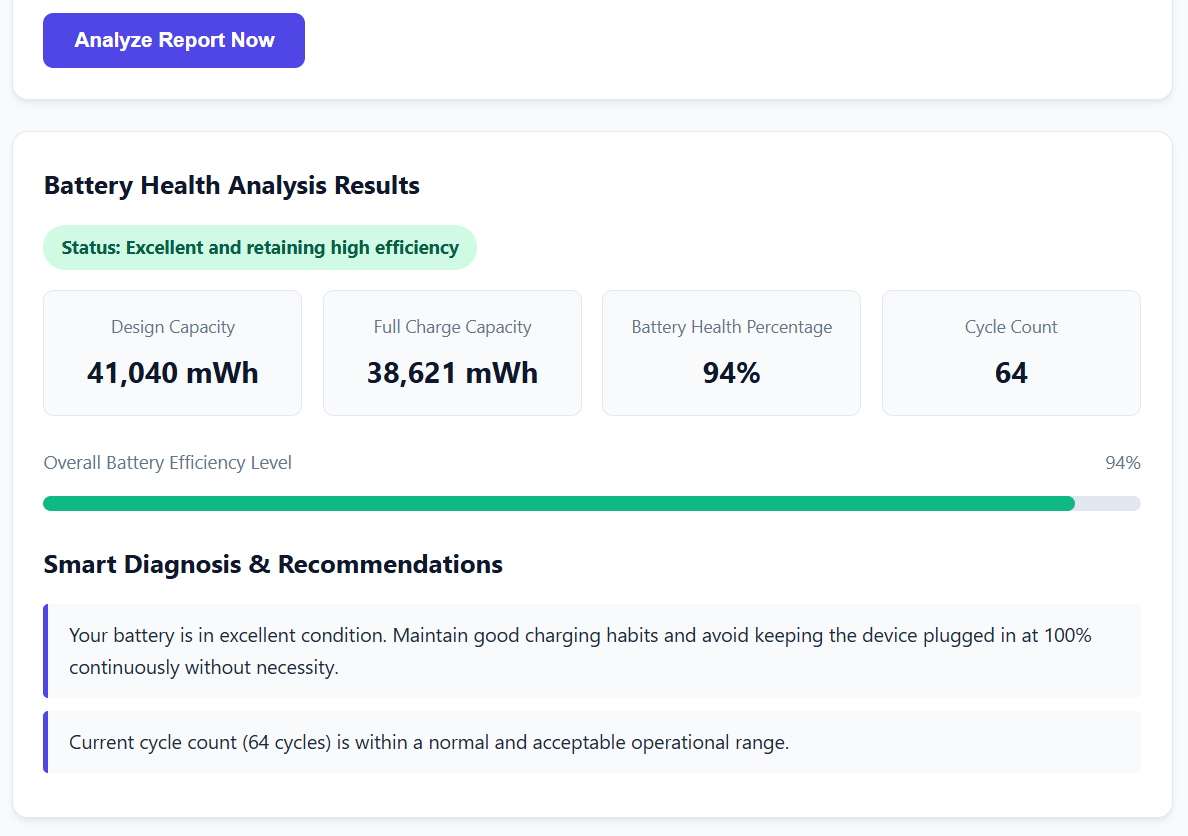
And now, as we promised you, here is the free battery report analysis tool for Windows from Wiki Arabic. Just select all the text in the file using the CTRL + A keys, then paste the text into the text box in the program and click “Analyze Report“
The Best Laptop Battery Testing Programs
In addition to the built-in tool in Windows, there are several specialized programs for the status and age of laptop batteries that provide broader analyses, which may include temperature and charging cycle history with greater accuracy, in addition to custom alerts and overall analysis regarding the entire device. Among the most important of these programs:
BatteryInfoView
The BatteryInfoView program from NirSoft is lightweight and free, displaying detailed information such as: original and current design capacity, number of charge cycles, battery depletion rate per minute, and temperature. The application allows you to export data in multiple formats such as CSV for long-term record keeping.
HWMonitor
HWMonitor is a comprehensive tool for monitoring all computer devices, including battery sensors. It provides live graphs for temperature, voltage, and current rates, helping to determine if the battery is subjected to harmful operating conditions such as overheating or overcharging.
HWiNFO
It is worth noting that HWiNFO provides a detailed report on all components of the device, including historical battery information in the Power Information section. This is useful for professional users who need to read field data accurately and analyze it over time.
What the HWiNFO program offers you:
- Accurate hardware detection: proper and certified identification of your system specifications (processor, graphics card, motherboard, memory, and disks).
- Live sensor monitoring: real-time tracking of temperatures, voltages, and frequencies, with logging of values (maximum, minimum, and average).
- Reporting and time segmentation: the ability to issue comprehensive reports and share them, with a data logging feature for discovering sudden problems and gradual overheating.
- Alerts and flexible customization: instant alerts when safe limits are exceeded, complete control over the update rate, and hiding unused sensors.
- Flexible display and quick interfaces: the ability to pin critical readings in the taskbar (Tray) or through a floating window while working or gaming, with very light performance on the system and no impact on speed.
- Total safety: a read-only tool that makes no changes to your device’s hardware, ensuring complete protection for your system.
Tips for Maintaining Battery Life and Increasing Efficiency
- Avoid leaving the battery plugged in when it reaches 100% for extended periods, as this increases thermal stress and accelerates cell wear.
- Adjust the power settings in Windows to either “Balanced” or “Power Saver” mode to reduce energy consumption during simple tasks like browsing.
- Keep the surrounding environment temperature relatively low, as high temperatures increase battery drain and lead to rapid capacity loss.
- Update the battery drivers and the manufacturer’s power management software; updates often include improvements in charging and discharging algorithms.
- Avoid discharging the battery to zero completely on a regular basis, and it’s preferable to recharge when it reaches around 20-30%.
Frequently Asked Questions
How can I extend the battery life on my laptop?
To extend battery life, you should adjust power-saving settings, avoid high temperatures, and close unnecessary background applications. It is also recommended not to leave the battery in a fully charged or discharged state for long periods.
Can the battery be replaced to improve performance?
Yes, if the current battery capacity is less than 60% of its design capacity, replacement becomes a time-saving option for runtime and overall performance. An original certified battery from the manufacturer can be purchased to ensure the best compatibility and safety.
What conditions drain the battery faster?
Running heavy games or video editing software or emulators is among the main reasons that lead to rapid battery drain. Activating Wi-Fi and Bluetooth and displaying the screen at high resolution and brightness also significantly affect energy consumption.
Do Windows updates affect battery performance?
Sometimes, system updates may include energy management improvements or, conversely, may cause side issues that lead to faster drain. It’s preferable to monitor the update history for your device model and install the updated battery drivers.
Are there other tools to check battery health?
In addition to the previous tools, there are programs like BatteryMon and CoconutBattery (in macOS) that offer advanced graphical interfaces and periodic reports on battery health and charge cycles, allowing for a timeline to be drawn to monitor capacity decline.