Contents
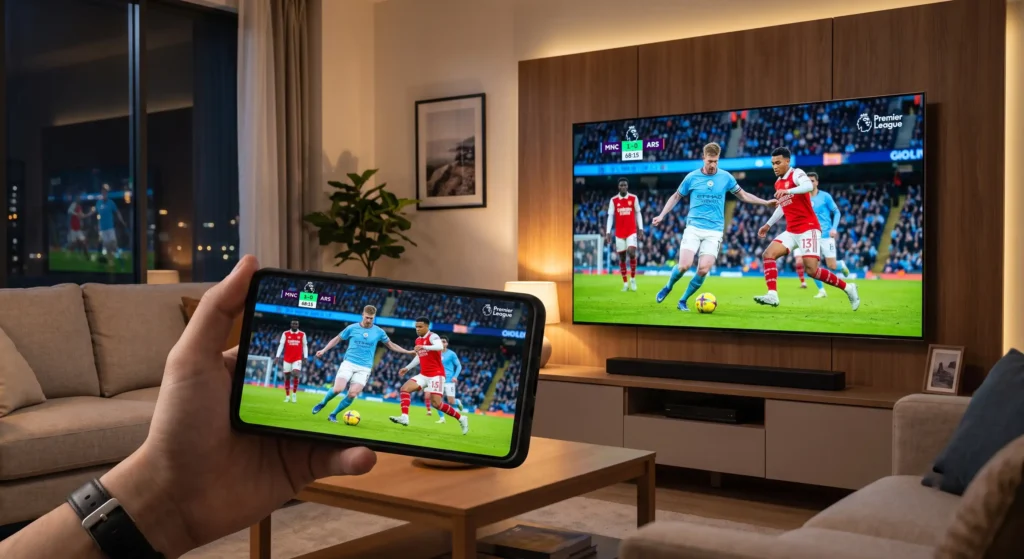
With the growing need to display phone content on a larger screen, many are looking for an answer to the question: How do I connect my phone to the TV? This is where the concept of Screen Mirroring emerged as an ideal solution, allowing users to share photos, videos, presentations, and games.
The biggest advantage of these technologies is the ability to run the phone on the TV and start broadcasting the screen completely without the need for an internet connection, relying on built-in features in the phone such as Smart View and direct connection technologies.
In this article, we will review the different methods to facilitate connecting the phone to the TV wirelessly and without internet, covering Android and iPhone devices of various kinds.
Read also: How to transfer files from phone to computer via Wi-Fi
Requirements for using Screen Mirroring without Internet
Before learning how to link the phone to the TV, you should ensure that the following basic conditions are met:
- A smart TV that supports wireless connection, a receiver, or a dongle such as Chromecast.
- A smartphone running Android or iOS (iPhone).
- Activating the Wi-Fi function on both the phone and the TV to establish a direct wireless connection (Wi-Fi Direct) without needing an internet connection or a home router.
Running the Phone on a Smart TV Screen Without Internet
If you are wondering how to connect my phone to the TV without a cable and you are using an Android phone (such as Samsung, Xiaomi, or Oppo), you have direct and built-in methods in the system that do not require getting into complex details:
1. Using the Direct Quick Button (Smart View / Cast Screen)
Modern Android phones feature a direct button in the drop-down menu that eliminates the need for any external screen mirroring app.
- Steps:
- Swipe down the drop-down screen (Quick Settings panel) from the top of the phone screen.
- Look for a button called Smart View (on Samsung phones) or Cast / Wireless Display (on other phones).
https://wiki-arabic.com/wp-content/uploads/2026/07/تشغيل-الهاتف-على-شاشة-التلفاز-سمارت-بدون-نت.webp” alt=”Running the phone on a smart TV screen without internet”>
- Once clicked, the phone will start searching for nearby smart TVs.
- Click on your TV’s name, and the phone will be connected to the TV instantly to display your entire screen.
2. Displaying the Phone Screen Through Settings (If the Quick Button is Missing)
If you don’t find the button in the drop-down panel, you can apply the method of how to connect the phone to the TV via local Wi-Fi from the settings:
- Open the phone settings and select “Wireless Connections” or “Connected Devices“.
- Click on the option “Wireless Display“, “Miracast“, or “Smart View” and activate it to start searching for the TV and linking to it.
https://wiki-arabic.com/wp-content/uploads/2026/07/image-4.webp” alt=”Displaying the phone screen on the TV through settings”>
3. Setting Up the TV for Reception
To ensure a successful connection, make sure the TV is ready to receive:
- Using the TV remote, go to the “Sources” or “Inputs” menu.
- Select Screen Mirroring or Wi-Fi Display. (On modern screens like a Smart TV, this works automatically as soon as the command is sent from the phone).
You might be interested in: Transferring files from iPhone to computer wirelessly
Display Methods on iPhone Devices (AirPlay)
Apple devices rely on a built-in technology called AirPlay. The “Peer-to-Peer AirPlay” feature can be used to connect directly to an Apple TV or compatible screens without the internet:
- Make sure Wi-Fi and Bluetooth are turned on on both the iPhone and the TV (no actual internet connection is needed; only the temporary local network created by Apple TV).
- Open the Control Center on the iPhone (by swiping down from the top or up from the bottom of the screen).
- Tap the Screen Mirroring icon.
- The name of the TV or Apple TV device will appear; tap it to start broadcasting directly.
Using a Chromecast Dongle via Local Hotspot
Although Chromecast generally requires a network connection, the setup can be configured to work without internet by creating a temporary local access point (Hotspot) from the phone itself:
- Activating the Hotspot:
– In the phone settings, go to “Personal Hotspot” and activate it.
– Give the hotspot a name and password that can be easily identified. - Connecting Chromecast to the Hotspot
– Open the “Google Home app” pre-installed on the phone.
– Select “Add Device” then “Set up a new device“.
– Chromecast will appear in the list of nearby devices; select it, then link it to the hotspot you created. - Starting the Display
– Inside the Google Home app, select the Chromecast device and then choose “Cast” or “Cast my screen“.
– Confirm once more, and you will find your phone screen displayed on the TV without the need for external internet.
Can the Phone be Linked to the TV via Bluetooth or USB?
Many ask about how to connect the phone to the TV via Bluetooth to display the screen; the answer is that Bluetooth technology does not possess the speed or bandwidth required to transfer the full screen “image and video” (screen mirroring).
A Bluetooth connection between a mobile phone and a TV is designated only for audio transfer (like playing songs on TV speakers) or for using the phone as a remote control. To display the screen, you must always rely on local Wi-Fi (Wi-Fi Direct).
To connect the phone to the screen via USB, a USB cable can be used, but in most cases, the screen will recognize the phone as an “external storage device” (USB flash drive) to browse stored photos and videos only, and not to display the live phone screen during gaming or browsing—unless the phone supports special adapters that convert the charging port into an HDMI port (such as Type-C to HDMI cables).
Apps and Programs to Link Phone to TV
If your TV is a bit old or you encounter a problem with the built-in features, you can make use of a smart TV phone connection program from the official stores.
There are many options in the phone app store under the name of screen mirroring software or screen mirroring apps (such as Castto or Screen Mirroring App), which help search for compatible screens and facilitate wireless linking with a single touch.
Additional Tips
- Display Quality: To get the best quality, make sure to update the operating system of both the phone and the TV device (or dongle). Some foreign sources (such as documentation from Google and Microsoft) confirm that continuous updates reduce stuttering and latency.
- Security: When creating a local hotspot, choose a strong password to prevent intruders from joining and viewing your content.
- Power: It is preferred to connect the display dongle (Chromecast or otherwise) to a stable external power source to ensure connection stability.
- Compatibility: Always ensure the compatibility of the TV or receiver with the type of technology used (Miracast, AirPlay, or Chromecast) to guarantee easy linking and fast response times.
Frequently Asked Questions
Can Screen Mirroring be used without a Wi-Fi network?
Yes, it can be done by creating a direct local network between the phone and the TV. Miracast technology works via a Wi-Fi Direct connection without the need for a router or internet. Likewise, Peer-to-Peer AirPlay allows a direct connection with Apple TV.
Does content size affect display quality?
Yes, high-resolution files (4K) require higher bandwidth. In case of limited local connection speed, it is preferable to stick to 1080p resolution to achieve the best balance between quality and performance.
How do I reset the connection if linking fails?
1. Restart the phone and the TV device or dongle.
2. Make sure to disable and re-enable the wireless display function on the phone.
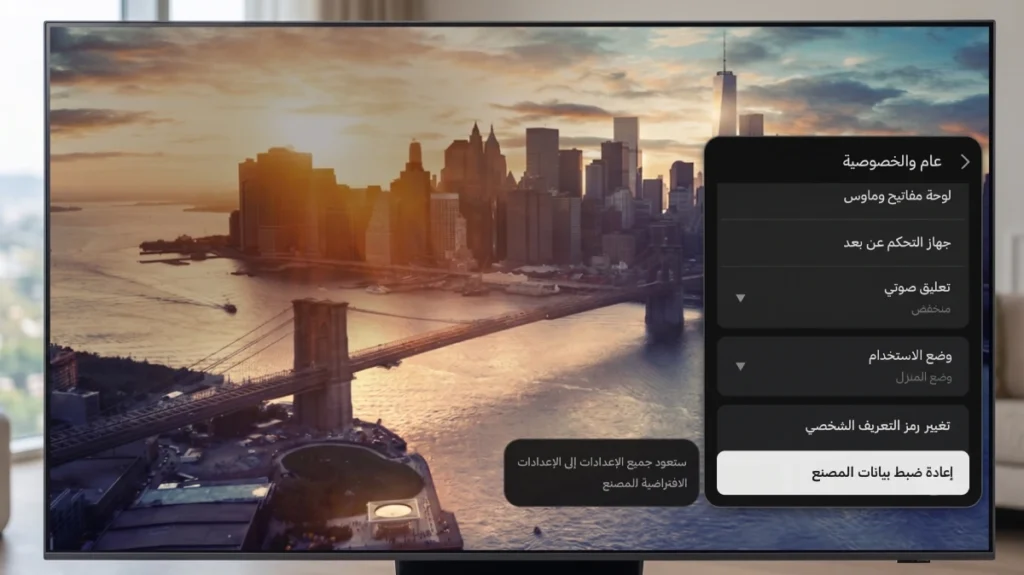
3. Reset network settings on the phone (Settings > General > Reset > Reset Network Settings).
Why is there a slight audio or video delay during wireless broadcasting?
The delay (Latency) is caused by data compression and transmission over Wi-Fi technology. To reduce the delay, bring the phone closer to the TV, and avoid the presence of nearby environmental interference devices like microwaves or other wireless gadgets. Also, ensure you update the phone system regularly.
Do I need to buy a specific app to display the screen?
No, on most modern phones (especially via the Smart View feature), it is completely free and built into the system without the need to download any external screen mirroring app.
Displaying phone content on a TV screen without internet has become easy thanks to modern technologies like Smart View in Android, AirPlay in iPhone, Miracast, Peer-to-Peer AirPlay, and Chromecast in local connection mode.
By following the previous steps and applying the additional tips, you can enjoy a smooth, high-quality experience whether you are viewing family photos and videos, delivering professional presentations, or even playing games on a larger screen.