
Contents
Our article today is about creating a complete backup of your data on a computer running Windows and on mobile devices (Android). We will provide a detailed explanation and practical steps.
Spending just a few minutes to take a backup could save you hours of searching, recovery software costs, or even the loss of irreplaceable data.
The Importance of Backing Up Our Data
System updates, unexpected hard drive crashes, ransomware, and even accidental file deletion… all of these can surprise you at any moment. And although modern operating systems have become equipped with protection means, backup remains the only method that guarantees the ability to recover your data as it was.
You might think this is an exaggeration, but major tech companies—from Microsoft to Google—rely on the concept of “multiple backups” to protect users’ data. This is clear evidence that this step is not a luxury; it is a necessity.
You may be interested in: Best File Recovery Programs
Backing Up on a Computer (Windows)
Generally, Windows offers several methods for creating backups, either using built-in tools or through cloud services. Here we will start with the official tools, then move on to other simple and effective options.
1. Backing Up Using File History (Windows 10 and 11)
Before executing the steps, it’s important to know that File History does not take a full system backup; it focuses on personal files (Documents, Pictures, Videos…). However, it is the fastest option for most users.
Steps to use File History:
- Connect an external drive (USB or external hard drive).
- Open the Start menu.
- Type: File History or Backup Settings.
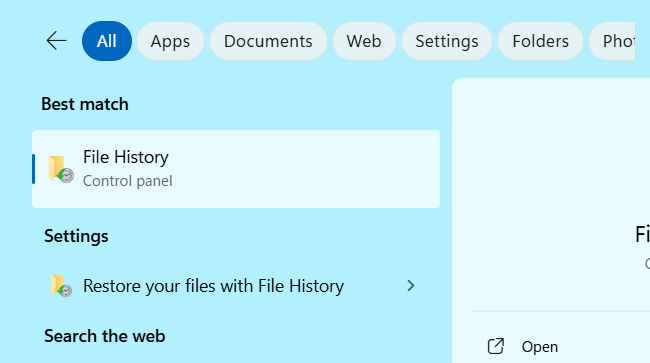
- Select “Add a drive“. (An alert about no external drives will appear if you haven’t connected one)

- Select the external drive you connected.
- Activate the option Automatically back up my files.
Windows will start saving a copy of your files and will automatically update them periodically.
2. Full System Backup (System Image Backup)
This type of backup creates a full image of the system, including system files, applications, and settings, making it the best option in case of complete failure or boot failure.
Steps to Create a System Image Backup:
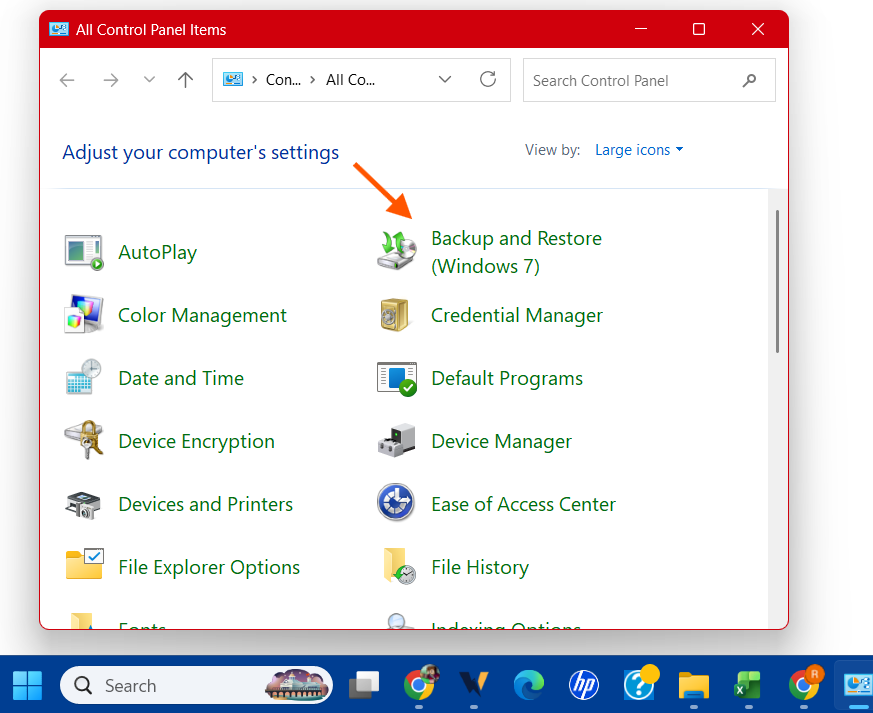
- Open the Control Panel.
- Select Backup and Restore (Windows 7) — yes, the name is old, but it still works in Windows 10 and 11.
- Click Create a system image.
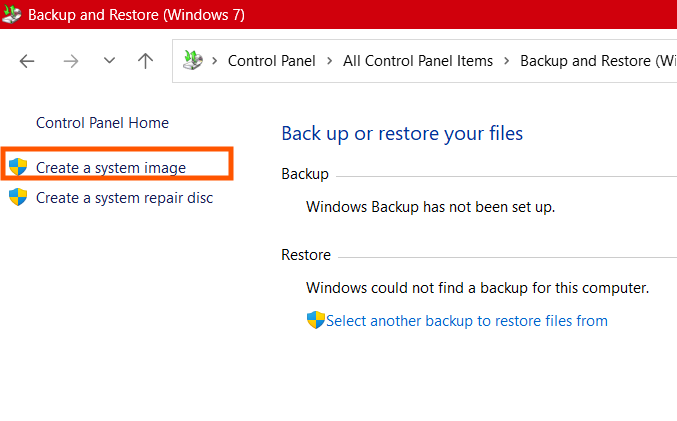
- Select where to save the backup:
– External hard drive
– Or a network location - Click Start backup and allow the system to complete the process.
You can later restore this image via Advanced Startup.
3. Backing Up via OneDrive
If you use multiple devices or fear losing files even if the hard drive fails, cloud backup via OneDrive is a very practical option, especially since Microsoft provides 5GB for free and the capacity can be increased later.
Steps:
- Open OneDrive or download the app from the official link:
https://www.microsoft.com/en-us/microsoft-365/onedrive/download - Log in with your Microsoft account.
- Enable syncing of main folders: Desktop – Documents – Pictures.
- Drag any file you want to save into the OneDrive folder.
Files will be automatically uploaded to the cloud and remain protected even if you lose the device itself.
4. Backing Up via Google Drive or Dropbox
These services give you more flexibility, especially if you are using both phone and computer and want a synchronized backup between them.
Official links:
– Google Drive: https://www.google.com/drive/download
– Dropbox: https://www.dropbox.com/downloading
Backing Up on Android Phones
Unlike computers, Android relies more on the cloud, making the backup process easier. However, the problem is that many people do not enable this feature at all and discover its importance too late.
In this section, we will explain backing up using Google’s official tools, in addition to an alternative method for those who prefer manual backup.
Full Backup via Google One
Google allows the saving of photos, videos, apps, call history, messages, and even device settings through Google One.
Steps:
- Open the Settings app on your phone.
- Go to: Google.
- Select Backup.
- Activate Backup by Google One.
- Press Back up now.
All your data will be saved automatically to your account.
Official Google One link:
https://one.google.com
2. Backing Up Photos and Videos via Google Photos
Google Photos is the most popular option for saving photos as well as organizing and accessing them from any device.
Method:
- Download the app from the store if it’s not installed.
- Open it and log in.
- Activate Backup & sync.
- Select the backup quality (Original or Storage saver).
Official link:
https://photos.google.com
3. Manual Backup from Phone to Computer
This method ensures that your data is kept away from the cloud, suitable for those who want a personal copy on their device.
Steps for manual backup:
- Connect the phone to the computer using a USB cable.
- Pull down the notification bar and select File Transfer (MTP).
- Open This PC on Windows.
- Enter the phone’s folder.
- Copy important folders such as:
– DCIM
– Pictures
– WhatsApp
– Downloads - Paste the files in an external hard drive or a secure folder.
This backup can be restored manually at any time.
Read about: Transfer files from iPhone to Computer Wirelessly
Backing Up WhatsApp
WhatsApp cannot be ignored as it is a primary app for most users, and its chats may contain important documents and images.
Steps:
- Open WhatsApp.
- Settings > Chats > Chat backup.
- Select Google Drive account. or press Back Up to back u locally (on phone storage)
- Enable automatic backup.
- Press Back Up Now.
Read about: 10 Secret WhatsApp Features Not Many People Know
Important Tips for an Effective Backup
- Do not rely on just one backup.
- Use a mix of local + cloud backups.
- Update your backup every week or month depending on your usage.
- Test the backup occasionally to ensure it works.
- Do not store backups in the same location where you keep your original files.
Summary
Backing up is not a complicated task and does not take much time. Whether you are using an Android phone or a computer running Windows, the built-in tools (File History, System Image, Google One…) provide practical and easy ways that help you protect all your data.