

Contents
Android phones – especially the mid-range ones – need periodic reconfiguration and magical solutions to make them faster and smoother again. Your phone has certainly become slower to respond over time and is experiencing overheating when recording videos and high battery consumption. Therefore, in this article, we will embark on a short and quick journey through simple yet magical steps that will significantly improve your phone compared to its current state.
You may be interested in: Speeding Up Old MacBook Computers
Speeding Up the Phone by Removing Default Apps
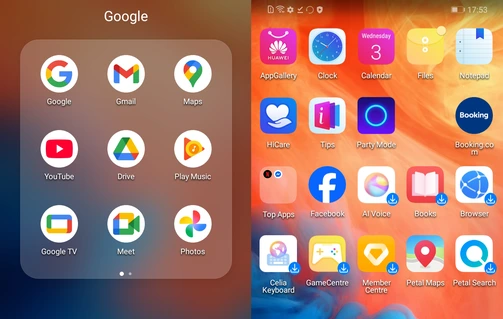
Phones come loaded with pre-installed applications when the phone is first turned on (technically known as Bloatware), from the company’s own services if you own a Huawei, Honor or Xiaomi phone.
For example, you will find all of the company’s services and applications pre-loaded on the phone, in addition to contracts between the phone manufacturer and other companies like Google or Microsoft. In Samsung phones, you will also find all Microsoft and Google applications and services pre-loaded on the phone.
All of these applications consume your phone’s storage space and device resources like the processor and RAM, and you don’t need them all and can reinstall them from the official store at any time.
These applications are not related to the functioning of the operating system, and deleting or disabling them is completely safe and helps significantly in freeing up storage space and clearing RAM.
So always remove all pre-loaded applications to give your phone some breathing room to utilize its resources for other applications and more important uses.
In Android, these applications are divided into two types when trying to remove them:
- Uninstallable Applications: Remove them immediately to free up space entirely.
- Disable-Only Applications: Some applications do not allow for deletion, and here users should be advised to tap Disable; this action deletes all updates and data, and stops the app from running in the background and consuming RAM and battery
List of Unnecessary Apps on Android
Here is a list of these applications categorized by type and manufacturer:
1. Non-Essential Default Google Apps
- Google TV (or Play Movies): An app for watching movies and buying shows; most users rely on Netflix or YouTube instead.
- Google Meet (formerly Duo): A video calling app that you can delete if you rely on WhatsApp or Zoom.
- Google Podcasts / YouTube Music: (Note: Google has officially shut down the Podcasts app, but its remnants or the default music app consume space unnecessarily if you use Spotify, for example).
- Google News: Consumes storage space and background data to update news feeds.
- Google One: A cloud management app; if you are not subscribed to a paid plan, there is no need to keep it sitting on your phone.
2. Manufacturer Services and Apps (Samsung, Xiaomi, etc.)
Companies include duplicate apps to compete with Google’s apps, and they are the biggest consumers of space:
- Duplicate Default Browsers: Such as Samsung Internet or Mi Browser (Xiaomi’s browser). If you use Google Chrome, these browsers consume massive amounts of space for no reason.
- Alternative Smart Assistants: Such as Samsung’s Bixby. Most users prefer the default Google Assistant / Gemini.
- Built-in Health Apps: Such as Samsung Health or fitness apps from Xiaomi and Huawei. If you do not own a smartwatch linked to them, delete them immediately.
- Alternative App Stores: Such as Galaxy Store or Xiaomi’s GetApps. You can disable them and rely entirely on the official Google Play Store.
- Duplicate Notes Apps: Such as the manufacturer’s proprietary notes apps if you use Google Keep or Microsoft OneNote.
3. Partner Apps and Pre-installed Third-Party Apps
Phone companies partner with other companies to pre-install their apps for profit, and you will find them right when you turn on the phone for the first time:
- Built-in Social Media Apps: Such as Facebook, LinkedIn, and Netflix. They sometimes come as undeletable system apps, but in recent Android versions, you can completely uninstall them or at least “disable” them to stop them from consuming space and memory.
- Trial Games: Such as Candy Crush or strategy games that come in folders labeled “Games” or “More Apps,” which are completely unnecessary and geared solely toward ads.
Using Lite Versions of Applications
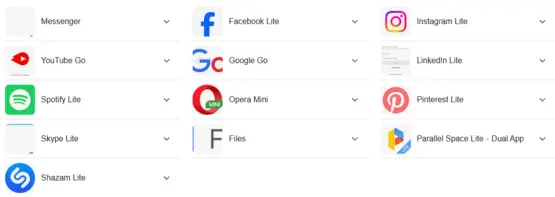
Continuous app updates and new features increase their consumption of phone resources, which negatively affects mid-range and older phones.
Therefore, some companies provide Lite versions of their applications to be better suited for older or mid-range phones in order to limit the impact of heavy software on phone speed.
For instance, Meta offers Lite versions of its social media apps including Messenger, Facebook, and even Instagram.
Many other companies do the same; you will find lightweight versions of music players, browsers, and social media platforms, and these apps are officially available on the Android app store. Simply type the app name in the Google Play Store followed by the word Lite.
Features of Lite Applications:
- Up to 90% smaller in size compared to the main app.
- Significantly lower usage of phone resources, especially Random Access Memory (RAM).
- A lighter user interface without heavy animations and graphics that drain the phone.
- Lower data consumption as well, since Lite apps save data by optimizing the quality of displayed images and videos.
Disabling Gestures and Animations
Phone manufacturers no longer offer lightweight versions of their operating interfaces as we used to see previously with Samsung’s OneUI Core, which was a stripped-down version for Samsung’s mid-range and budget phones. Therefore, you need to disable certain features in your phone’s user interface that cause high, unnecessary consumption of phone resources.
The most important of these are phone gestures and animations. Every time you swipe, open, or close apps, the phone plays its animations and consumes significant resources. With prolonged use, the phone begins to lose its smoothness and experiences constant lag across all system movements.
Steps to Disable System Animations
This step relies on enabling Developer Options on Android. Follow these steps:
- Go to your phone’s Settings.
- Tap on System (this step is skipped in newer versions).
- Inside, look for About Phone or a similar phrase showing phone details such as the serial number and specifications.
- Look for Build Number and tap on it seven times rapidly until a small message appears on the screen saying “You are now a developer”.
- Return to the Settings or System menu, where you will find a new section called Developer Options (or Developer Mode).
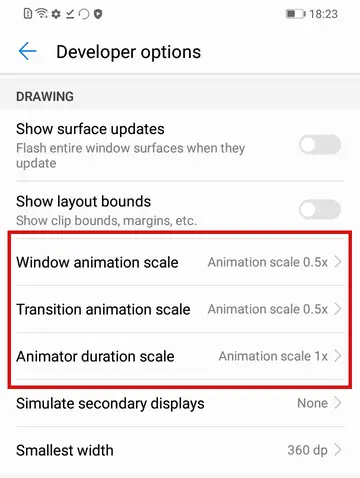
- Inside Developer Options, you will find many advanced settings; look for the motion and animation section called Animation Scale. You can increase, decrease, or turn it off completely, which is what we need—turn off animations for windows, transitions, and the system.
Disabling Unwanted Features
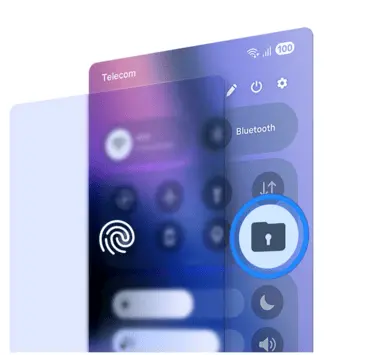
- Do not keep phone features enabled unless necessary. For example, if you are connected to a Wi-Fi network, turn off mobile data, disable Location services to save battery and device resources, and keep Bluetooth turned off unless needed.
- If your phone has any side panels or home screen feeds displaying suggestions, news, and apps, disable them from the settings to free up RAM and device resources.
- Also, get rid of live wallpapers on the lock screen, as they drain a lot of phone resources. You can disable them by going to your phone’s Settings and then the Wallpapers section.
Frequently Asked Questions About Speeding Up Old Android Phones
Yes, you can speed up your phone without apps by going into Developer Options and reducing the Window animation scale to 0.5x or turning it off completely.
The official Files by Google tool is the best and safest option for cleaning your phone. It is strongly recommended to avoid commercial cleaner apps on the store because they consume RAM and battery and make the phone slower.
Deleting or “disabling” these apps (such as duplicate manufacturer browsers and promotional games) frees up valuable internal storage space and prevents these apps from running automatically in the background and consuming RAM.
Yes, these apps run continuous background scans that strain older processors and RAM, and the system does not need them thanks to the official built-in Google Play Protect feature.
It is recommended to clear the cache of large apps (such as social media apps and Reels) once a month, as the accumulation of temporary files eats up storage space and slows down data reading.
Conclusion
Applications and operating systems are evolving rapidly, so if you own a relatively old or mid-range Android phone, you should follow the steps above to get a faster and smoother user experience. Always keep your phone’s system updates in mind, in addition to regularly freeing up its memory from any unwanted photos, videos, or apps.
It is also a good idea to perform a factory reset on the phone every two or three months while making sure to restart it at least once a week.
Also, tell us about your experience with mid-range and old Android phones, and did the steps above help you get a better experience?