
Contents
Our article covers how to perform a default factory reset, factory data reset, or format any Samsung Android device, iPhone, or Huawei phone easily, both with and without data deletion. We will also answer key questions such as: Does a factory reset harm your phone? What should you do if you forget your password? What changes occur during a factory reset, and does a factory reset erase everything? Plus, does it remove viruses and spyware?
Restoring Default Settings
You can easily perform a factory reset on Samsung phones and devices through the Settings menu. However, before detailing the steps, note that different Android OS versions offer various reset options, including:
- Factory reset without deleting data (“Reset settings“)
- Factory data reset (restoring the phone to its original state while deleting everything)
- Reset network settings.
Each option serves a different purpose, and we will discuss them in detail.
Read also: Track mobile number location on Google Maps
Factory Reset Without Deleting Data (“Reset Settings”)
Performing a factory reset without deleting data—or choosing “Reset settings”—on Android 13/14 Samsung devices (and other phones running the same OS) restores default system configurations without affecting your installed apps, photos, or stored files. It returns system settings to default while preserving all your personal data, including contacts, phone numbers, and text messages (excluding accounts, language preferences, and security settings).
This is a very useful option. Here is how to perform it. To reset your phone’s settings to default, follow these steps:
Estimated time 5 minutes
Factory reset without deleting data on Android “Reset Settings”
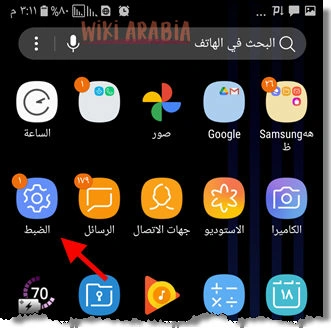
- Open
SettingsNavigate to phone Settings from the app menu.
- Tap
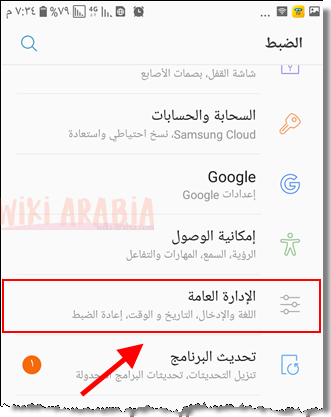
General managementat the bottom
At the bottom of the main Settings menu, locate and select General management.
- Select
Reset
General management includes various settings options; select Reset.

- Reset Phone Settings to Default
Three options will appear; choose the first option,
Reset all settings.
- Confirm Resetting Settings Without Deleting Data
A warning prompt will advise that settings will return to defaults, clearing accounts, language preferences, and security settings while keeping installed apps and stored data intact. Tap
Reset settings.
Pre-Factory Reset Steps
You might ask: what is the difference between resetting settings and a full factory reset? A factory reset erases all system configurations plus all stored user data—including contacts, phone numbers, photos, downloaded apps, and app updates.
Therefore, exercise caution before initiating a factory reset. Here are essential steps to take beforehand:
- Back up your saved contacts to external storage or a SIM card.
- Back up important text messages if needed.
- Save a backup copy of your photos, documents, and essential apps.
- Make sure you remember your screen lock PIN or passcode.
- Verify that you know the login credentials for the Google/email account linked to the device. If you forgot the password, remove the account in Settings prior to resetting, as Factory Reset Protection (FRP) will require it upon reboot.
Factory Resetting Samsung Phones
To perform a full factory reset on a Samsung device, follow these steps:
- Open phone Settings from the app drawer (gear icon) or via the notification panel.
- Go to
General management, selectReset, and then chooseFactory data reset. - A warning screen will detail items to be erased:
Google Account
App data
System data and downloaded apps
Photos, music, and personal files
Decryption keys for encrypted external SD cards (if you encrypted an SD card, those files cannot be accessed after a reset unless unencrypted beforehand)
A list of linked accounts and apps being deleted will also display. - If you are certain about proceeding, tap
Reset. - Enter your screen lock PIN/password if enabled.
- On the final confirmation prompt, tap
Delete all.
Do not remove the battery or force power off the phone during a factory reset. Ensure your device has sufficient battery charge before starting.
Resetting Mobile Network Settings
If you experience network connectivity issues, start by restarting your phone (Android recommends restarting your device at least once a week to optimize performance). If network glitches persist, resetting your network settings will restore factory defaults for cellular, Wi-Fi, and Bluetooth connections.

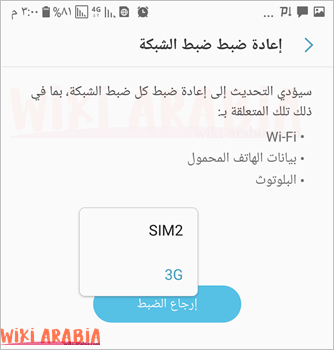
Inside the Reset menu, select Reset network settings. Choose the SIM card you want to reset, then tap Reset settings.
As discussed, there are two reset options. One is ‘Reset settings’ (or ‘Reset all settings’), which restores system default configurations without deleting your stored files. The second is ‘Factory data reset’, which reverts all settings to factory defaults while deleting all user data.
A factory reset effectively removes most viruses, malware, and spyware, serving as an ideal solution in most scenarios. However, sophisticated malware strains like XHelper (discovered in 2019) can survive factory resets by embedding itself directly into system reset partitions.