Contents
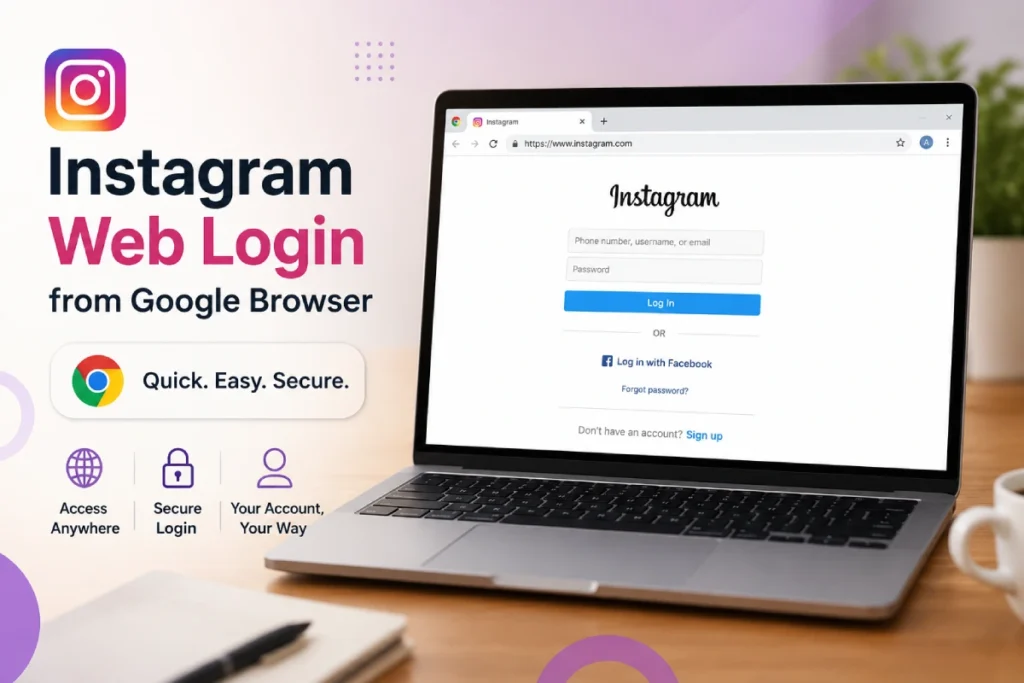
In this article, we will learn how to “log in to Instagram Web from Google Chrome” via the web browser, along with reviewing features and security tips to ensure a smooth and secure experience.
Relying on applications and websites has become a primary method for communication and sharing daily moments. Among these platforms, Instagram enjoys great popularity, offering flexible and easy login options via the web interface (Instagram Web). But before that:
What is Instagram Web?
Instagram Web is a compressed version of the Instagram application available on smartphones, and it can be accessed via any modern internet browser. It allows users to browse posts, upload photos and videos, watch stories, and interact with other accounts without needing to download the app.
This interface is especially useful for those using desktop devices or facing restrictions on downloading applications.
Check out the article: Telegram Web Login from Google
Features of Using Instagram Web
The process of “logging into Instagram from Google” relies on opening the platform directly via the internet browser or search engine to access the web version (Instagram Web).
According to a report recently published by TechCrunch, “Instagram Web” provides several features that differ from the app:
- Quick access from a computer: Allows you to manage your account, browse posts, and send messages directly from a large screen without needing your phone.
- Browser flexibility: The Google Chrome browser allows you to securely save your login data (passwords and email) to log in with the click of a button next time.
- Ease of use: A complete web interface giving you the same experience as the app with the ability to open multiple accounts across different tabs.
- The ability to use content management tools and communicate with the audience via a full keyboard for easier typing and interaction.
Initial Requirements
Before starting the Instagram login process via the browser, make sure the following points are met:
- Having a pre-registered Instagram account (email/username and password).
- A modern internet browser (such as Google Chrome) with its version updated for optimal performance.
- A stable internet connection to avoid session interruptions while browsing.
Steps to Log In to Instagram Web from Google Chrome
You can follow these steps to access your account via the “Instagram Web” page:
- Go to the official website link via your browser: https://www.instagram.com
- Enter your traditional account details (username, email, or phone number, along with password) in the designated fields on the screen (or you can sign up using a Facebook account).
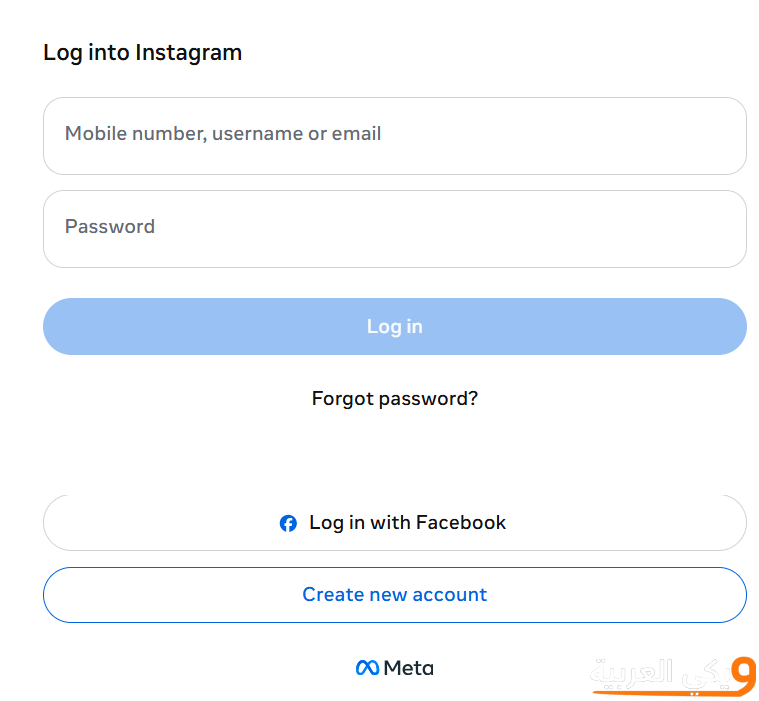
- (Optional) If you have previously saved your details on Google Chrome, you can automatically click on your username for the browser to fill in the data for you.
- Click the “Log In” button.
- You will be redirected directly to your account’s Instagram Web interface to become ready for interaction and browsing.
You may be interested in: WhatsApp Web PC Login from Google
Security Tips and Account Protection
Amid increasing hacking and phishing attempts, keeping your account secure becomes crucial. Here are some recommendations based on the official security guide from Meta’s support page:
Enable Two-Factor Authentication
Two-Factor Authentication is one of the most important security layers that can be activated. This feature can be linked to an authenticator app or your phone number to receive a verification code with every login attempt.
To enable two-factor authentication on Instagram, follow these steps:
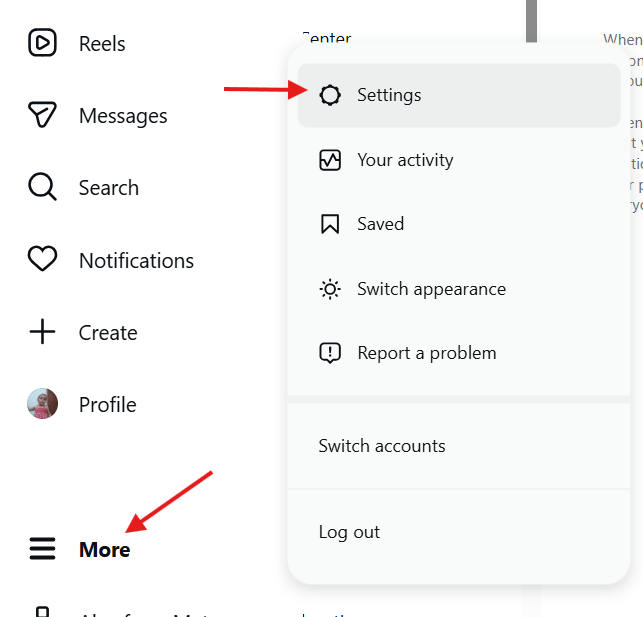
- Click the More icon () on the left/right of the screen, then choose Settings .
- Now choose Accounts Center.
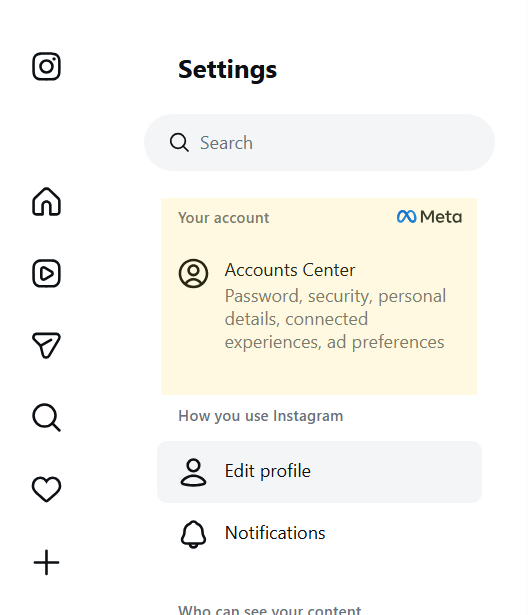
- From the sidebar, choose Password and Security, then choose Two-Factor Authentication.
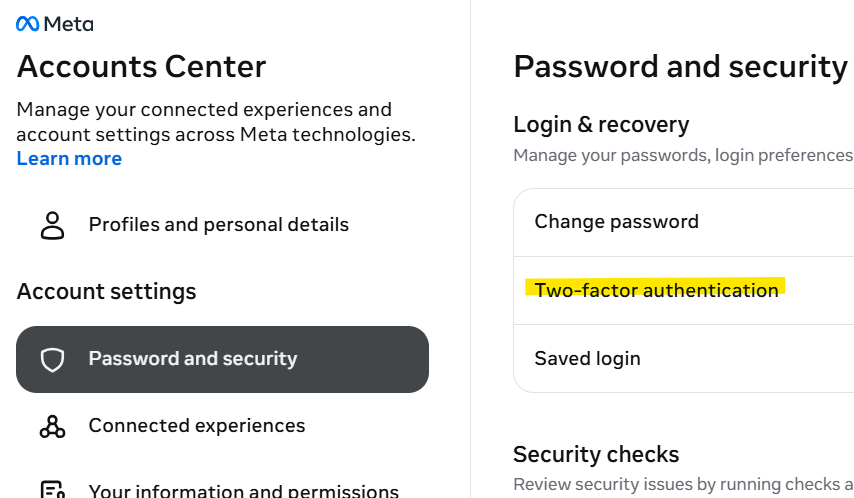
- Choose your account from the list that appears.
- A code will be sent to you initially as preliminary verification that you are the account owner (the code will be sent via WhatsApp, phone number, or email).
- After entering the code, choose your desired two-factor authentication method.
Use Complex Passwords
Avoid choosing simple or repeated passwords across multiple platforms. It is preferred to use long phrases including uppercase and lowercase letters, numbers, and symbols. You can use a password manager like LastPass or 1Password to manage your passwords flexibly.
Review Linked Apps
From your Google account security settings page, review the list of applications and websites linked to your account. If you notice any unfamiliar app, revoke its permissions immediately to prevent misuse of your information.
Additional Tips
For a smoother and more secure browsing experience, we recommend the following:
- Update the browser continuously to receive the latest security fixes and performance improvements. (Check out the article Updating Google Chrome for Computer and Phone)
- Pay attention to incoming emails requesting you to click untrusted links, and avoid logging in via these suspicious links.
Frequently Asked Questions
1. Can I log in to two accounts via Google on the same browser?
Yes, you can add a second Google account and choose the appropriate account upon each login, or switch between them via Google account settings.
2. What should I do if the Google verification code doesn’t arrive?
First, make sure you entered the phone number correctly, then try alternative options like “Receive code via call” or use an Authenticator App.
3. Does using Instagram on a Google browser affect data privacy?
It does not differ in terms of privacy from the official app; the authentication process follows strong encryption mechanisms (TLS/SSL). Just make sure to use a trusted internet network to avoid data interception.
In short, “logging into Instagram from Google Chrome” via the web interface is an ideal solution for those who want quick access and enhanced security. By following the previous steps and enabling basic protection measures, you can enjoy the Instagram Web experience without worrying about your privacy or account security.
Read Also: TikTok Web: How to Open TikTok from Google