
Contents
Websites use your geographic location data in addition to much of your personal data in order to target you with ads. This is often annoying, as it makes you feel like your privacy is being violated. And these companies always have their ready excuse: “improving the user experience.”
However, those websites may collect your data and sell it to third parties. In that case, any vulnerability could arise in the future, and that information could be used against you.
Therefore, understanding how to disable tracking and control these permissions is the most crucial step toward protecting privacy and ensuring safer browsing. In this article, we will review the most effective ways to prevent tracking while browsing websites across various devices and systems.
Preventing Tracking While Browsing Websites via Browsers (Google Chrome)
Google Chrome is considered the most popular browser, but it is also the most data-gathering if not configured properly. You can control its permissions through several steps:
1. Disable Location Services through Settings
You can prevent Chrome from requesting geolocation permission for all websites or for some individually. Open the settings menu using the three dots in the top corner, then select “Privacy and Security” followed by “Site Settings.” In the “Permissions” section, you will find “Location”; turn off the option that allows pages to request your location. This action prevents annoying pop-up windows from appearing.
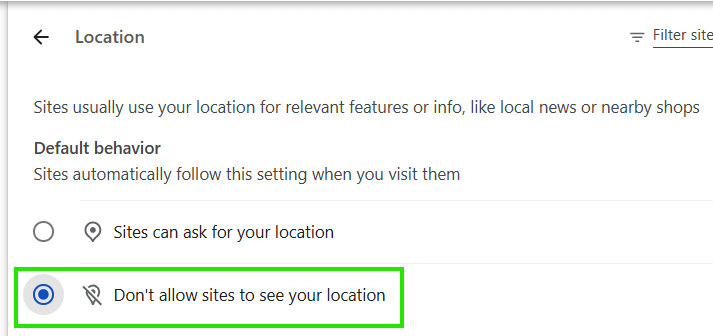
2. Adjust Location Settings for Each Site Individually
If you wish to allow specific websites (such as maps) to access your location, you can configure this manually.
Previously, on the same site settings page, there was an “Add” button next to “Allow” or “Not allowed”, enabling you to enter the desired site’s URL manually.
However, Chrome’s settings design has changed in recent updates; Google removed the option to manually enter a website URL for location access controls. Instead, managing exceptions now relies on automatically adding the site once you visit it and controlling its permissions during or after your visit.
You can easily add a website to the exceptions list using one of the following methods:
Method 1: Directly from the address bar (Easiest)
- Open the website whose location permissions you want to modify.
- Click the Controls/Permissions icon (the sliders icon or padlock) located at the far left of the address bar (next to the
https://URL). - Look for the Location option. Change the setting to Allow or Block according to your preference.
- If you don’t see it, click Site settings.
)
- Then, next to the Location option, select Allow or Block.
)
- Once modified, the site name will immediately appear under the exceptions list (Allowed or Not allowed) on the settings page you were previously viewing.
3. Use Privacy Protection Extensions
Extensions like Privacy Badger, uBlock Origin, and Location Guard provide an additional layer of protection. Location Guard allows you to add geographic noise (fake coordinates) so that the site does not receive your real location, but rather a controlled close location, while Privacy Badger limits tracking codes on your activities.
4. Incognito Mode and Using a VPN
Incognito Mode prevents saving browsing history and cookies, but it does not automatically hide your location. Here comes the role of VPNs or proxies as an effective solution to hide your real IP address and geographic location, as your connection appears to be coming from a server in another country.
Disabling Tracking on Android and Preventing Phone Tracking
Smartphones collect vast amounts of data, and to achieve maximum protection, decisive steps must be taken to prevent the operating system and applications from tracking you.
Disabling Tracking on Android and Deactivating Activities
To fully implement a phone tracking prevention plan on Android, follow these:
- Open Settings on your Android phone, then go to the Google (or Accounts) section.
- Tap on Manage Your Google Account.
- Go to the Data & Privacy tab.
- You will find the option for “Web & App Activity” and the option for “Location History” (Timeline); turn them off completely. This action ensures tracking is disabled on Android at your primary account level.
Changing Geolocation on Android (Developers Trick)
If you want additional protection that prevents apps from knowing your actual location, you can resort to the trick of changing geolocation on Android using fake coordinates:
- Activate “Developer Options” on your phone (by tapping the build number 7 times in About Phone).
- Download a reliable fake location app (such as Fake GPS Location) from the Play Store.
- Go into Developer Options, find “Select mock location app” and choose the app you have downloaded. You will now be able to change your location to anywhere in the world and protect your actual capabilities.
Preventing Tracking While Browsing on iPhone (iOS)
Apple is known for its strict security system, but it requires manual activation by the user to take full advantage of security features.
Enabling Intelligent Tracking Prevention in Safari
The Safari browser features a revolutionary software capability called Intelligent Tracking Prevention. This smart feature uses on-device machine learning to block tracking tools and prevent advertising companies from monitoring your behavior across different sites. To enable it:
- Go to Settings on your iPhone.
- Scroll down and tap on the Safari browser.
- Activate the Prevent Cross-Site Tracking option.
Managing Location Services in Settings for iPhone
To prevent apps from tracking you geographically, you must manage Location Services in Settings:
- Open Settings and then go to the Privacy & Security section.
- Tap on Location Services.
- You can either turn the feature off completely to stop your phone from being located or customize it so access is limited to “While Using the App Only” for essential apps, while disabling “Precise Location.”
Enhance Digital Privacy
In addition to the previous technical steps, it is advised to adopt some daily habits that enhance the security of your data:
- Regularly Updating Systems and Browsers: To ensure security vulnerabilities are closed and the latest security patches are received.
- Cleaning Cookies: Regularly delete cookies and cache to reduce the chances of linking previous browsing sessions to your current activity.
- Relying on Secure Search Engines: Prefer to minimize traditional search engines and rely on engines that focus on privacy and do not store your data, like DuckDuckGo or Brave Search.
Frequently Asked Questions about Phone Privacy and Tracking
Yes, some websites that rely on geolocation (like maps, weather, or delivery apps) may not work optimally. You can resolve this by granting permission “temporarily” or “just this time” when needed.
Preventing tracking in the browser blocks websites and advertising files from monitoring your digital behavior and cookies, while controlling Location Services in Settings of the operating system (Android or iOS) prevents the phone as a device from sending your geographic coordinates (GPS) to apps and companies.
In Conclusion
Awareness and understanding of the nature of the data you share are the keys to protection in an increasingly interconnected and technological world. By following the steps in this guide and activating Intelligent Tracking Prevention and knowing how to manage Location Services in Settings, you can now browse the internet safely and use your smartphone without worrying about prying eyes.