Contents
Have you suddenly encountered the WhatsApp lock screen after reinstalling the app, and found that you have completely forgotten your password? You are not alone; this problem faces millions daily. Since this code represents the iron wall of your account, bypassing it requires specific security methods supported by the company’s servers to prevent hacking.
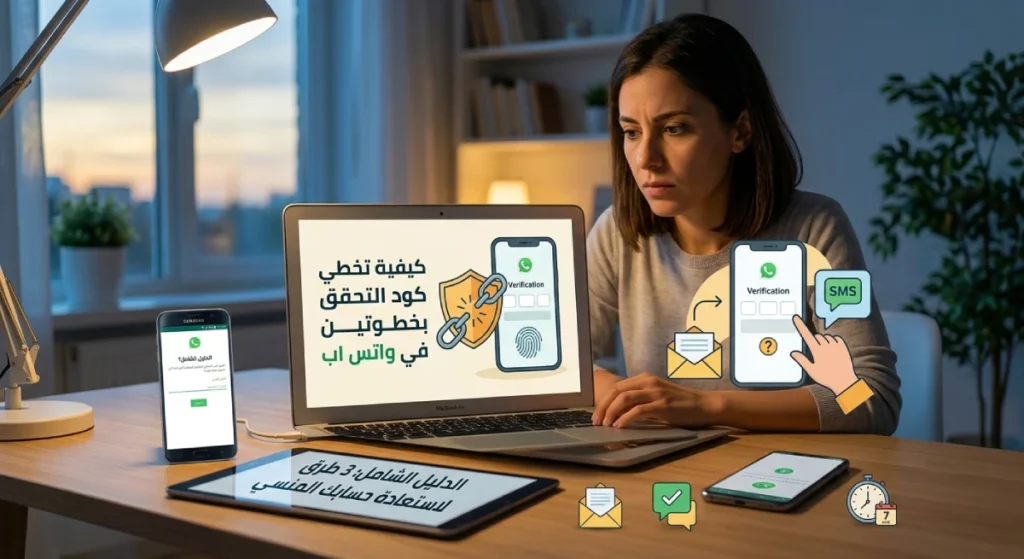
Today, we will learn how to bypass the two-step verification code in WhatsApp and restore your locked account through several methods including:
- Instant recovery with one click via email.
- Quick bypass using the new SMS OTP code.
- The last solution is mandatory waiting for 7 days.
We will mainly discuss the importance of the verification code and how to activate it to protect your conversations from theft. In addition to deactivating the two-step verification code and the simple steps to manually disable this feature from your account settings.
You may be interested in: Fix the problem of not receiving the WhatsApp activation code
What is Two-Step Verification Code in WhatsApp and What is its Importance?
To ensure understanding of how to protect your account, it is essential to distinguish between two types of codes that WhatsApp relies on when setting up the app:
- Registration Code: It is the 6-digit code that you receive via SMS or voice call to verify your immediate ownership of the phone number. Without this code, the account cannot be activated at all.
- Two-Step Verification PIN: This is an additional and optional security layer (2FA) that you create yourself with a unique 6-digit password, which is requested periodically or when trying to register your account on a new device.
The importance of this feature lies in blocking any attempt to hack your account, because even if someone successfully obtains your SMS code, they will never be able to access your chats without knowing the personal PIN you set. As soon as your number is successfully registered, the account is automatically logged out and closed on any other devices that may be active without it.
(Security Alert: If you’re prompted to enter a PIN code and haven’t enabled the feature before, it means that the previous owner of the number activated it, and you will have to wait for 7 days for the servers to reset the code and allow you to log in).
Related: How to lock WhatsApp chats and protect your privacy
How to Activate Two-Step Verification Code in WhatsApp
The steps to activate this feature are very simple but require a high degree of precision, particularly when linking your email:
- Open the WhatsApp app and go to Settings or tap your profile picture.
- Go to the Account tab and then select Two-step verification.
- Tap the Turn on option or set your PIN.
- Enter a password (PIN) of your choice consisting of 6 digits, then re-enter it for confirmation.
- The app will ask you to enter your email; we strongly recommend not skipping this step (though it is possible), because the email is the only lifeboat for resetting the code in case of forgetfulness without waiting a whole week.
- After entering and confirming the email, you will receive a 6-digit verification code to your inbox; transfer it and enter it in WhatsApp and tap Verify to secure the account successfully.
(Technical Note: You can later modify your PIN or update the email from the same list by going to account settings then email and confirming the new code).
Read also: How to activate dark mode in WhatsApp
How to Deactivate Two-Step Verification in WhatsApp
If you want to stop this feature and rely solely on the regular registration code (though we do not recommend this for security reasons), you can remove it in seconds from within the active app:
- From the main WhatsApp interface, go to Settings (or click your profile picture).
- Select the Account section and then press Two-step verification.
- You will find a specific option labeled Turn off; tap on it.
- Confirm your desire by tapping Turn off again, and the additional security layer for your number will be disabled immediately.
What if I forgot the code and want to unlock it during registration? If you are out of the account and forgot the code, press Forgot PIN?; if an email is registered, the WhatsApp system will send you a direct link to disable the feature immediately after you press confirm and reset. If there is no email available, you will technically have to wait a full 7-day period before the servers allow you to open the account without the old code, and no one or support can speed up this protective period.
How to Bypass Two-Step Verification Code in WhatsApp
Bypassing the Two-Step Verification code due to forgetting it in WhatsApp cannot be completed through a loophole or magical option, as it is a core security feature designed by the company to prevent account theft even if the SMS code is leaked.
According to the official support of WhatsApp, the only official and legal ways to act if you forget this code are as follows:
1. Instant Reset via Email
If you linked an email to your account when setting up the feature or through the settings earlier, you can cancel the code immediately through the following steps:
- Open the WhatsApp app and then press “Forgot PIN?” then select “Send Email”. The app will send a reset link to your registered email.
- Go to your email, open the message sent from WhatsApp, then click on the reset link and press Confirm.
- Return to the WhatsApp app on your phone, press Forgot PIN? and then select Reset to unlock the account directly.
From the articles of interest: Permanently delete your WhatsApp account
2. Instant Reset via SMS Code (SMS OTP)
In recent updates to WhatsApp, if you received the 6-digit registration code via email when you started registering your account, you can immediately bypass the PIN code using a text message:
- Open WhatsApp and press Forgot PIN? then tap Send code.
- Enter the verification code received via SMS (SMS OTP) to unlock the account immediately.
3. Mandatory Wait for 7 Days (when losing instant solutions)
If you are unable to use the previous methods, you will technically be forced to wait a full 7 days to ensure account security. This period applies in the following situations:
- If you did not add an email to the account at all, or lost access to it.
- If you are unable to receive the OTP code via SMS to your number.
- The 7-day period begins from the last time your account successfully connected to WhatsApp, and during this period no one else can access the account.
- After the 7 days are over, open the app and press Forgot PIN? then select Reset Account to successfully unlock your account.
Important Security Note: WhatsApp officially confirms that for security and privacy reasons, there is no option for the support team to speed up the 7-day period or manually disable the feature. Additionally, deleting or reinstalling the app will not cancel the two-step verification code.
⚠️ Security Alert Warning:
Any site, app, or article claiming to have a “program” or “shortcut code” to bypass this step instantly is a phishing site targeting to steal your data or hack your phone; the protection algorithm on WhatsApp servers cannot be circumvented locally from within the phone.
Read also: Login to YouTube Studio and activate two-step verification
Important Questions About Two-Step Verification in WhatsApp
You have 3 official paths according to your account settings:
1. Via Email (Instant): Tap on “Forgot PIN?” -> “Send Email” -> Open the sent link and press “Confirm” -> Return to WhatsApp and tap “Reset”.
2. Via SMS Code (Instant): If you received the initial registration code via email, tap “Forgot PIN?” -> “Send Code”, then enter the OTP code you receive in a text message to your phone to bypass the old code.
3. Mandatory Waiting (7 Days): If you did not link your account with an email or cannot access it, you must wait a full 7 days without opening the account, and after the period ends, tap on “Forgot PIN?” then select “Reset Account”. (Note: The support team cannot speed up this period at all).
You can deactivate the two-step verification code in WhatsApp in one of two ways:
1. From Within the Active Account: Go to Settings (or your profile picture) -> Account -> Two-step verification -> tap on “Turn off” then confirm the choice.
2. From Outside the Account (During Re-registration): It cannot be canceled manually until after bypassing the screen via one of the three recovery options mentioned above (email, SMS, or after waiting 7 days), as deleting or reinstalling the app will not cancel the PIN lock.