
Contents
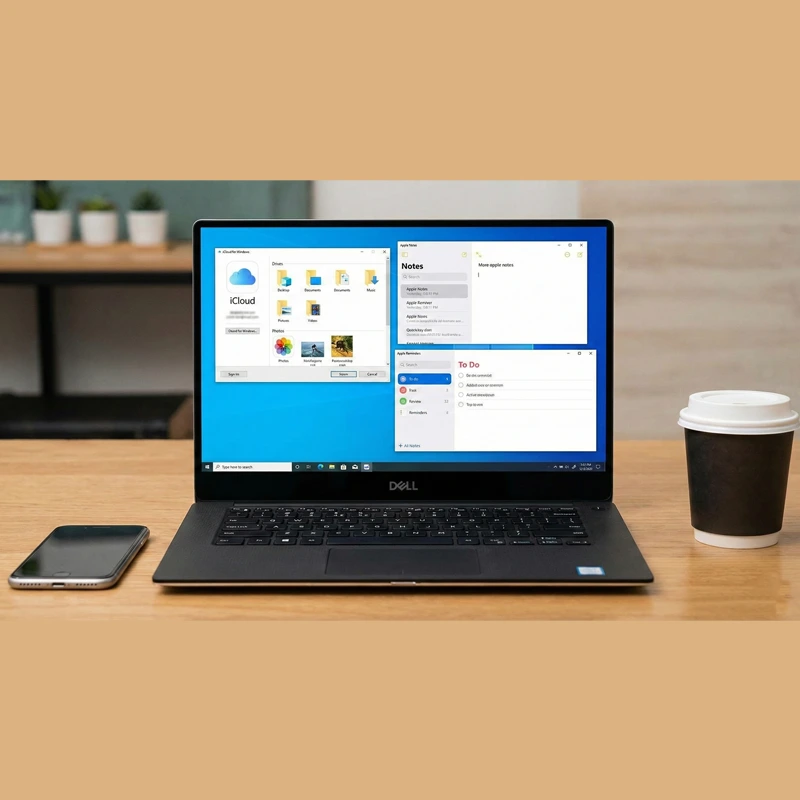
You can use Apple applications and services on Windows, as there has been an openness from Apple to collaborate with other systems regarding the spread of its applications contrary to the past. Through my Windows computer, I can access my files and data from my iPhone or iPad.
In this article, we will explain all the steps and available methods for you to access all Apple services and applications on the Windows system for free and officially.
Check out Steps to Buy a Used iPhone to Avoid Any Damage
Using Apple Apps via the Official iCloud Website
Time required: One minute (4).
How to use Apple applications via iCloud on Windows
- Login through the iCloud website
We go to the iCloud website through the link https://www.icloud.com/ and through it you will log in using your iCloud account on your iPhone, iPad, or any other Apple device, and then all Apple services available through the iCloud platform will appear to you.
Click on Sign in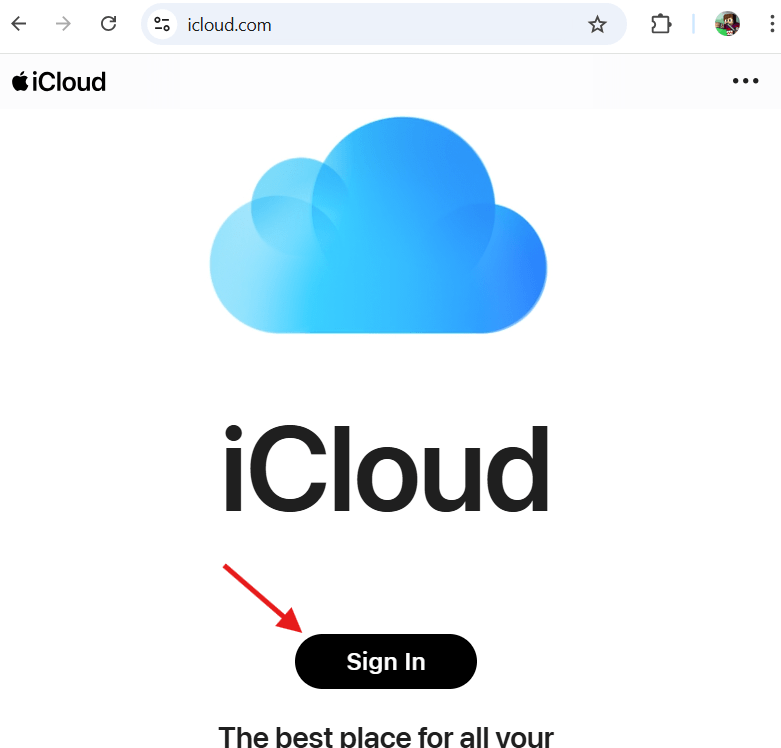
- Using Apple services through iCloud
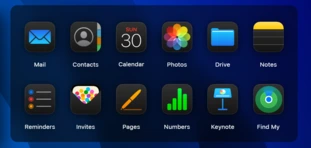
You will see the available services to use, which are notes, emails, phone numbers, as well as your calendar and recorded events, and you can browse all your data registered on these services and saved on iCloud. - Add new data and save it via the iCloud website

By clicking the plus sign above, you can add new data such as emails, notes, or reminders, and all your new data and modifications will appear instantly on all your Apple devices, whether it’s an iPhone, iPad, or MacBook.
Accessing the Photos App through Windows
Windows allows you to access all the photos and videos stored on iCloud, officially through the Windows Photos app.
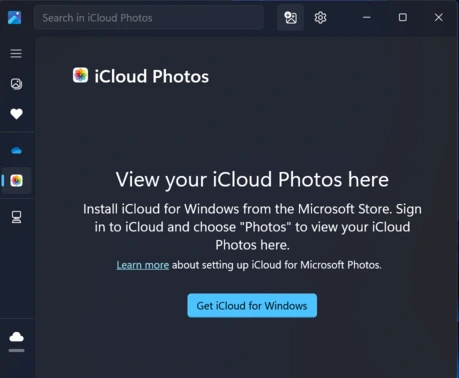
By opening the Photos app – Photos (from the Start menu, type photos or الصور and choose the Photos app).
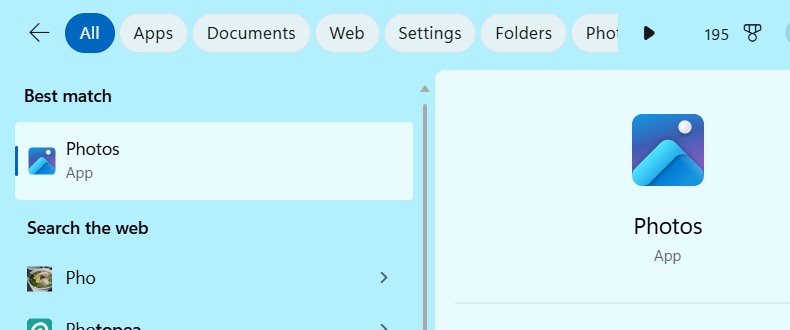
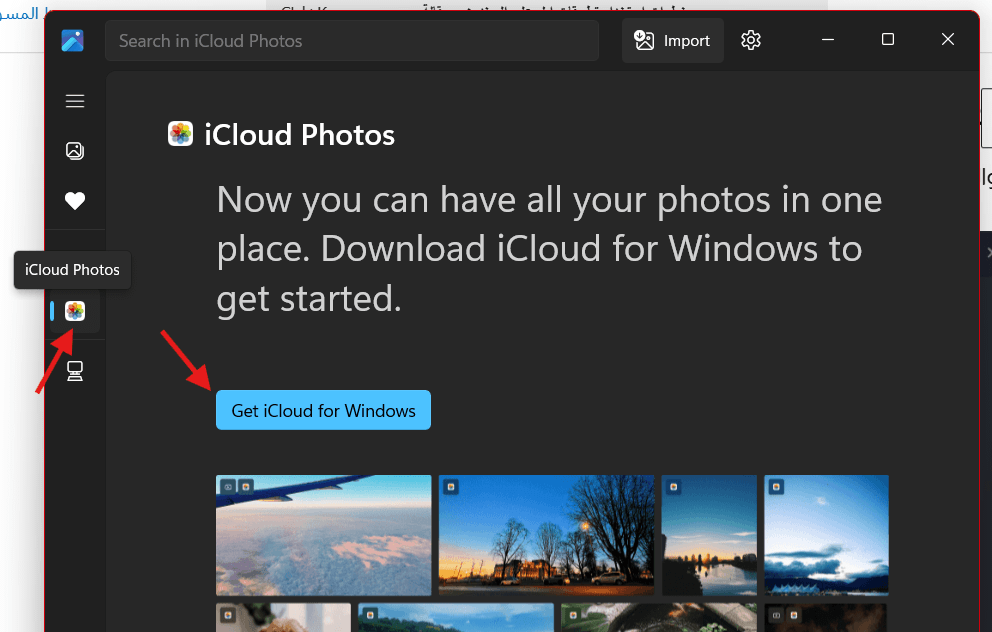
You will find multiple options, including the Windows cloud and also the Apple cloud, which is iCloud. This option will allow you to access all the photos and videos stored on the iCloud. Initially, you will need to download the iCloud app for Windows from the official app store, or in the Photos app select iCloud photos from the side menu and then click on Get iCloud for Windows.
You may be interested in: Steps to Free Up iCloud Space on iPhone
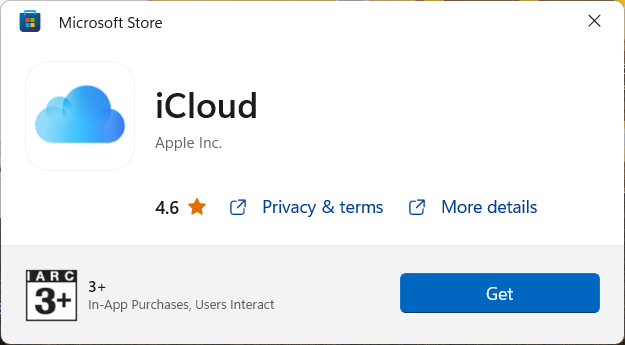
The Windows Store window will open, click Get.
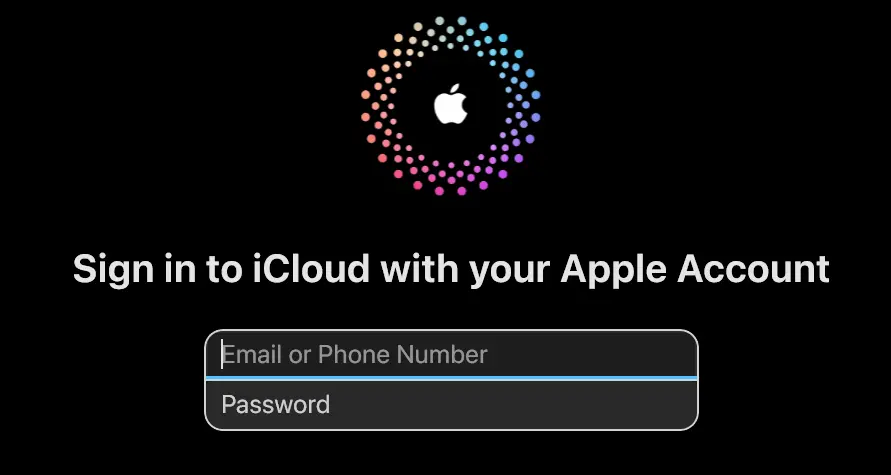
You will be asked to log in to your iCloud account, and then all the photos and videos stored in your iCloud account will directly appear in the Windows Photos app, allowing you to easily manage your photos and videos across multiple devices without the need to transfer them via wired or wireless means.
Apple Music App on Windows
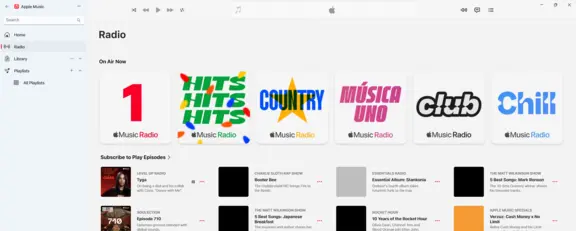
Apple provides its music service through its Apple Music app, which you can download from the official Windows app store. You can browse all songs and podcasts, and by signing up for your Apple account, you can retrieve your personal library of songs and podcasts to listen to on your Windows computer.
Running Apple TV Service on Windows

If you have a subscription to the Apple TV platform, you can continue and follow your movies and series through its official app on Windows.
You can download it directly from the Windows app store and then sign in with your Apple account, and browse your library completely.
Phone Link App to Control Your iPhone
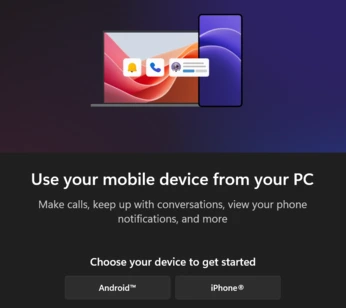
Finally, with the official Phone Link app from Microsoft on Windows, you can control your iPhone regarding calls and messages. The app comes pre-installed on the Windows system; just search for the Phone Link app and follow the steps to connect your computer and iPhone via Bluetooth.

Then the app interface will appear to you, which includes a notification window on the left, the iPhone battery percentage, along with a music player that allows you to control and play music on the iPhone, and change it. In the middle of the screen, you will find a window for messages and calls, and you can make a call directly through the Phone Link app or send and receive messages.
Conclusion
There are many current and official tools available to control your iPhone through your Windows computer and use Apple applications, which facilitates the process of linking devices together, increasing productivity, and simplifying the transfer and control of your files and photos.
Have you had experience with any of the mentioned methods? Tell us about your experience.