Contents
Is my phone spying on me?” You may have noticed one day that you were talking to a friend about a “coffee maker,” only to be surprised the very next minute by an ad for that exact product flooding your Facebook feed. Is it just a coincidence, or is there a hidden ear listening behind the screen?
In this article, we will reveal the truth to you and show you how to protect your data from mobile malware.
Read: The 5 Best Ways to Protect Your Device from Ransomware
Do Phones Really Listen to Our Conversations?
The technological truth is more complicated than just saying “yes” or “no.” Major tech companies like Google and Facebook continually deny using the microphone for eavesdropping for advertising purposes. Technically, storing and analyzing billions of hours of human audio would require tremendous processing power and huge data packages, which experts would easily detect.
However, reports from “NordVPN” indicate that companies use what’s called “Advertising IDs.” Your phone collects data about your geographic location, search queries, the apps you use, and even your proximity to your friends’ phones via Bluetooth. When all this data comes together, algorithms can predict what you’re interested in with astonishing accuracy that makes you think they were listening to you. But this doesn’t rule out the existence of malicious applications that might actually turn on the microphone or camera without your knowledge.
5 Signs That Someone Is Spying on Your Data
If you suspect your phone is hacked or that there’s an app overstepping its bounds, look for these five warning signs:
1. Sudden Battery Drain
The battery is the first indicator of your phone’s security health. If you notice that the phone’s charge is depleting unusually fast even when you’re not using it, there may be an app running in the background. Spy apps require continuous power to transmit data, use GPS location, and upload files to remote servers, which drains the battery.
To check which apps are draining power in the background:
- On Android: Go to “Settings” > “Battery” > “Battery Usage.” Look for any app that you don’t use often but consumes a high percentage. For the pros: go to “Developer Options” and then select “Running Services” to see what’s currently running in RAM and stop it immediately.
- On iPhone: Go to “Settings” > “Battery.” Wait for the list to load and review the apps’ consumption. Tap “Show Activity” to see how much time the app has spent in the background compared to on screen.
2. Device Overheating for No Reason
It’s normal for your phone to get warm while playing heavy games or during fast charging. However, if you find your phone warm when it’s in your pocket or sitting on the table, it means the CPU is working hard. Often, the cause is malicious software processing data or mining cryptocurrency or spying silently.
To check for overheating:
- Download a system resource monitoring app like “CPU-Z” or “Ampere.” If you find the CPU frequencies are maxed out while you’re doing nothing, this is evidence that malware is running in the background. In Windows, for example, we use “Task Manager” to see CPU consumption, and these apps do the same for mobile to reveal “ghost processes.”
3. High Data Usage
Monitor your internet usage in your phone settings. If you find that your Cellular Data consumption has jumped dramatically without watching high-definition videos or downloading large files, it’s a warning sign. Apps that drain your data are often uploading backups of your photos, messages, or even voice recordings to unknown parties.
To check data consumption:
- On Android: Go to “Settings” > “Network & Internet” > “Data Usage” > “Mobile Data Usage.” Check the apps that consume data in the Background. Technically, you can enable the “Restrict Background Data” option for any suspicious app.
- On iPhone: Go to “Settings” > “Cellular.” Scroll down to see how much data each app has used. If you find a simple app (like a flashlight app or calculator) has consumed hundreds of megabytes, delete it immediately.
4. Pop-ups and Strange Behavior
Are you seeing strange ads on your lock screen? Does the browser open pages automatically? If your phone starts rebooting automatically or ads appear outside of apps, this indicates the presence of Adware or Spyware.
The Technical Solution: Boot the phone in “Safe Mode. (How: long-press the power button, then long-press the “Power Off” option until the Safe Mode option appears).
In this mode, all third-party apps are disabled. If the issue disappears, the cause is a recently installed app. Begin deleting the last installed apps one by one until the device stabilizes.
5. Camera and Microphone Indicators (Colored Dots)
Modern systems provide instant visual protection. Look at the top corner of your screen:
If you see a green dot (camera) or orange dot (microphone) without being on a call or recording video, pull down the control panel immediately. The system will show you the name of the app currently using the microphone.
Technical Action: Go to “Permission Manager” in settings, select “Camera”, and change the permission to “Ask Every Time” instead of “Always Allow,” to ensure it isn’t opened programmatically without your knowledge.
How to Stop Data Drain and Protect Your Privacy Instantly?
To protect yourself, it’s not enough to worry; you must take practical technical steps. Here’s a comprehensive guide to securing your phone:
First: Review App Permissions
Apps request more permissions than they need. Why does a “calculator” app need access to contacts or your location?
- On Android: Go to “Settings” > “Battery” > “Battery usage” (which is written in small, light font, with a few apps listed underneath and “View details” below them—tap on it).
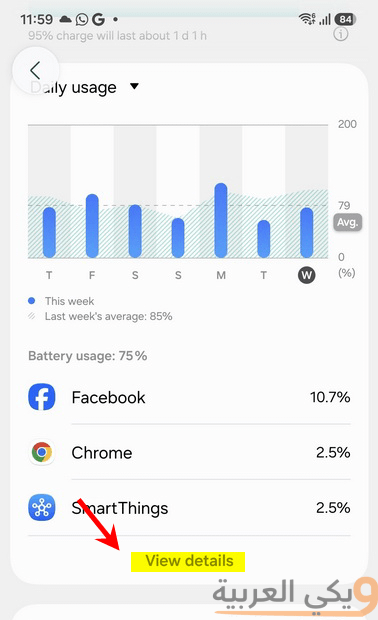
Look for any app that you don’t use often, yet consumes a high percentage of battery. Tap on it, and at the bottom, enable the “Background usage limits” option. Two options will appear: “Put to sleep” and “Put in deep sleep.” Choose whichever suits you best.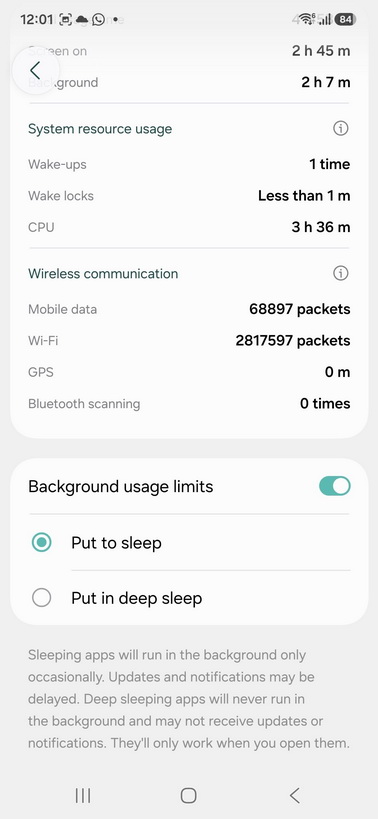
For advanced users: Go to “Developer Options,” then select “Running Services” to see what is currently active in the RAM and stop it immediately. - On iPhone: Go to settings > privacy and security. Here you can view the “App Privacy Report” which tells you everything each app has done in the last 7 days.
Note: Keep in mind that putting apps to sleep will disable their notifications when the app is not in use.
Second: Disable Advertising ID
To reduce the feeling that your phone “is listening to you,” you need to limit companies’ ability to track your interests:
- In Google: Go to Google Account Settings > Data & Privacy > Personalized Ads and turn it off.
- In Apple: Go to settings > privacy and security > tracking, and make sure to turn off “Allow Apps to Request Tracking”.
Third: Update Your Operating System Immediately
System updates are not just new features; they often are “patches for security vulnerabilities.”
- Update Android: Go to settings > system update > check for updates. Ensure you install the “Android Security Update”.
- Update iOS: Go to settings > general > software update. Enable “automatic updates” to ensure you get the latest security responses from Apple.
Fourth: Clean Your Phone of Ghost Apps
Review your list of installed apps. Any app you don’t remember downloading, or no longer use, delete it immediately. Some free apps act as a facade to collect data only (Data Harvesters).
Fifth: Use Advanced Protection Features
Use trusted antivirus applications like “Bitdefender” or “Malwarebytes.” These tools perform regular scans of files and links that reach you and detect spying software that may be hidden deep within the system.
Should We Live in Fear?
The short answer is no, but we should live with caution. Technology is a double-edged sword; the features that make our lives easier (like voice assistants such as Siri and Google Assistant) are also those that require access to our data to function effectively. The key lies in awareness.
When you download a new app, ask yourself: “Why is this app free?” If you’re not paying a price for the product, it’s likely that you are “the product” and your data is the price. The true drain is not only on your internet capacity or battery life, but on your privacy that is bought and sold in digital advertising auctions.
By following the steps above, you can regain control of your device. Always remember that your phone is a tool to serve you, not a spy watching you, as long as you set the right boundaries. Privacy in the 21st-century is not a right bestowed, but a daily practice you must undertake yourself.