Contents
Transferring content between messaging applications has become essential for many users who wish to maintain their chat history and take advantage of the new platform’s features.
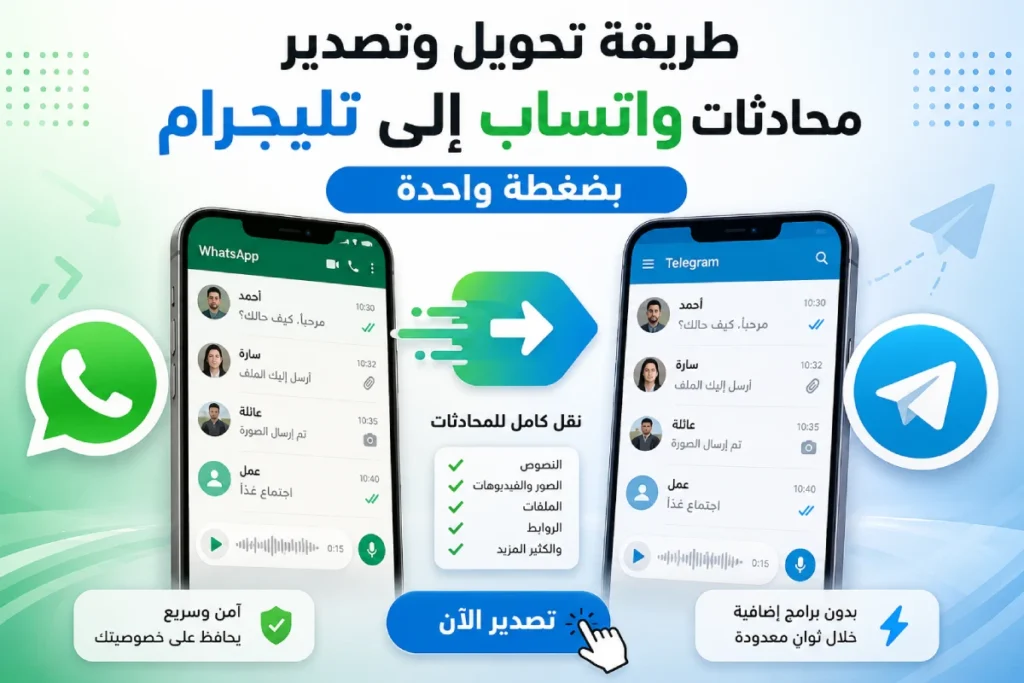
In this article, we review the method for transferring and exporting WhatsApp chats to Telegram with one click, detailing the requirements and steps along with some tips and frequently asked questions to ensure a smooth and secure transition.
Read also: How to Transfer WhatsApp Chats from Android to iPhone for Free
Why Transfer WhatsApp Chats to Telegram?
The importance of exporting WhatsApp chats to Telegram lies in several key points:
- – Benefit from Telegram’s cloud chat feature that allows access to conversations from multiple devices at the same time.
- – Preserve the chat history and media (photos, videos, documents) without losing any important content.
- – Secure transition to a new app while maintaining data privacy and the strong encryption provided by Telegram.
Requirements and Conversion Tools
Before starting the process of converting WhatsApp chats to Telegram, make sure you have the following:
- Updated WhatsApp application to the latest version on your phone (Android or iOS).
- Telegram Desktop app installed on your computer (Windows, macOS, or Linux).
- Active Telegram account registered with the same phone number used in WhatsApp.
- Stable internet connection to speed up the export and import of text files and media.
Related: How to Lock WhatsApp Chats and Protect Your Privacy (Updated 2026)
Steps to Export WhatsApp Chats
1. Open the conversation to be exported or saved
Go to the WhatsApp app and open the chat or group you want to transfer. Tap the menu button with three dots (⋮) and then select More.
2. Select “Export Chat”
By tapping on the “Export Chat” option, you will be asked whether you want to include media (photos and videos) or not. Choosing No Media makes the process faster.
3. Choose to include media or export text only
When choosing “No Media,” a text file (.txt) will be created containing all messages in an organized manner (date, time, source). If you choose “Include Media,” the media files will be attached in a compressed folder with the text file.
4. Save the file locally or to an external cloud
After clicking “Export,” several options will be available for saving the file: you can store it on your phone or upload it to cloud storage services like Google Drive or Dropbox, or even email it to yourself. Be sure to remember the save path for later use.
The final file will be compressed, and you’ll need to extract it with one of the extraction programs. Even if you choose No Media, it will appear with the main chat file alongside contact cards shared in the conversation (if any were shared in the chat).
Check out the article: Backup WhatsApp from Google Drive
Importing Chats to Telegram with One Click
Telegram currently supports importing WhatsApp chats through the Telegram Desktop app. Follow these steps:
1. Launch Telegram Desktop and log in
Open the Telegram Desktop app on your computer and log in with your phone number. Make sure you are connected to the same account that is on your mobile device.
2. Go to settings and select “Import Chat”
From the side menu, click on the three horizontal lines (or the settings button), then select “Tools” and then “Import Chat History”.
3. Choose the exported WhatsApp file
The app will ask you to browse the folder where you saved the export file (.txt) and any media folder if available. Select the appropriate file and click “Open”.
4. Specify the contact or create a receiving group
After selecting the file, a window will appear asking you to specify the chat where you want to import the conversation. You can choose an individual chat, a group from the list, or create a new group specifically for the export.
5. Start the import process and wait for it to complete
Click the “Import” button and wait for the process to complete; this may take time depending on the size of the files and media. Upon completion, you will notice the messages and old archive appearing in your chat window.
You may also be interested: Logging into Telegram Web from Google
Tips to Ensure WhatsApp Chats Transfer
- Check Storage Space: Ensure there is enough space on your desktop to accommodate the export file and media.
- Keep a Backup: Before starting, make a complete backup of WhatsApp within the app to avoid any sudden data loss.
- Speed up the Connection: Use a fast and stable WiFi network when uploading and downloading files to shorten processing times.
- Check Files: After exporting and importing, ensure the texts and media are intact by scrolling through the new chat.
- Segregate Old Chats: If you do not need the old messages in all your chats, you can import only the most important conversations to reduce the data size.
Frequently Asked Questions
Can chats be imported from WhatsApp directly to Telegram Mobile?
Currently, Telegram apps on smartphones (Android or iOS) do not support direct import options. Telegram Desktop must be used to import from WhatsApp files, and then you can continue the chat on any device.
What should I do if an error message appears during import?
If an error message appears, first ensure the integrity of the file (.txt) and its path, then restart Telegram Desktop and try again. If the problem persists, remove any quotes or encodings from the file name to avoid format conflicts.
Will the “read” or “delivered” statuses of messages be lost after the transfer?
When importing the chat, Telegram considers all messages as new, so you may lose previous “read” and “delivered” information. However, the chat content remains fully preserved, including dates and times.
How can I include media in exports without exceeding a specified size?
If the chat contains many media files that may result in a large export file, you can export the chat without media and then add it manually later, or use media compression settings within your phone to reduce the size of the images and videos before exporting.
By following these steps, you can transfer your WhatsApp chat history to Telegram with one click, ensuring the texts and media are securely and orderly maintained. By carefully following them, you will enjoy a smooth experience without the hassle of repeating messages or losing important moments.