Contents
Many users may be interested in how to use WhatsApp on a computer and log in directly from Google without needing any software. WhatsApp Inc. has made the application available for use on computers, laptops, or any computer running Windows or Mac. You can use the app in two ways: The first is to use WhatsApp Web QR Code to scan the QR code on the computer from Google Chrome, logging in from the browser without downloading the app.
The second method is by downloading and using the WhatsApp application on your computer.
Let’s explain both methods.
Log in to WhatsApp from Google via WhatsApp Web
You can log in to WhatsApp using Google Chrome or any browser on your computer and read messages without downloading the app. This is done through WhatsApp Web by scanning the QR code. All you need to do are some simple steps, provided that the app is active on your phone. You’ll scan the QR code with your phone’s camera. The method is summarized in the following steps:
Time required: 2 minutes.
Log in to WhatsApp Web from Google
- Open your browser and go to the WhatsApp Web website Go to the WhatsApp Web website using the browser on your computer.

- Tap on Linked Devices in WhatsApp on your phone Open the WhatsApp app on your phone. Press the menu button and you’ll find the option for
Linked Devices.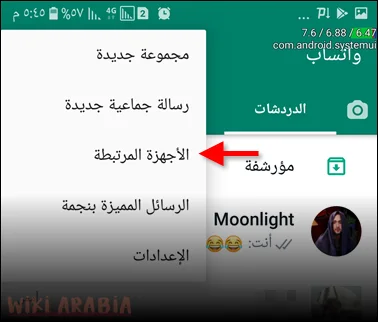
- Choose Link a Device Tap the “Link a Device” button to open the camera and scan the QR code.
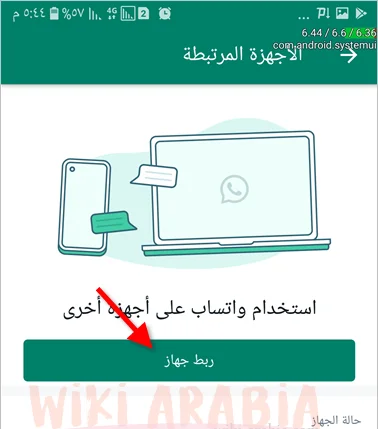
- Scan the QR Code Your phone’s camera will open. Point the camera at the QR code on the computer screen to scan the code and authenticate the connection between the two devices.
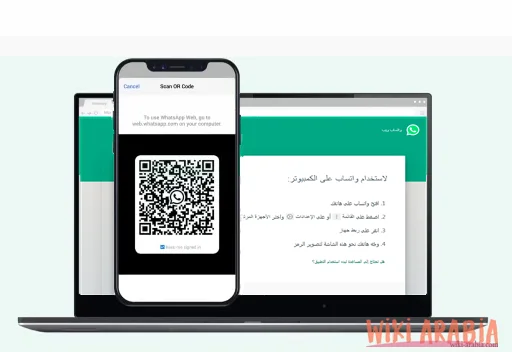
After that, all your conversations will open on your computer, and you can use WhatsApp as if you were on your phone. A drawback of WhatsApp Web in the past was that you couldn’t use it unless your phone was connected to the internet. Sometimes you had to open the app on your phone just once for it to open on the computer (this is separate from the first use when scanning the code). However, WhatsApp has now addressed this issue, and you can use WhatsApp Web at any time as long as the session on the computer has not expired.
Downloading WhatsApp for Computer
The second way to run WhatsApp on your computer is by downloading the WhatsApp program for computers from the app’s official website.
- Go to the official app download page: https://www.whatsapp.com/download. As you can see, it currently requires at least Windows 10.

- Below you will find the download links for the WhatsApp app according to your computer’s operating system, which are:
WhatsApp app for iPadOS for tablets.
iOS system, which is the WhatsApp app for iPhone.
WhatsApp app for Android devices, whether mobile phones or tablets.
WhatsApp app for Mac (requires macOS 12.1)
In addition to the WhatsApp Web app for computers in general, which does not require downloading the application.
Once the download is complete, you will find the installation file in your Downloads folder or any location you previously selected. Click on the file with the .exe extension to start the easy installation process. Follow the instructions and guidance of the installation package.
Log Out WhatsApp from All Devices
You may need to log out of WhatsApp from your computer so that no one else can use the PC to read your private chats, conversations, messages, and photos. That is definitely a big problem. There are two ways to log out.
- The first is from the computer.
- The second is from the phone.
Log Out WhatsApp from Computer
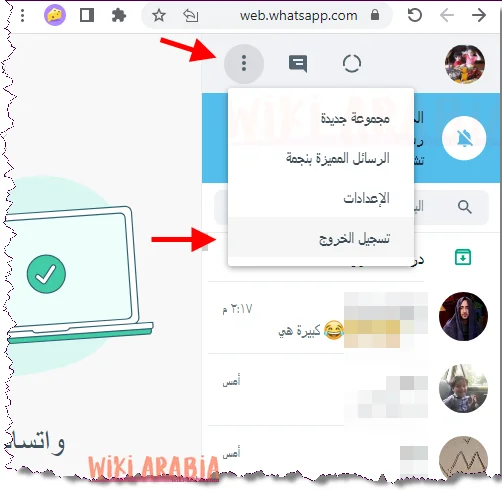
You can easily log out of WhatsApp Web from your computer by following these steps:
- Click on the menu button in the WhatsApp Web application on your computer.
- Choose Log out.
This way, no one will be able to access your account on the computer unless they scan the QR code again using the phone.
Log Out WhatsApp from Phone
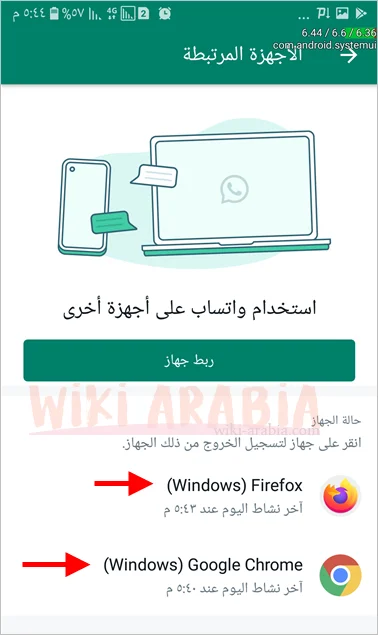
You may not be able to access the computer where you used WhatsApp. Don’t worry, you can log out of WhatsApp from your phone by following these steps:
- Go to WhatsApp > Menu button >
Linked Devices - Tap on the browser you want to log out from.
- Tap
Log out.
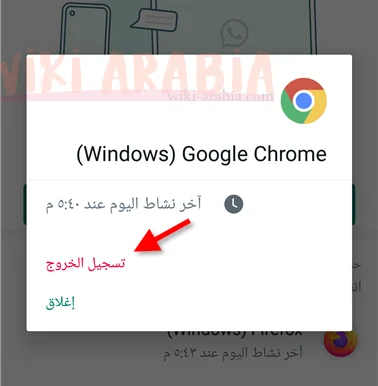
As soon as you tap Log out, WhatsApp is closed on the browser and no one will be able to log in again unless they repeat the previous steps to link devices.
Note: The option to link your phone and computer actually occurs between your phone and the browser only. If you open another browser, you will need to repeat the device linking steps and scan the QR code again.
Read Also: Log in to Telegram Web from Google
Frequently Asked Questions
To open WhatsApp from Google, all you need to do is go to the search engine and type “WhatsApp Web” or go directly to the official link web.whatsapp.com. Once the QR code appears on the computer screen, open WhatsApp on your phone, go to “Linked Devices”, then choose “Link a Device” and point your phone’s camera at the screen to open the account immediately.
You can open WhatsApp Web using your phone number without needing the camera via the “Link with phone number” feature. When entering the WhatsApp Web page, click the “Link with phone number” option located below the QR code. Enter your phone number followed by the country code, and an 8-digit code will appear on the screen; enter it on your phone within the “Linked Devices” menu to confirm login.
To open WhatsApp Web from another phone, open the “Google Chrome” browser on mobile, then tap the three dots at the top and choose “Desktop Site”. After that, go to the link web.whatsapp.com and the browser will treat your phone like a computer, allowing you to scan the code and open the account easily.
For secure access, search Google for “WhatsApp Web”. Always make sure the first result carries the official domain whatsapp.com. Experts always advise checking for the “lock” icon next to the link in the browser bar to ensure you are on the official site and protect your data from fake sites mimicking the login interface.
Yes, you can open WhatsApp from Google without a QR code through the “Link with phone number” feature, which allows you to receive a verification code on your phone instead of using the camera. As for opening the account completely without the phone, this is not possible for security reasons, as WhatsApp requires the phone to be present “for the first time only” to complete the linking process, after which WhatsApp Web will work independently even if your phone is offline.