Contents
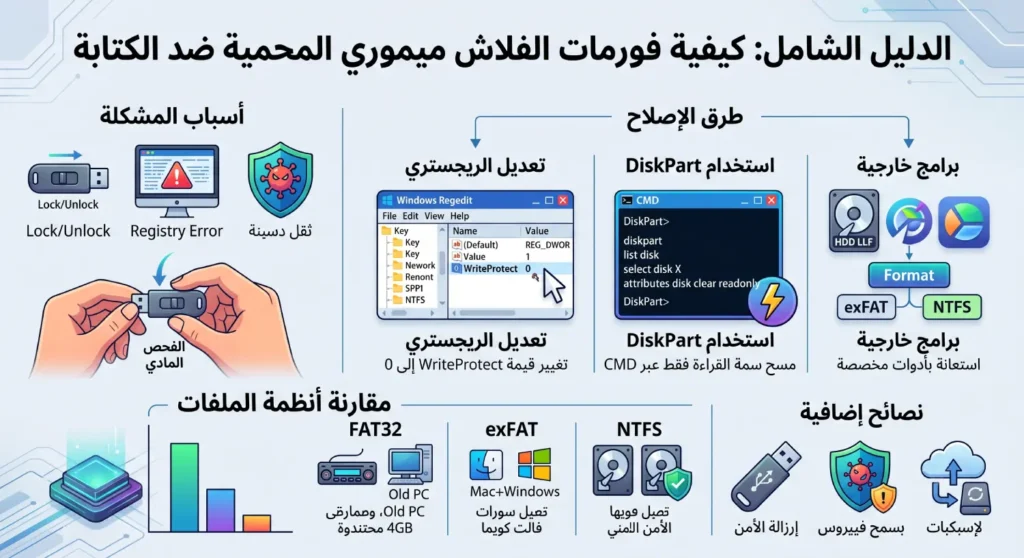
The issue of write protection on flash memory is one of the main obstacles users face when trying to transfer or delete files from portable storage devices. A message may appear indicating that “the device is write-protected” without any clarity on the reasons or suitable solutions.
In our article today, we will detail how to solve the write-protection issue on USB drives, benefiting from the expertise of several reliable foreign sources, along with providing explanations and presenting the most important tips to ensure the success and continuity of the process.
Reasons for the USB Drive Being Write-Protected Error in Windows 10 and 11
Before starting the formatting or repair process, it is necessary to identify the reasons for the protection message. These reasons may be related to the devices themselves or the software settings of the operating system.
- Physical Write Protection Switch: Some flash drives and memory cards have a small switch on their side that allows for the activation or deactivation of write protection. When set to “Lock”, it prevents any modification or deletion of data.
- Registry Settings in Windows: Some security software or manual modifications in the Windows Registry Editor may add a specific key that prevents write operations on removable storage drives through a value called
WriteProtect. - Manufacturer-Specific Issues (like SanDisk drives): According to support reports from SanDisk, when a flash drive detects an internal fault or approaches the end of its lifespan, its internal programming automatically switches to a “read-only” mode to protect your data from loss, which explains the common occurrence of the write-protected SanDisk flash drive issue.
- Corrupted System Files or Viruses: Some malware may alter the properties of the flash drive to make it read-only.
3 Ways to Solve the Write-Protected Disk Issue
If you are looking for quick and tested solutions, here are 3 methods to resolve the write-protected disk issue that you can apply yourself on Windows operating system:
1. Remove Write Protection via Registry Editor
- Open the “Run” window by pressing the
Win + Rkeys. - Type the command
regeditand press Enter. - Navigate to the path:
HKEY_LOCAL_MACHINE\SYSTEM\CurrentControlSet\Control\StorageDevicePolicies - If the
WriteProtectkey exists with a value of 1, double-click it and change the value to 0, then restart the computer.
Related: Solve the Blue Screen Issue When Booting Windows 10
2. Format the Flash Drive from CMD (DiskPart Tool)
This method is considered the strongest for overcoming software protection and performing a hard format on the stubborn flash drive via the command line:
- Open the CMD prompt with administrative privileges (Run as Administrator).
- Type the command
diskpartthenlist diskto identify the flash drive number. - Select the disk using the command
select disk X(where X is the flash drive number).
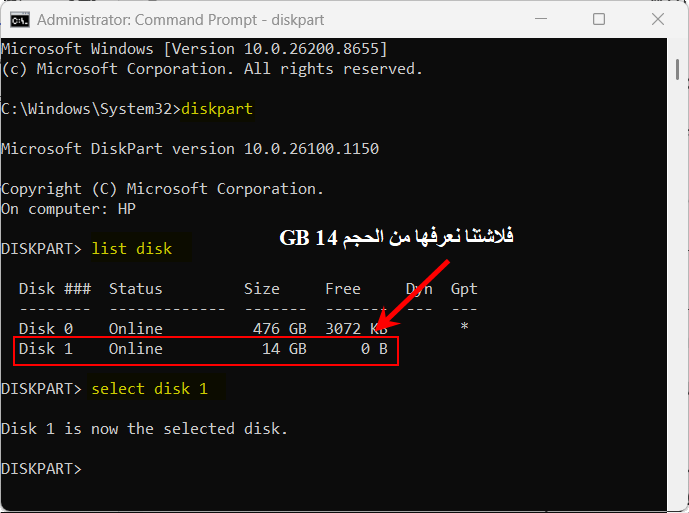
- Remove write protection by typing the command:
attributes disk clear readonly. Wait a moment until the message appears: disk attributes cleared successfully - To clean the flash drive and reformat it, type in sequence:
cleanthencreate partition primarythenformat fs=fat32 quick. - Wait until the operation is complete, then type
exit.
Note: In step 5, you can format the flash drive using the command format fs=ntfs quick instead of format fs=fat32 quick.. i.e choosing NTFS file type.
Should You Choose NTFS or FAT32?
According to trusted technical sources like Microsoft Support and MakeUseOf, here’s the difference so you can choose what suits your needs:
1. NTFS File System:
- Advantages: Supports transferring very large files (where a single file exceeds 4 GB, such as high-definition movies or game files and ISO), and also provides better security and encryption for data, being the default and strongest system to work on Windows environment.
- Disadvantages: Compatibility; the flash drive may not work ideally (for reading and writing together) on some other systems like Mac (macOS), smart TVs, cameras, and some Android phones.
2. FAT32 File System:
- Advantages: High compatibility; the flash drive works on almost any device (Windows, Mac, PlayStation, screens, cars, etc.).
- Disadvantages: You cannot transfer or copy any single file larger than 4 GB, even if the flash drive is empty and has enough space for it.
💡 Tip from SEO and technology experts: If the flash drive is large (greater than 32 GB) and you want to use it to transfer large files between Windows devices, choose NTFS. If you want a middle ground that combines support for large files and high compatibility with Mac and screens, you can type exfat instead of both, like this: format fs=exfat quick
For more information about file systems, you can refer to our article “The Difference Between FAT32, NTFS, and exFAT“
3. Use a Program to Solve the Write-Protected USB Issue
If system-related software methods fail, you can use specialized external tools. Many are looking for the best program for formatting USB flash drives at the push of a button, where tools like HP USB Disk Storage Format Tool or the official SD Card Formatter, along with EaseUS Partition Master, come into play; as these programs have advanced algorithms to bypass system restrictions and reformat the forcibly protected USB.
How to Format Write-Protected Memory Cards (SD Card)
This issue is not limited to USB storage devices only, but also extends significantly to memory cards. If you are facing an issue and need to format a protected Memory Card, you should first check the physical adapter (SD Adapter); it should have a small lock switch on the left side, make sure it is raised towards the word “Unlock”.
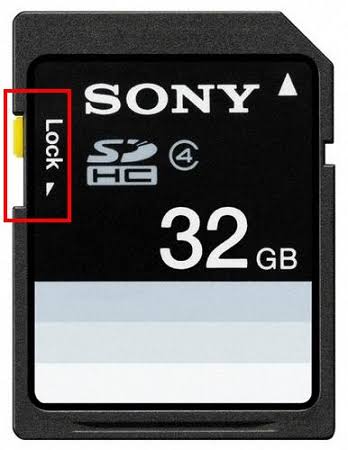
If the card is a micro (Micro SD) inside an Android phone and shows protected, technical sources like Lifewire recommend connecting it to a computer via a high-quality card reader and applying the formatting flash drive from CMD step described above, as it is also very effective with stubborn memory cards.
Steps to Permanently Repair Flash Memory
To ensure that the write protection issue does not return, it is advisable to follow additional steps that secure the flash memory structure and check it periodically.
Firmware Update
Some manufacturers provide firmware updates for flash memory that resolve compatibility issues or internal faults that may lead to automatic write protection. Visit the official website of the company (like SanDisk or Kingston) and go to the support page to download the suitable tool.
Perform a Low-Level Format
This is a formatting process at the physical sector level of the flash drive and allows for resetting all allocation tables internally without leaving any traces of previous system definitions. The HDD Low Level Format Tool program is used for this purpose. After finishing, the flash drive is repartitioned and formatted normally.
You may be interested in: How to Recover Deleted Files from a Computer
Ensure the Flash Memory is Virus-Free
After every formatting or repair operation, it is essential to conduct a comprehensive scan with antivirus software and update the database, to prevent the return of the restricted state due to harmful programs targeting system files.
Best Program for Formatting USB Flash Drives
Often, the default Windows tool fails to handle damaged or protected memory, here is a list of the most powerful and best programs specializing in performing formatting stubborn flash drives at the push of a button and completely safely:
1. USB Disk Storage Format Tool
This is the best for stubborn files and viruses. This program is classified as one of the best global options for fixing flash drives and eliminating malignant software errors; it excels in its ability to scan memory and fix partition errors, and it allows you to format large capacity flash drives with the FAT32 system (which Windows automatically prevents).
Program Features: Very simple interface, lightweight (only 550 KB), and supports all types of flash drives and memory cards.
🔗 Official Download Link: Download USB Disk Storage Format Tool
2. Rufus
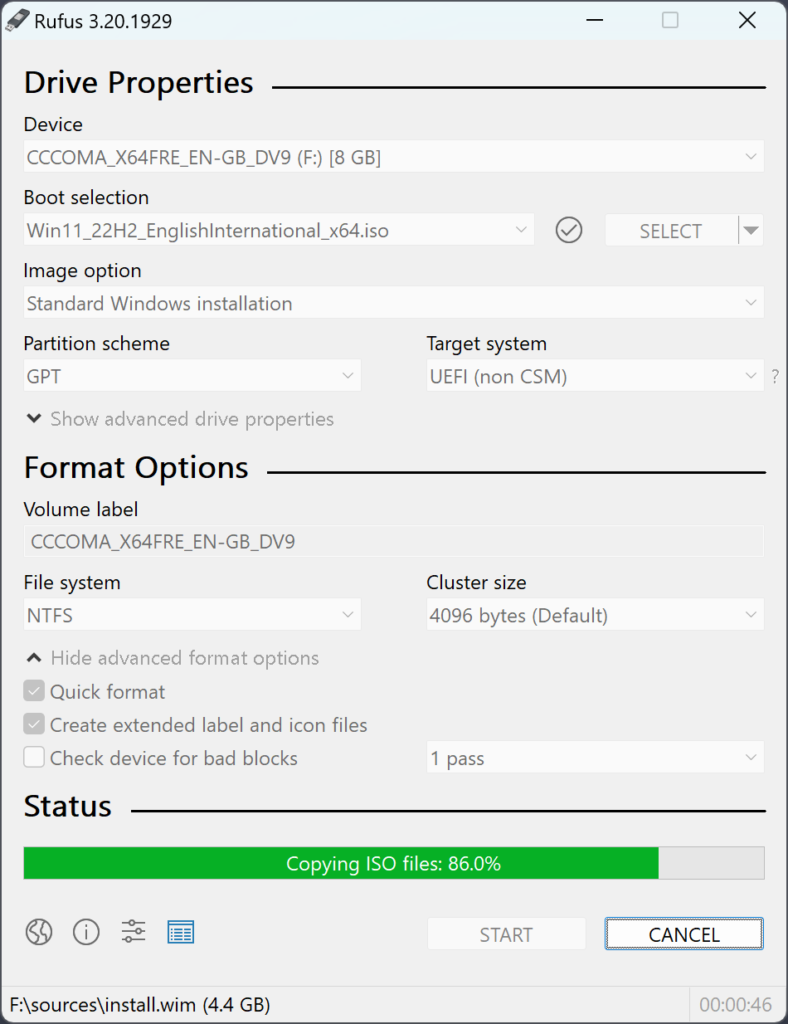
Despite the widespread fame of Rufus for burning Windows and Linux images to flash drives, technically it is considered the best program for formatting USB drives thanks to its exceptional speed and powerful algorithms for scanning and bypassing bad blocks and comprehensive restructuring of file systems.
One of the program’s key features is that it is completely free, open-source, supports bypassing Windows 11 requirements, and provides very advanced formatting options.
🔗 Official Download Link: Download Rufus from the official site
3. EaseUS Partition Master
It is considered the comprehensive professional solution for protected disks. If the problem is related to the flash drive losing its real capacity or showing up as “read-only”, this giant provides a specialized tool within the Toolkit section called “Write Protection” to remove software protection at the touch of a button before starting the format.
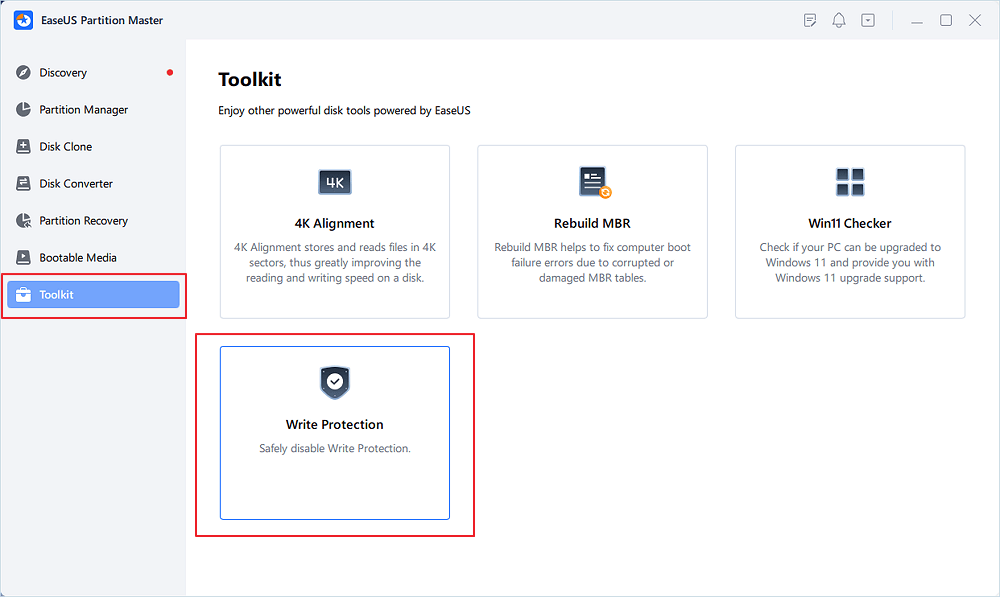
The program has a user-friendly graphical interface for beginners, and it has the ability to merge unallocated spaces and change the file system without losing data.
🔗 Official Download Link: Download EaseUS Partition Master
4. HDD Low Level Format Tool
When all solutions fail and the flash drive becomes completely unreadable, this program comes to perform “low-level formatting”. The program performs a comprehensive scan at the physical sector level of the memory and restores it to factory condition.
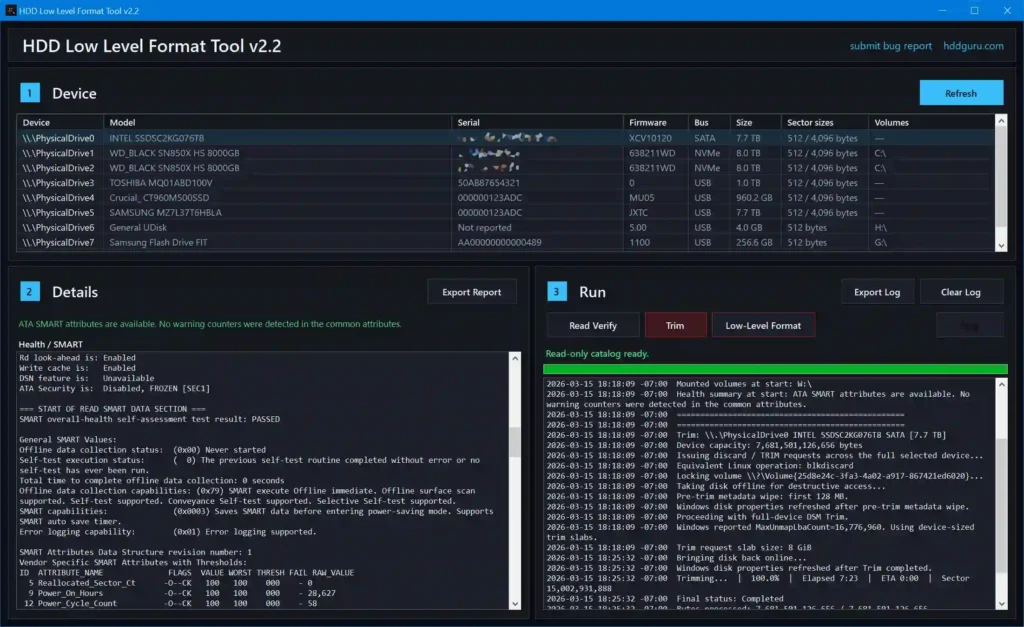
- Warning: This process completely wipes the data and it is impossible to recover it afterward.
- 🔗 Official Download Link: Download HDD Low Level Format Tool
Frequently Asked Questions
The reason may be damage to the internal components of the flash drive (Hardware), or the physical protection switch remaining in the Lock position, or the WriteProtect value in the registry not being successfully deleted.
Yes, repeating format operations, especially heavy writing (like Low-Level Format), reduces the number of write/erase cycles available to flash memory. Therefore, it is advised to avoid repeated formatting unless necessary.
The ability to recover depends on the type of formatting; quick formatting removes the tables only without actually erasing the content, allowing data recovery using specialized programs. However, low-level formatting wipes all sectors permanently, making data recovery nearly impossible.
If the usage is between Windows and multiple devices, FAT32 or exFAT is the most compatible. While NTFS supports files larger than 4 GB and offers better security, it may not be read by default on some screens or cameras.
Additional Tips for Maintaining Flash Memory
- Avoid unplugging the flash drive suddenly while transferring files to prevent damage to sectors (Bad Sectors).
- Use USB ports directly on the motherboard of the computer instead of weak external expansion devices (Hubs).
- Always keep a backup of important data on other storage media or in the cloud.
- Regularly update USB drivers through Device Manager in Windows 10.