Contents
In this article, we will explore a method to transfer large files and photos from your phone to your computer at lightning speed via Wifi without a USB cable, without software, and without hassle.
In an era where data transfer rates are accelerating and file sizes are constantly increasing, relying on traditional methods involving cables has become time-consuming and impractical. In this article, we present several tested and effective methods for transferring large files between your phone and computer quickly without the need for any cables, along with usage steps and tips to ensure your devices perform at their best.
Why Transfer Large Files Without a Cable?
There are various reasons that lead us to seek alternatives to cable transfers, the most important of which are:
- Speed: Modern Wi-Fi networks and Wi-Fi Direct technologies can exceed the speed of traditional USB cables, especially when using the 5 GHz frequency.
- Ease of use: No need to search for a compatible USB port or specific cable, data is transferred directly over the wireless network.
- Less mobility: The risk of disconnection due to moving the device during transfer is reduced compared to cables that may easily disconnect.
- Compatibility: The possibility of transferring between different operating systems (Android, iOS, Windows, macOS, Linux) via standard protocols.
Method for Transferring Files from Phone to Computer Without Cable via Wifi
This method is for Android or iPhone devices and a computer running Windows 11. The steps may seem lengthy, but they are only for the initial connection between the computer and the phone. Subsequent transfers require only sending and receiving. You can transfer files by following these steps:
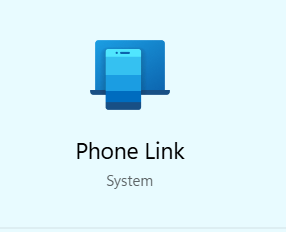
- On your computer, search for the phone link application, which is a standard application in all Windows systems and does not require installation.
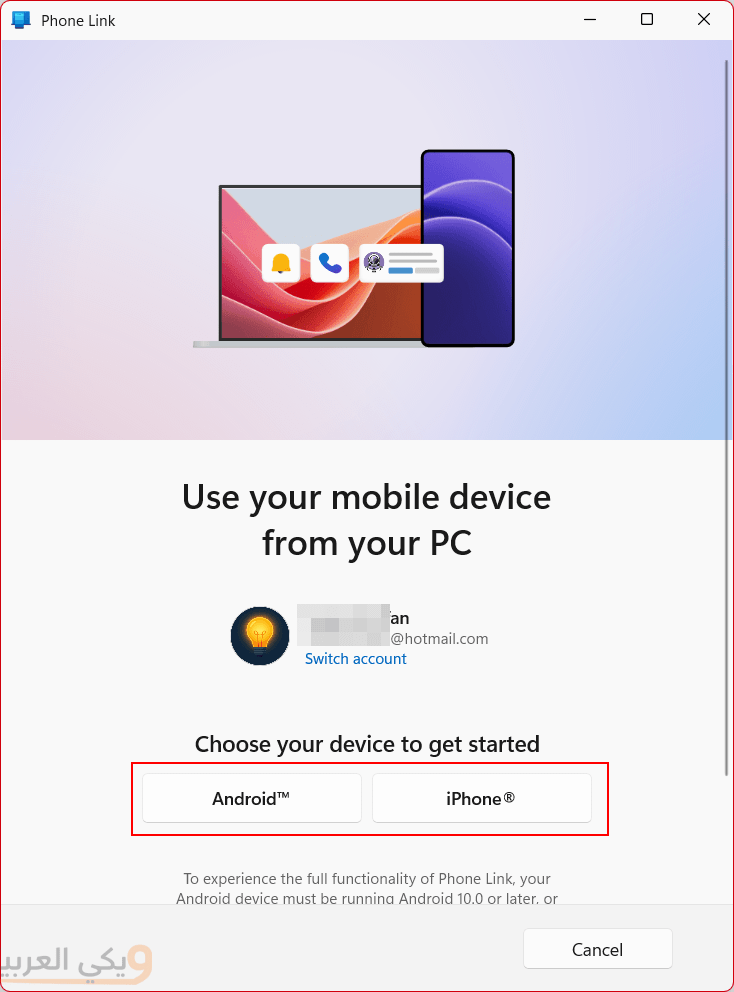
- After opening the application, choose your device type (Android/iPhone).
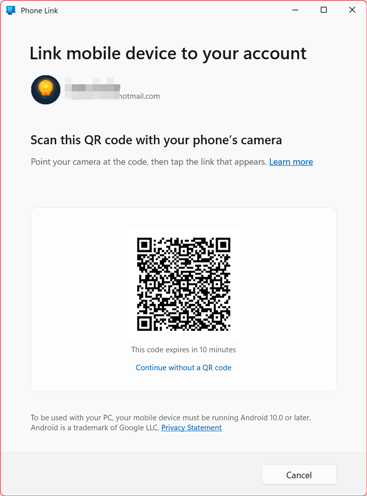
- A QR code will open.
- Now on the phone, open the Link to Windows application, which is also a standard application.
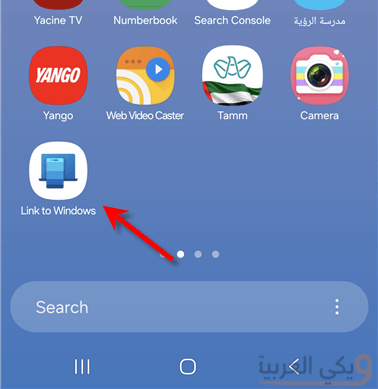
- If the email registered on both the computer and the phone is the same, you can register using the email/or continue by scanning the QR code.
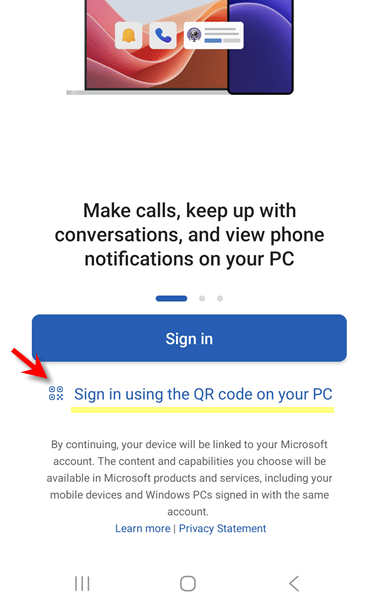
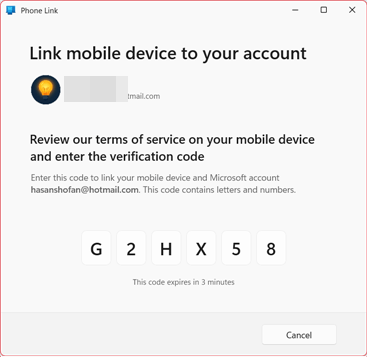
- After scanning the square code with the camera, a code will appear on the computer. Enter the code in the mobile application.
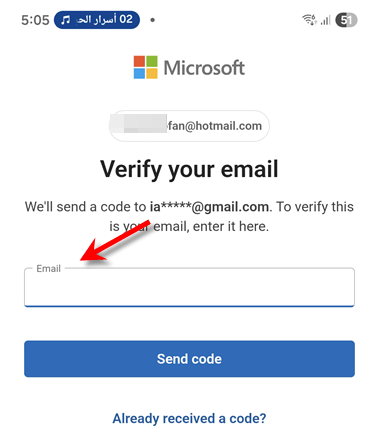
- The phone may request another code if your phone is registered with a different email. Enter your email on the phone and receive the code and enter it again.
- The phone may request various permissions such as access to location (optional) or access to files (necessary for file transfer) or creating a Pass key (optional choose No or Cancel to skip this step) or sharing diagnostic data (choose No)
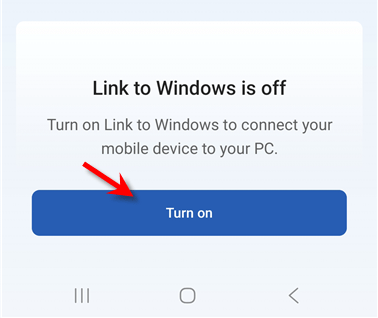
- Finally, the application will ask you to enable sharing, select Turn on.
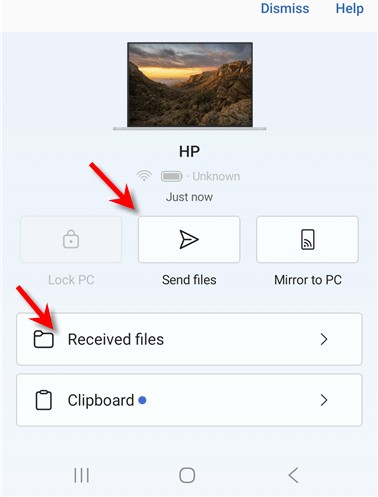
Now we have established the connection between the phone and the computer, and in subsequent instances, we can easily share by opening the application on both the phone and computer and clicking Send files to send files or Receive files to receive files from the computer:
Main Methods for Transferring Large Files Between Phone and Computer Quickly
1. Nearby Share or Quick Share Feature on Android Devices
Using the “Nearby Share” (Quick Share) – the easiest and fastest. Google and Microsoft have integrated this feature to become the official alternative to Wi-Fi Direct for high-speed file transfer.
- On the computer: Download and install the Quick Share for Windows program (from the official Android site).
- Activation: Open the program and make the device visibility available to “everyone” or “your devices”.
- On the phone: Activate the Quick Share feature from the quick notification panel.
- Transfer: Select any file on the phone, press “Share”, and let the computer detect it immediately for lightning-fast transfer.
2. Turn the Computer into a Hotspot – No Internet or Router Needed
If you are in a place where there is no router, you can make the computer itself the “router”:
- On the computer: Go to Settings > Network & Internet > Mobile Hotspot and turn it on.
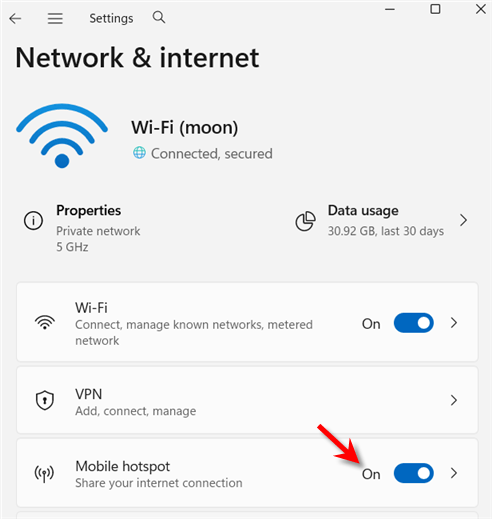
- On the phone: Connect to the Wi-Fi network broadcasted by the computer.
- Transfer: Now both devices are on the same network. You can use a file manager application on the phone (such as File Manager or CX File Explorer or EX file manager) and enable the “Connect to Computer via FTP” feature, then enter the address written in the computer’s browser to browse and transfer files freely.
3. Snapdrop App (No Installation)
Snapdrop is an open-source solution that works through a web browser and does not require installation:
- A. Ensure that both the phone and computer are connected to the same Wi-Fi network.
- B. Open the browser on both devices and go to the address snapdrop.net.
- C. The icon of each device will appear, click on the receiver’s icon, then choose the file you want to send.
- D. The transfer starts immediately at speeds of up to tens of megabits per second (depending on the quality of the router).
4. Feem App
Feem is available for Android, iOS, Windows, and Mac, and uses the LAN protocol to transfer files:
- A. Install Feem on both the phone and computer.
- B. Open the application on both devices and note the name of each device.
- C. Select files on the sender then choose the name of the receiver to start the transfer.
- D. The “Screen Sharing” feature can be used to browse computer folders from the phone.
5. Xender App
Xender is one of the most popular wireless transfer applications, supporting Android, iOS, and Windows:
- A. Install the application on both devices or open its web version on the computer.
- B. Select “Connect to PC” and press the “Start” button to open a temporary access point.
- C. Connect to it from the computer via a browser by entering the displayed address (e.g., 192.168.43.1:33455).
- D. Drag and drop files into the web interface and they will be downloaded immediately.
6. Create a Local FTP Server
Some file management applications like Solid Explorer (Android) or FE File Explorer (iOS) support running an FTP server:
- A. Start the server from the app and select a folder to share.
- B. On the computer, open the file browser and type in the address bar ftp://IP-address:port.
- C. Enter login credentials if prompted, then copy files easily by dragging them over FTP.
7. Share via SMB/CIFS
A shared folder can be set up on the computer (Windows, macOS, or Linux) via the SMB protocol:
- A. On the computer: Right-click on the folder > Properties > Sharing, then enable sharing.
- B. On the phone: Use a file management app that supports networks like ES File Explorer or File Manager.
- C. When adding a new network, choose SMB, then enter IP and user credentials.
- D. Browse the folder and quickly copy large files over the local network.
Tips for Improving Transfer Speed
To obtain the best performance when transferring files wirelessly, it is recommended to:
- 1. Use a Wi-Fi network with a frequency of 5 GHz instead of 2.4 GHz.
- 2. Bring the phone and computer closer to the Wi-Fi point or use Wi-Fi Direct while minimizing obstructions.
- 3. Update the operating system and applications to ensure protocol compatibility and higher performance.
- 4. Disable VPN or proxy services during transfer to reduce network delays.
- 5. Split large files into smaller parts if transfer methods impose size limits on a single file.
- 6. Clear temporary memory and caches on the phone and computer to speed up reading and writing processes.
- 7. Use a high-speed router supporting the 802.11ac or Wi-Fi 6 standard to increase transfer rate.
Additional Tips
- Check available space: Before transferring, ensure enough space on the receiving device to avoid operation failure.
- Encryption and privacy: If the files are sensitive, use encryption such as ZIP with a password or a built-in VPN app.
- Backup: Keep a backup of important files before transfer, especially if the data is irreplaceable.
- Managing old phones: The above methods can be used to recover files from old phones before upgrading.
Frequently Asked Questions
Can files be transferred without an internet connection?
Yes, most methods (Wi-Fi Direct, FTP, SMB) rely on a local Wi-Fi network or a device-to-device network without needing the internet.
How does file size affect transfer speed?
Transfer speed is affected by data flow and connection startup time. Splitting large files may improve the situation if the protocol imposes a maximum size limit on a single file.
What is the best app for transferring files between iOS and Windows?
Applications like FEEM, Snapdrop, and Xender work efficiently across both platforms, with web interfaces that do not require installation on the computer side.
How can I avoid compatibility issues between operating systems?
Use standard protocols (FTP, SMB, HTTP) or web solutions like Snapdrop that support all browsers without the need for additional software installation.