Contents
In light of the increasing focus on privacy protection and sharing media without leaving permanent traces, WhatsApp has launched the “View Once” feature that allows users to send photos and videos that can only be viewed once by the recipient before disappearing.
With the growing demand for higher-quality media, since the WhatsApp application compresses photos by default when sending them, precise steps are needed to ensure sending high-definition (HD) photos and clear videos without compromising quality or security.
This article details how to enable this feature on Android and iOS devices and offers practical tips to ensure the best quality for photos and videos when sending.
Read also: How to Create an Automatic Reply and Welcome Message in WhatsApp for Customer Service
Requirements for Sending High-Quality View Once Photos and Videos
Before proceeding with the sending process, it is essential to ensure the availability of certain technical requirements that ensure the feature works smoothly and maintains media quality:
First, you must update the WhatsApp application to the latest version available in the Google Play or App Store. Recent updates often include improvements to compression algorithms and better support for HD quality.
Second, it is preferable to rely on a stable and fast internet connection, and it is advisable to use a high-speed Wi-Fi network when sending large files.
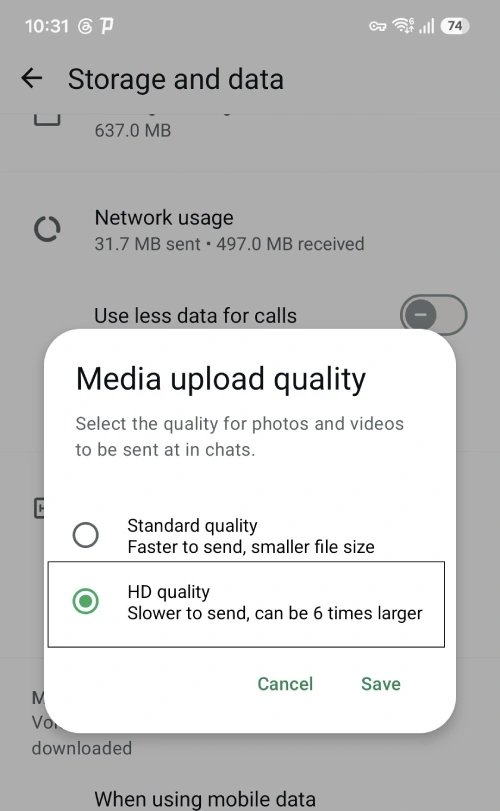
Third, ensure to enable the “Upload Media in High Quality” option in WhatsApp settings. Go to the Settings menu, then select “Storage and Data”  and then enable the “Media Upload Quality” option and choose “HD Quality” or “without additional compression”.
You can choose the image resolution when sending by pressing the HD button. If it is not enabled, your original image is lower than HD quality.
Read also: Free WhatsApp AI Bot for Images and Chats
Steps to Send High-Quality Photos Using the View Once Feature
This feature allows you to send photos that appear to the message recipient only once, then disappear entirely from the chat. To send a high-quality HD photo once, follow these steps:
Step One: Choose the Photo and Check Its Quality
Open the photo gallery on your phone and select the image you wish to send. It is preferable for the photo to be at least 1080×1920 pixels to ensure clarity when displayed. You can use photo editing apps like Adobe Lightroom Mobile to adjust colors and dimensions before sending.
Step Two: Open the WhatsApp Conversation
Enter the conversation to which you want to send the photo, whether it is an individual or group chat. Ensure that the recipient is using a recent version of WhatsApp that supports the View Once feature.
Step Three: Activate the View Once Feature
When you press the media attachment icon (camera icon or attachment button), choose “Photos and Videos,” and then select the desired image. Before sending, press the pencil icon located next to the send button.
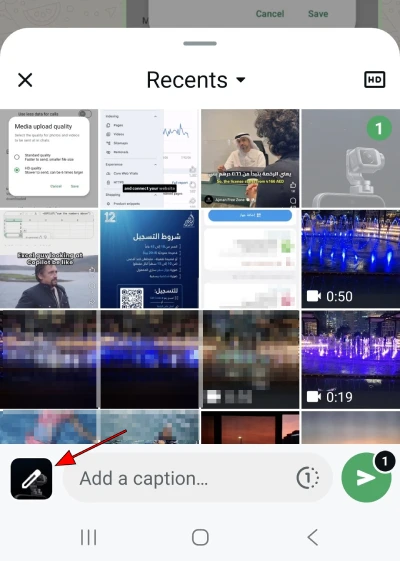
A circular icon with the number “1” will appear.

Click on it to activate the “View Once” mode. The circle surrounding the number 1 becomes solid.
You may also be interested in: Download a Second WhatsApp on the Same Device Samsung, iPhone, or Huawei
Step Four: Send the Photo and Follow Up on Receiving the Notification
Press the send button  . As soon as the recipient opens the photo, a notification will appear in the chat indicating that the photo was viewed and deleted automatically. This process ensures that it cannot be viewed again or resent, maintaining the original quality of the photo until the last moment before viewing.
Steps to Send HD Videos Using the View Once Feature
Sending a high-definition video requires similar steps, taking into account file size and internal app compression options:
Step One: Prepare a High-Quality Video
Use a camera with a resolution of 1080p or 4K if your device supports it. Before sending, trim the video to the appropriate length using editors like InShot or VN to ensure a reasonable file size while maintaining quality.
Step Two: Select the Video from Within WhatsApp
Open your conversation in WhatsApp, then tap the attachment button and choose “Video Gallery.” Select the desired clip and ensure its size does not exceed the maximum supported limit (formerly 16 MB, then 25 MB, and now WhatsApp has reached 100 MB with a maximum resolution of 720p) source.
Note: Although it is off-topic for this article, for your information, WhatsApp allows sending files up to 2 GB, but for documents. However, video remains currently at 100 MB. Therefore, certain policies control the way WhatsApp is used.
Step Three: Activate View Once Mode for the Video
Press the edit icon before sending the video and then tap the circular “1” icon that appears next to the video preview. This activates the mode that allows the recipient to watch the video only once. Nevertheless, internal compression remains light to ensure compatibility with internet speed and display quality.
Step Four: Send and Follow Up
After pressing the send button, the video will be converted to the message. When the recipient plays the video for the first time, the app automatically deletes the file from the chat and shows a notification confirming that the video has been viewed and successfully deleted.
See the article: How to Write Text in Bold, Italics, or Strikethrough in WhatsApp
Tips for Achieving the Best Quality When Sending
Although WhatsApp tries to reduce the size of the media to speed up sending and alleviate pressure on the servers, you can follow some tips to ensure that your photos and videos arrive with the highest possible clarity:
• Use the HEIC format for images on iOS and high-efficiency JPEG format on Android.
* Before sending, edit the media and remove excess elements to reduce file size without harming quality.
* Avoid digital zoom while recording or shooting to prevent image blurriness.
* Send media while connected to a stable Wi-Fi network to avoid interruptions in file compression or color distortion.
Additional Tips
The “View Once” feature can be used for various purposes that require additional privacy, such as sending sensitive documents or screenshots containing banking information or negotiation terms. Here are some practical guidelines:
First, reconsider your choice of recipient before sending, especially if it contains confidential data.
Second, enable screen lock or fingerprint access in WhatsApp to protect the app from unauthorized access.
Third, monitor backup settings; “View Once” files are typically not added to cloud backups to maintain privacy.
Related: How to Edit Sent Messages in WhatsApp After Sending
Frequently Asked Questions
Can the image or video be viewed again after it has been opened once?
No, once the view once file is opened, it will be automatically deleted from the chat and cannot be restored.
Does activating HD mode affect sending speed?
Yes, sending may take longer when using high quality, especially over slow networks. It is preferable to use Wi-Fi.
Can media be downloaded before opening?
The feature does not allow downloading of media protected by view once mode; it is designed for instant viewing and automatic deletion.
How can I check if the recipient opened the photo?
A dotted half-circle mark will appear in the chat  , along with a message indicating that the media has been “viewed” or “opened”.
What video file formats are supported in WhatsApp?
According to the current official WhatsApp support documents, the supported formats in WhatsApp are: 3GP, AVI, FLV, MKV, MOV, MP4.
What is the maximum video size that can be sent on WhatsApp?
Currently, as of the writing of this article, the maximum size you can send for a video file is 100 MB. The maximum supported resolution is 720p.