Contents
You may receive many annoyances on the WhatsApp messaging app, and certain spammers—whether friends or strangers—might trigger your frustration. This forces you to permanently block a number on WhatsApp to enjoy complete peace of mind from unwanted disturbances. Some friends often ask me that frequent question: “Will the number I blocked know that I blocked them?” Or phrased differently, “Will my friend know that I blocked them?” This concern is what matters to many when considering the importance of blocking an annoying contact.
We will answer this question and provide you with 4 different methods to block numbers.
Also Read: How to Hide WhatsApp Status and Profile Picture from Friends
Permanently Block a Number on WhatsApp
You can easily block a number on WhatsApp or block an annoying caller using 4 different methods:
Method 1 to Block a Number on WhatsApp:
- Open the previous chat with the annoying number.
- Tap the menu button (three dots).
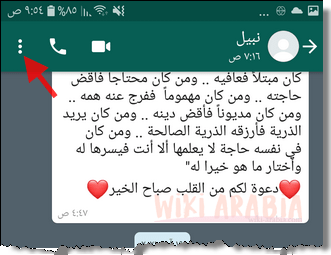
- Select More.
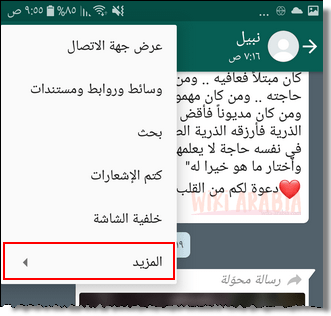
- Tap the Block option.
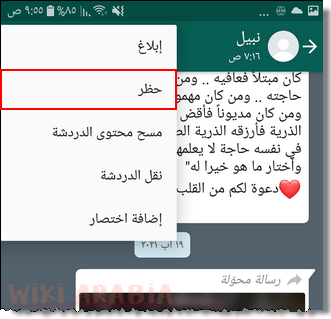
- A confirmation message will appear; tap Block.
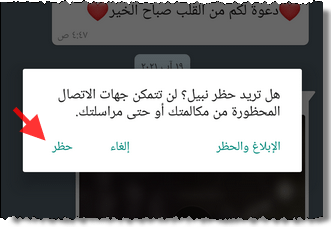
Method 2
- Open the chat with the annoying number.
- Tap on the contact’s name or number at the top of the chat window.
- Scroll down and select Block.
- A confirmation message will appear; tap Block.
Also make sure that blocked annoying numbers will not appear to you again when using your account on a web browser after securely completing the WhatsApp Web login process via Google.
Method 3
- Long-press the chat thread with this number without opening it until it is selected.
- Tap the menu button.
- At the bottom of the menu, you will find the Block option.
- A confirmation message will appear; tap Block.
Method 4
- Open the WhatsApp application.
- Tap the menu button.
- Tap Settings.
- Tap Account.
- Select Privacy.
- Scroll down to find the Blocked contacts option.
- Tap the Add Contact icon in the upper corner.
- Your WhatsApp contacts list will open.
- Select a number to block it immediately and add it to your block list.
How to Know If You Are Blocked on WhatsApp
Many people ask how to tell if they have been blocked on WhatsApp. It is impossible to predict with absolute certainty whether someone has blocked you or not, except in four specific conditions mentioned at the end of this section. However, you can often easily spot clues indicating your number has been blocked through simple indicators, such as:
- Sudden disappearance of the contact’s profile picture.
- Disappearance of the status posted by the contact.
- Disappearance of the contact’s last seen timestamp.
- Disappearance of the About info section.
While all these indicators point toward a potential block, they are not entirely conclusive. Therefore, you should use a few tricks to verify, including:
- Check for the presence of the contact’s status, profile picture, last seen, or About section using another WhatsApp number you own. If any of these details appear on the second number while your messages fail to deliver, it means you are definitely blocked. If they do not appear, it does not conclusively mean you are blocked.
- Repeat the previous attempt using the phone number of a mutual friend whom you are certain is not blocked by that contact. If the status, profile picture, etc., are visible to them while your messages fail to deliver, you are definitely blocked.
We repeated the phrase in case your messages fail to deliver, meaning messages are not being delivered at all (indicated by only a single gray checkmark next to your sent message). A contact might hide their status, profile picture, or info from everyone, or specifically from you, without necessarily having blocked you! Therefore, the definitive confirmation of being blocked requires all four conditions to be met together:
- Your messages are not delivered (single checkmark).
- Messages sent from another number deliver successfully.
- The status or profile picture is visible to another person or number.
- Those same details remain hidden from your account.
Only these four combined points confirm a block—nothing else.
Also Read: How to Hide Last Seen on WhatsApp