
Contents
The Windows 11 operating system is an advanced step by Microsoft, offering a modern interface and new features. However, users may notice a deterioration in performance and slow responsiveness over time, especially on devices that do not have very high specifications.
Speeding up Windows 11 does not necessarily require upgrading your hardware components, but rather applying a set of modifications and software enhancements that aim to utilize system resources more efficiently. This article provides a detailed and reliable guide to speeding up your device.
You may be interested in: Speeding Up Old MacBook Devices
We will present you with 11 steps to speed up your computer on Windows 11 whether you are working on a laptop or a traditional desktop computer.
Speed Up Your Computer by Managing System Resources and Programs
Managing the programs that run in the background and the programs that start with the system is one of the most important steps to regain system speed.
1. Disable Unnecessary Startup Programs
Many programs consume system resources significantly as soon as the computer is turned on. To disable them:
- Open Task Manager by pressing Ctrl + Shift + Esc.
- Go to the “Startup” (Startup Apps) tab.
- You will find a list of programs and their impact on startup (High, Medium, or Low impact).
- Right-click on high impact programs that are not needed at startup and choose “Disable”. This will reduce system boot time and free memory upon startup.

You can, for example, disable the OMEN Gaming Hub program which is gaming-related and runs at Windows startup.
2. Close Active Background Applications
Windows 11 allows many applications to run in the background to receive notifications and updates, consuming some of the CPU and RAM.
Go to “Settings” from the Start menu then “Apps” then “Installed Apps”.

Scroll through the list and click on the menu icon for each app and ensure there is an Advanced options choice, which is not available in all programs.

When entering the app’s advanced options, you will be able to choose from among 3 options regarding the app’s background activity:
- Always (the app will always run in the background).
- Power optimized mode (the app will run in the background only when needed)
- Never (the app will never run in the background) for example, if the app is downloading a file, this download will stop as soon as the app is closed.

Choose any of these modes that suits you to save energy and speed up the device.
3. Uninstall Unused Programs
The accumulation of programs you no longer use consumes storage space, and may leave behind unnecessary temporary files, often these applications continuously update or run in the background or at system startup.
From Windows settings in the “Installed Apps” list, delete any programs or games you haven’t used for a long time.
Phase Two: Optimize System Settings and Visual Performance
Windows 11 relies heavily on beautiful visual effects, but these effects are the largest consumer of device resources. Performance can be improved by sacrificing some aesthetics.
Adjust Visual Performance Effects
To improve performance at the expense of visual appeal:
- Search the “Start” menu for “View Advanced System Settings“.
- In the “System Properties” window, go to the “Advanced” tab.

- In the “Performance” section, click on “Settings“.
- In the “Visual Effects” tab, choose “Adjust for best performance”. This will disable animations, shadows, and transparency effects, resulting in a noticeable speed increase.

Disable Transparency Effects and Animations
You can control these effects more precisely from within the settings:
- Go to “Settings” then “Accessibility” then “Visual Effects“.
- Disable “Transparency effects” and “Animation effects“.
Activate High Performance Power Plan
This plan ensures that the CPU operates at maximum speed, at the expense of higher battery consumption if you’re using a laptop.
- On PCs, go into settings then from the side menu System then select Power and Battery. (On laptops for convenience click on the battery icon in the Start bar then the battery icon again as shown in the image.

- Now click on Power mode.

- Select “Best performance” if available, either in battery mode (for laptops) or desktop. If it’s not available, you can create a new plan with the same name.
It is important to know that high performance will speed up desktops, but on laptops it will lead to significant battery consumption.
Speed Up Windows 11 by System Maintenance and Hard Drive Updates
The health of the hard drive and the cleanliness of system files are vital to ensure fast data processing.
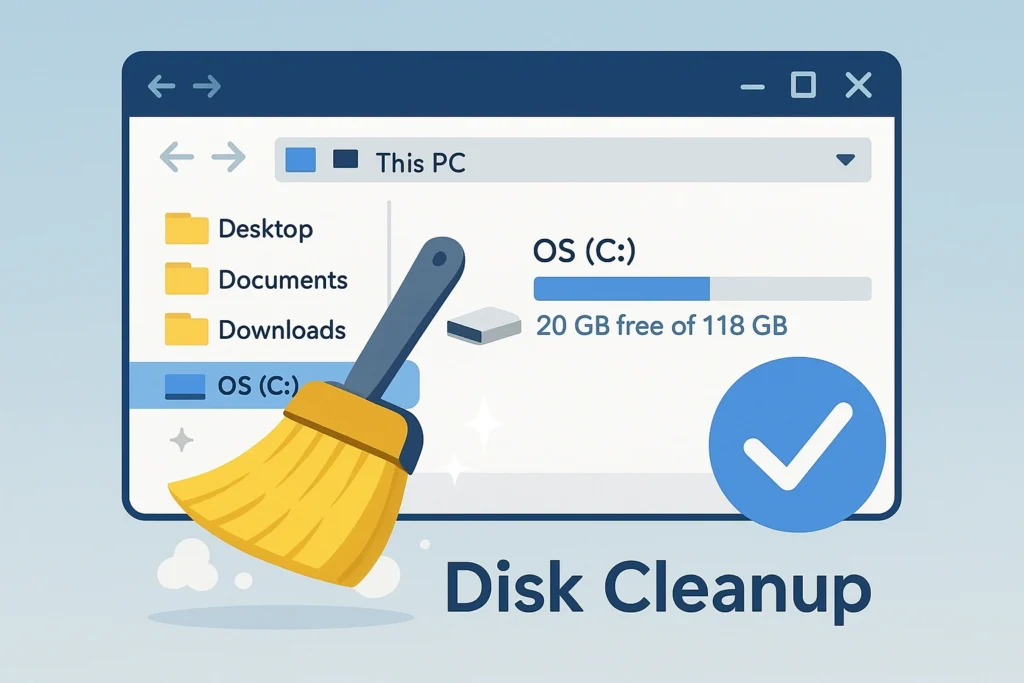
Clean Hard Drive and Temporary Files
Temporary files, update logs, and cache files accumulate over time and cause slowdowns. Thus, you can speed up Windows and improve system performance by cleaning unnecessary files and freeing up space on the hard drive by following these steps:
- Open “Settings” then “System” then “Storage”.
- Click on “Temporary files”.
- Select all unnecessary files, such as “Delivery Optimization Files” and “Temporary System Files”, and delete them.
- Turning on “Storage Sense” will automatically delete unnecessary files when disk space is low.
You can read the detailed article on How to Free Up Space on Drive C Step by Step. This is a comprehensive reference for cleaning the drive.
Defragment (for HDDs only) and Optimize Drives (for SSDs)
Important Note: SSDs should not be defragmented as this shortens their lifespan. Windows 11 automatically performs “Trim” on these drives.
Search the Start menu for “Defragment and Optimize Drives”.
- For traditional hard drives (HDD), select them and click on “Optimize” to defragment.
- For solid-state drives (SSD), the tool will execute the Trim command, which is essential to maintaining writing and reading speed.
Update Drivers and the System
Always ensure that all drivers and Windows 11 components are up to date.
Go to “Settings” then “Windows Update” and make sure to install all pending updates.
Use the “Device Manager” to check for any issues with drivers for core components like the graphics and sound cards.
Speed Up Your Computer by Adjusting Internet Browser and Additional Tips
Slowness is not limited to the system itself, but extends to your everyday applications.
Disable Unnecessary Notifications
Continuous notifications cause applications to run occasionally and consume resources.
- Go to “Settings” then “System” then “Notifications”.
- Disable notifications for most applications that do not require alerts from.
Reset Internet Browser Settings
If your browser is slow, it may be due to accumulated extensions, cached files, or setting issues.
In browsers like Chrome or Edge, go to Settings and “Reset browser settings” to their default state, then remove unnecessary extensions.