Contents
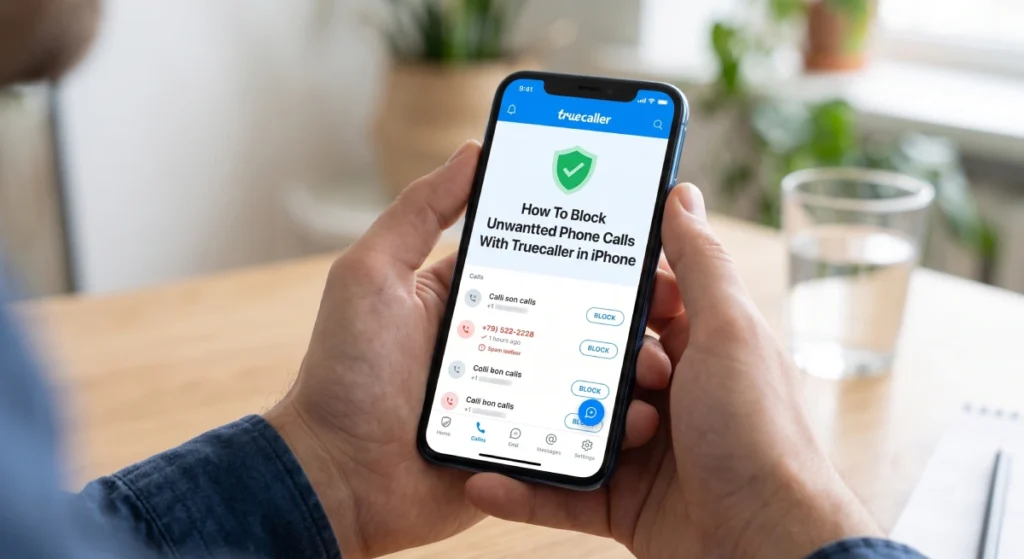
Spam calls are one of the most annoying issues for smartphone users. Despite the high security layers provided by iOS, customizing call blocking requires advanced tools. The Truecaller app is the global number one choice for identifying callers and blocking intruders.
This guide provides a step-by-step process on how to set up and activate the Truecaller number blocking feature on iPhone devices to achieve a safe and comfortable communication environment.
How Truecaller Works on iOS and How to Set It Up for the First Time
The operation of Truecaller on Apple’s iOS differs from that on Android devices due to Apple’s strict privacy restrictions. The app relies on an API called CallKit, which allows the app to provide the phone system with a list of blocked and troublesome numbers locally without accessing your personal call logs.
Steps to Activate Truecaller on iPhone:
- Open iPhone Settings.
- Go to the Apps section and then select Phone (or select “Phone” directly in previous iOS versions).
- Tap on Call Blocking & Identification.
- Activate all the switches related to the app (Truecaller – Part 1, Part 2, Part 3, Part 4).
- Open the Truecaller app and go to the Protect tab to update the database of spam numbers.
Note: The latest iOS updates (such as iOS 18 and later) with Truecaller Premium subscription provide advanced features such as instant auto-block and live caller ID recognition.
Truecaller Number Blocking Program
When looking for a reliable number blocking program for iPhone, Truecaller is considered the best due to its database based on reports from hundreds of millions of users worldwide.
Key Blocking Features in the App:
- Automatic Fraud Detection: Alerts you in red if the number is from a marketing entity or a scam attempt.
- Update Top Spammers List: This list is updated daily to automatically block the most annoying numbers in your geographic area.
- Quick Search Feature (Siri & Action Button): On iPhone 15 Pro and later or through shortcuts, you can customize the Action Button or give a voice command to Siri to instantly know the identity of the strange number.
Blocking Unregistered Numbers with Truecaller
If you are suffering from repeated calls from numbers not in your address book, you can enable the Truecaller Unregistered Number Blocking feature to completely reduce this annoyance.
Advanced Blocking Steps within Truecaller:
- Open the Truecaller app on your iPhone.
- Tap on the Protect tab at the bottom.
- Tap on Block Settings.
- Enable the Block Non-Phonebook Numbers option.
- You can also enable the Block Hidden/Private Numbers option to prevent calls that do not display the caller’s number.
Truecaller App ──> Protect Tab ──> Block Settings ──> Block Unregistered Numbers
| Type of Blocking | What is Blocked? | Main Benefit |
| Top Spammers | Numbers reported by thousands of users. | Elimination of telemarketing and fraud. |
| Non-Phonebook | Any number not saved in your contacts. | Preventing strangers from contacting you. |
| Hidden Numbers | Caller ID blocked calls (Private Calls). | Privacy and personal security protection. |
Blocking Unregistered Numbers on iPhone via System Settings
In addition to using Truecaller, the iPhone has a built-in feature within the operating system that harmoniously complements setting up Unregistered Number Blocking on iPhone without the need for external apps in some cases.
How to Activate the “Silence Unknown Callers” Feature:
- Open Settings.
- Select Phone.
- Scroll down and tap on Silence Unknown Callers.
- Turn on the switch.
How does this feature work?
This feature allows only calls from people in your contacts, or numbers you have recently communicated with, or numbers that have come to you via email. All other calls from strange numbers are directed straight to voicemail without ringing the phone.
Code to Prevent Strange Numbers from Calling: Telecom and Network Solutions
Often users in the Arab region seek solutions from the telecom company to prevent the annoyance of calls as a first line of defense before they reach the phone. If you are using a telecom network (like Etisalat / Etisalat Egypt or Etisalat UAE), you can use network options and call blocking codes.
Codes and Call Blocking Services in the Etisalat Network:
- Call Barring (Blacklist) Service: Telecom companies provide services to control incoming calls through direct coding or the company’s official applications.
- Code to Prevent Strange Numbers from Calling Etisalat (Blacklist Service / Access Denial):
- In Etisalat Egypt: You can subscribe to the Blacklist service by dialing the code
*700#to control which numbers can call you or block specific numbers. - You can also redirect all unwanted calls when the line is busy via the call forwarding code:
*21*0200#(or the service code in your country), which informs the caller that the number is unavailable or closed.
- In Etisalat Egypt: You can subscribe to the Blacklist service by dialing the code
- Cancel Advertising Service Numbers: To link blocking of messages and marketing calls, you can send the word Ball or Block to the designated short number to prevent advertising messages (such as 5014 in Etisalat UAE or 3011 in Etisalat Egypt).
Comparison: Truecaller vs. iPhone Settings vs. Network Services
| Feature | Truecaller | Built-in iPhone Settings | Network Services (Etisalat Code) |
| Name Identification | Yes (Massive Database) | No (Only Registered Numbers) | No |
| Automatic Blocking of Spammers | Yes (Based on Reports) | No | Yes (Based on Added List) |
| Blocking Unregistered Numbers | Yes | Yes (Redirect to Voicemail) | Yes (Via Blacklists) |
| Works Without Internet | Yes (For Local List) | Yes | Yes (At the Exchange Level) |
Trusted Sources and References
The scientific material and steps mentioned in this guide are based on recent official documents and sources:
- Truecaller Official Support & Help Center:
- How Call Blocking & Identification Works on iOS & Auto-Block Setup (Truecaller Documentation, 2024/2025).
- Apple Official Support Guide:
- Detect and block spam phone calls on iPhone / Silence Unknown Callers (Apple Support Documentation).
- Tom’s Guide & MacRumors Tech Analysis:
- How to block unknown callers on iPhone using Truecaller CallKit Integration (Updated iOS Guide).