Contents
With the continuous development of browsing platforms and the companies’ efforts to improve the user experience, Microsoft Edge has become a prominent browser among its competitors. One of the key features users look for is the ability to customize the startup page in Edge according to their daily needs, along with disabling annoying news that may distract them or display irrelevant content.
In our article today, we will provide detailed and practical methods for adjusting the homepage in Edge and filtering the news section, based on the latest practices from reliable sources.
Steps to Customize the Startup Page in Edge Browser
Before making changes, ensure that you have the latest version of Edge installed on your device (Windows, macOS, or Linux) to guarantee full customization options. You can check for updates by going to the three-dot menu in the top corner, then “Help and feedback,” followed by “About Microsoft Edge.”
Choosing the Default Page Type at Startup
To access the Home button, follow one of these methods:
- Type the following link in the browser
edge://settings/appearance/toolbar#HomeButton&1and press Enter. - Or go to Settings, then from the sidebar, choose Appearance. Then click the “home button” button.
- Now enable the Home Button option that flashes, then click on the link set Home button URL.
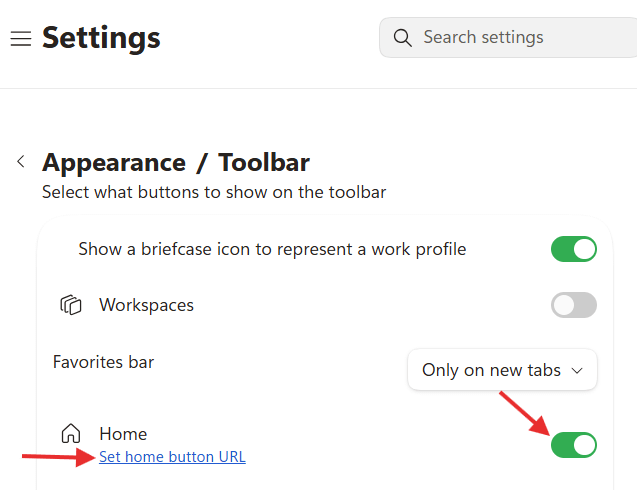
You can choose: a blank new page, the Microsoft Edge page, or customize a URL. Choosing “Set custom site” allows you to write the link to your favorite website or a specific dashboard of your company, enhancing productivity and reducing excess clicks.

Customizing the Startup Page Content and AI Elements
Microsoft Edge offers flexible options in its latest updates to shape the “New Tab Page” interface suitable for your work style, whether you prefer complete simplicity or interaction with AI tools:
- Background: You can enable the Bing daily image for a renewed aesthetic touch, or turn it off for a clean and simple interface.
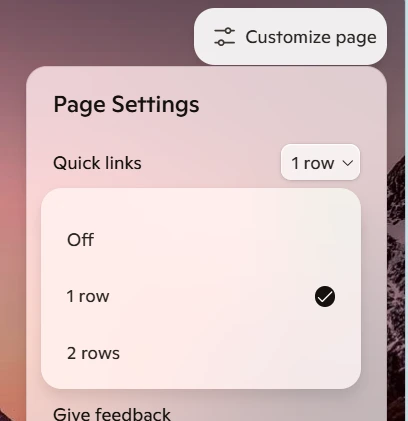
- Quick Links: You can control the appearance of boxes for your favorite sites (one row, two rows) or completely hide them.
- Content / Copilot: You can disable interactive cards and AI suggestions with a single click to achieve a blank and fast page.
Hiding and Customizing Copilot Suggestions and Quick Links
If you do not use AI suggestions or want to reduce the elements on the homepage:
Managing Quick Links:

You can set the number of rows (one row, two rows) or hide them completely, and you can pin your manually created sites and delete the automatic suggestions added by the browser based on your browsing.
- From the homepage customization tab, click on it.
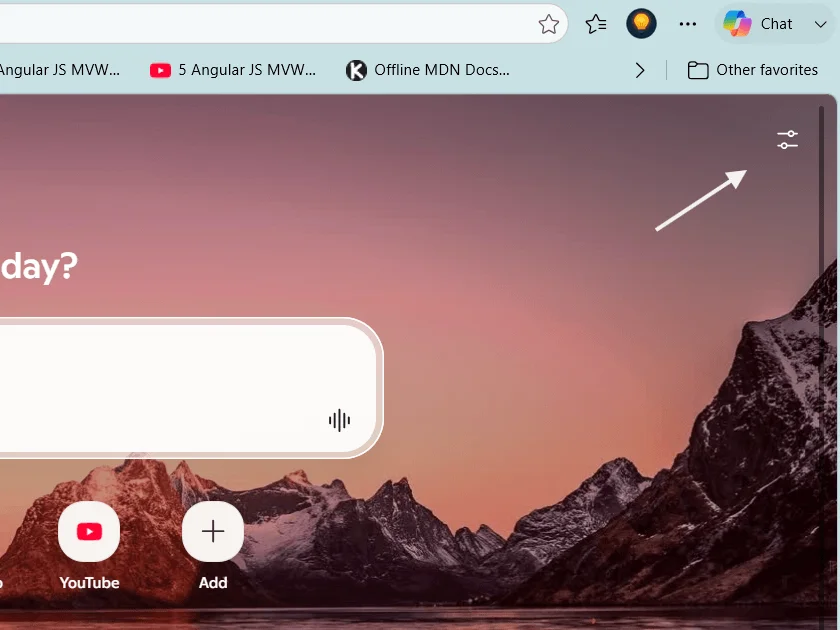
2. Now you will find customization options including quick links, where you can choose one row or two rows or completely disable them by selecting off.
Disabling Copilot Tips

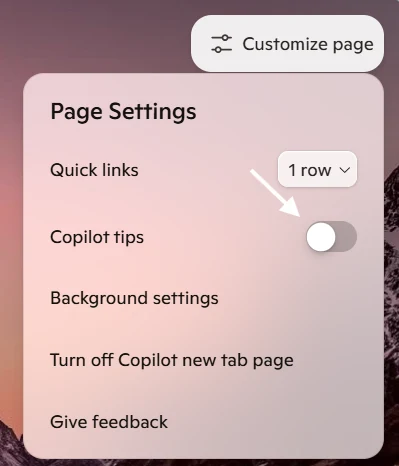
From the customization list, disable Copilot Tips.
Returning to the Old News Page in Microsoft Edge
To return to the old default page in Microsoft Edge. News page and customize it. As seen in the previous image, click on Turn off Copilot new tab page.
Now you will be redirected to the settings page, press the sliding button and turn it off.

How to Disable Annoying News in Edge
Now that we have returned to the old default page, the news page. Some excessive news may consume a significant amount of device resources or display content that does not serve your purpose. This section discusses two main ways to disable annoying news in Edge.
You can disable news from the “New Tab” menu
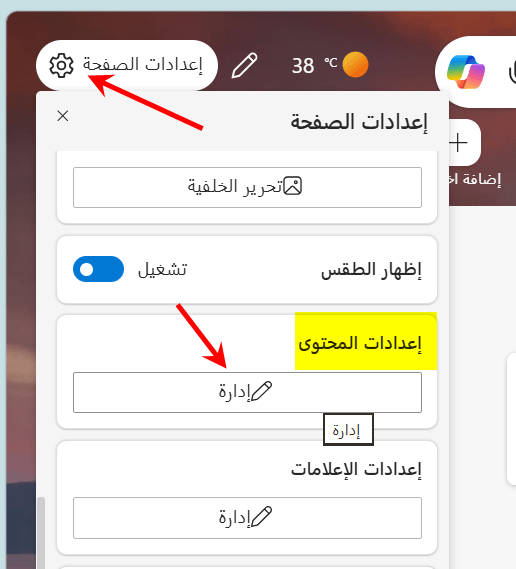
- Open a new tab, and click on the gear icon in the top corner.
- Scroll down and select Manage in the Content Settings section.
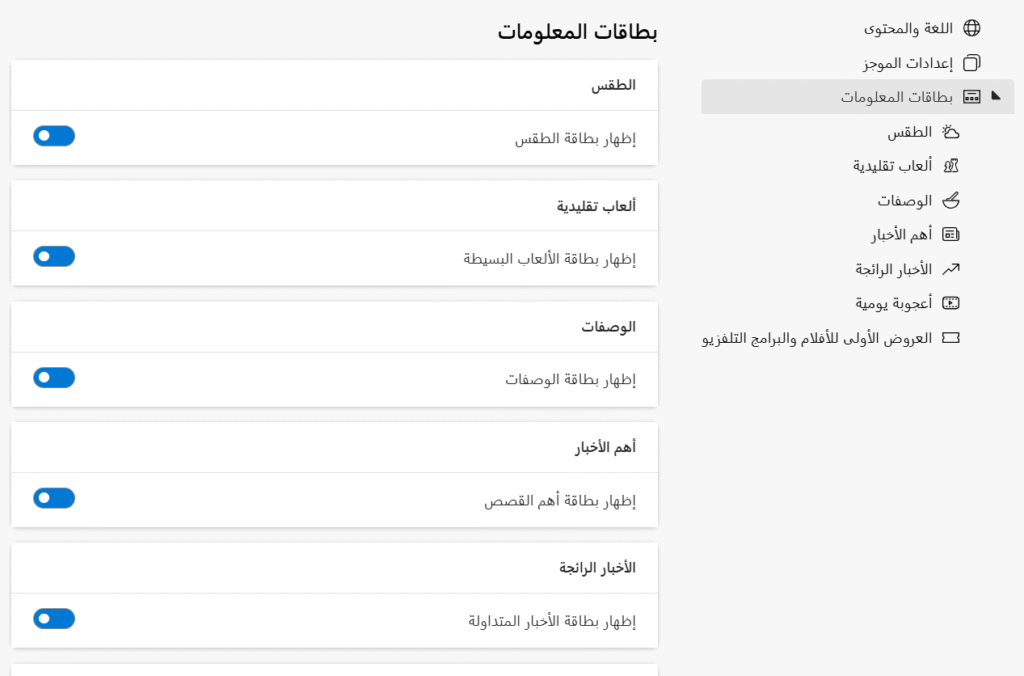
Now in the Content Settings page and in the Information Cards section, you can disable or enable the following cards:
- Weather information.
- Game cards.
- Recipes.
- News and trending news.
- Today’s Wonder.
- Movie and TV show offers.
Customizing News Interests in Edge
My Interests is the section dedicated to completely control the quality of content and news that appears to you on the homepage.
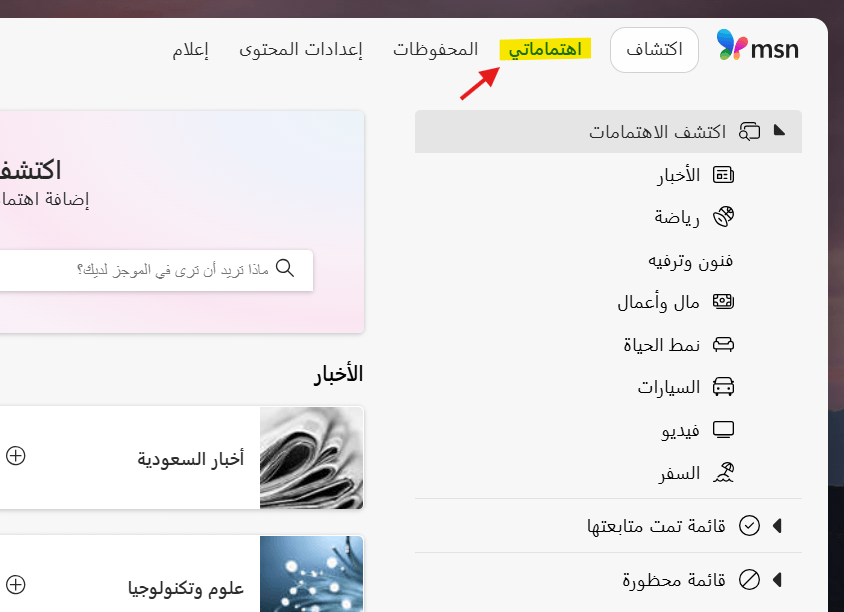
As mentioned in the previous paragraph, after entering Content Settings, you will see a separate tab called My Interests. It is based on 4 key elements:
- Discover Interests (Ready Categories): It displays a list of main categories such as (news, sports, arts, business, lifestyle, cars, travel). Clicking on any of these categories shows you the subtopics related to it to choose what you want to follow.
- Interactive Search Box (“What do you want to see in your feed?”): Allows you to type any specific topic or keyword (like: AI, programming, economy) to start following it immediately without needing to navigate within categories.
- Quick Add Icon (+): Appears on the suggested topic cards (like: Saudi News, Science and Technology). Clicking the (+) button directly adds that topic to your following interests to receive its news updates in the feed.
- Organizational Lists (Follow and Block):
- Followed List: Displays all the topics and sources you are currently following to unfollow any with one click.
- Blocked List: Allows you to exclude and block any unwanted news sources or topics to prevent their appearance in the interface.
Using Extensions to Expand Customization Options
For a browsing experience beyond the default options, Edge provides full compatibility with browser extensions:
- Microsoft Edge Add-ons Store and Chrome Web Store: You can install advanced extensions to completely change the appearance of the page, such as adding “New Tab Redirect” to automatically redirect the new page to a specific link, or adding “Infinity New Tab”, which transforms the page into an interactive dashboard that includes a to-do list and quick notes.
- Manage extensions easily by going to the extensions menu in the browser (
edge://extensions) to modify their permissions and experience what suits your needs.
Frequently Asked Questions (FAQ)
Q: How can I restore the default appearance of the startup page in Edge?
A: Open a new tab, click the gear icon at the top, and choose the default layout “Inspiring” or click reset to the default settings.
Q: Can I hide the Bing / Copilot search box from the homepage?
A: Yes, from the page settings (gear icon), you can go into customization options (Custom) and turn off the search box or Copilot button depending on your browser version.
Q: What is the difference between the startup page (On Startup) and the new tab page (New Tab Page)?
A: The Startup Page is the page that appears to you only once when you first open the browser application. But The New Tab Page is the page that appears every time you press the + button to open an additional tab.
Q: Does a lot of quick links and changing backgrounds affect browser performance?
A: Yes, to a small extent, using high-resolution images (Bing Daily Image) and interactive cards brings additional data from the network. For optimal performance on weaker devices, it is recommended to choose Focused mode and turn off animated backgrounds.
Conclusion
By following these steps and applying the recent settings for Microsoft Edge, you can transform the startup page from a cluttered interface into a fully customized work environment that increases your productivity and provides quick access to what you only need.