Many users suffer from the slowness of the Edge browser and high CPU resource consumption, negatively impacting the browsing experience and leading to overall device performance slowdown.
In this article, we will review a set of techniques and settings that contribute to speeding up the Edge browser and reducing CPU consumption, relying on several reliable sources and real user experiences.
The Microsoft development team is keen on adding periodic improvements to browser performance and fixing security vulnerabilities. To ensure you’re using the latest version:
Open the browser menu then select Settings.
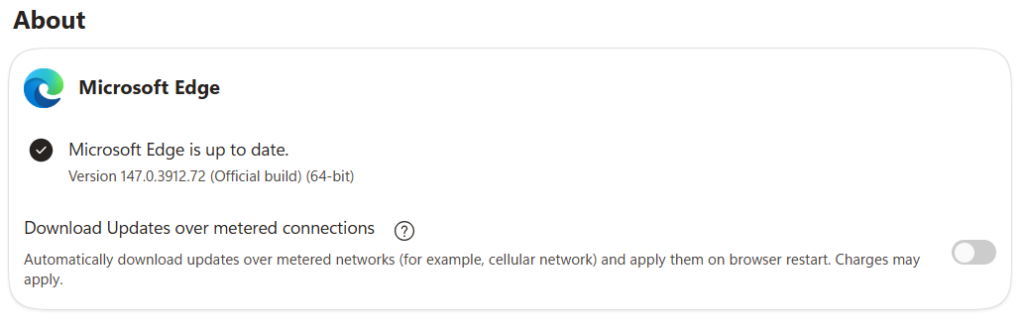
Go to About Microsoft Edge.
The browser will automatically check for updates and install them if available.
If you find it updated, it will write Microsoft Edge is up to date.
The option below is not just for automatic updates but also for automatic updates through the data network. Do not activate it to avoid consuming your balance.
Extensions represent an important part of enhancing browser functionality, but they can consume CPU resources as well as memory. To speed up Edge and reduce CPU consumption, do the following:
Open Settings then select Extensions.
Review the list of installed extensions and disable or remove any extension you do not regularly use.
It is preferable to keep official extensions or those provided by trusted sources to reduce the likelihood of resource consumption.
Adjusting Internal Edge Settings
Managing Cookies and Cache Files
The accumulation of cookies and cache files leads to slow page loading over time. To limit this:
Go to Settings then Privacy and services .
Under the Clear browsing data section, choose to periodically clear cookies and cache files.
You can set up automatic cleaning when closing the browser to free up cache memory.
Enabling the Efficiency Mode
The latest versions of Edge offer the Efficiency Mode feature that reduces CPU and memory consumption when minimal chip usage is sufficient:
Go to Settings then to System and performance.
Enable the Save power for background sites or Efficiency Mode option.
You will notice a significant improvement in CPU consumption, especially when opening a large number of tabs.
Using the Sleeping Tabs Feature
Sleeping tabs stop the activity of pages that have not been used for a while, reducing the load on CPU and memory:
In Settings under System and performance, enable Sleeping tabs.
You can specify the idle time before putting a tab into sleep mode (like 5 minutes or more).
This feature gives a significant boost to Edge’s performance when opening dozens of tabs.
Improving CPU Consumption
Adjusting CPU Usage via Task Manager
You can monitor CPU consumption from within Edge itself:
Press Shift + Esc to open Edge’s task manager.
Review the processes that consume the highest CPU (CPU) and memory (Memory).
Click on the process then choose End process to close the tabs or extensions causing slowness.
Disabling Hardware Acceleration
In some cases, hardware acceleration via the graphics card may increase pressure on the CPU:
Go to Settings then System and performance.
Disable the option Use hardware acceleration when available.
Restart the browser to notice the difference in CPU consumption.
Using External Tools to Improve Performance
System Cleaning Programs
Some external tools depend on cleaning system files and the registry and optimizing the browsing history, positively reflecting on Edge’s speed:
You can rely on programs like CCleaner or BleachBit to remove temporary files and speed it up.
It is preferred to run this tool periodically but with caution when modifying the registry.
Windows Settings to Enhance Performance
General system settings affect the browser’s responsiveness:
In the Windows Settings menu, go to System > About > Advanced system settings and choose Adjust for best performance to disable unnecessary visual effects.
Ensure that graphics card drivers are updated and set the high performance mode (High Performance) in power options.
Additional Tips to Speed Up Microsoft Edge
In addition to the previous steps, users can adopt some practices to enhance Edge’s performance:
Use cloud storage services to reduce opening locally heavy content tabs.
Try browsing pages in dark mode in Edge Dark Mode to reduce battery and resource consumption on laptops.
Adjusting font size and pages in settings reduces the intensive re-scaling operations of pages.
How do I check the version of Edge installed on my device?
You can open the browser menu and go to Settings then About Microsoft Edge where the current version is displayed and it automatically searches for updates.
Does disabling hardware acceleration affect video display quality?
In some cases, videos may run through the CPU instead of the graphics card, which may slightly reduce display smoothness, but this varies according to the computer specifications.
What is the difference between Performance Mode and Sleeping Tabs?
The Performance Mode reduces the overall resource consumption of the browser, while Sleeping Tabs focuses on temporarily stopping the activity of inactive tabs.
Is it necessary to use external tools to clean the system?
Not always necessary, especially if you keep the browser and operating system updated regularly. However, specialized programs can help remove deep temporary files and optimize the registry faster.
يُقدم هاتف iPhone 16 تجربة ممتازة تجمع بين الأداء القوي والتصميم العملي، مدعوماً بمعالج A18 المصمم خصيصاً لدعم مهام الذكاء الاصطناعي (Apple Intelligence). ويأتي بشاشة Super Retina XDR زاهية، إلى جانب زر التحكم بالكاميرا الجديد (Camera Control) الذي يمنح المستخدمين وصولاً سريعاً وسلساً لالتقاط الصور والفيديوهات.
ملخص آراء أشهر المواقع التقنية
"معالج A18 القوي يوفر سرعة هائلة وأداءً سلساً للغاية في تشغيل التطبيقات والألعاب الحديثة دون أي تأخير."
TrustedReviews
★★★★★
"زر التحكم في الكاميرا الجديد يضيف لمسة عملية رائعة ومبتكرة تسرع من عملية التصوير باحترافية."
TechRadar
★★★★☆
"عمر البطارية شهد تحسناً ملحوظاً مقارنة بالأجيال السابقة ليصمد بكفاءة طوال اليوم."
The Verge
★★★★★
المميزات
معالج Apple A18 القوي الذي يضمن كفاءة عالية في استهلاك الطاقة ودعم كامل لتقنيات الذكاء الاصطناعي.
زر التحكم الجديد في الكاميرا (Camera Control) للوصول السريع والتحكم الدقيق بالإعدادات والتصوير.
شاشة Super Retina XDR ساطع وعالية الوضوح تقدم ألواناً دقيقة ورائعة.
نظام كاميرا خلفية مزدوج محسن بدقة 48 ميجابكسل مع عدسة فائقة الاتساع تدعم التصوير الماكرو.
يُعد هاتف iPhone 17 Pro Max قمة ما توفره أبل في عالم الهواتف الذكية، حيث يجمع بين التصميم العصري الجذاب بلونه البرتقالي الكوني والأداء الفائق بفضل معالج A19 Pro. ويقدم الهاتف تجربة بصرية مذهلة عبر شاشة Super Retina XDR العملاقة بحجم 6.9 بوصة، مدعومة بمنظومة تصوير متطورة تلبي طموحات عشاق المحتوى الاحترافي.
ملخص آراء أشهر المواقع التقنية
"«الشاشة الكبيرة والساطعة بحجم 6.9 بوصة تجعل مشاهدة المحتويات والألعاب تجربة غامرة بحق.»"
TrustedReviews
★★★★☆
"«نظام الكاميرات الثلاثي بدقة 48 ميجابكسل يقدم تفاصيل مذهلة وثباتاً استثنائياً في تصوير الفيديو الاحترافي.»"
TechRadar
★★★★☆
"«البطارية القوية مع معالجة الحرارة المحسنة تضمن أداءً مستداماً وطويلاً طوال اليوم دون أي تباطؤ.»"