Contents
Many desktop and laptop systems face the issue of CPU overheating noticeably when gaming or running high-stress applications.
This challenge is one of the main obstacles that lead to performance degradation and reduced lifespan of the device components. In this article, we will review the causes of this phenomenon, how to monitor temperature, in addition to practical solutions for cooling regulation and ensuring processor stability under extreme conditions.
Causes of PC Overheating During Gaming and Stress
Factors that lead to CPU temperatures rising to dangerously high levels vary, and the most important include:
Increased Power Consumption
Games and professional software like 3D design programs drain CPU resources significantly, generating excess thermal energy that requires effective dissipation to avoid extreme temperature rises.
Poor Internal Cooling
One of the main reasons is the accumulation of dust inside the cooling fans and heatsink or the use of low-quality thermal paste, which reduces the heatsink’s ability to transfer heat from the CPU to the surrounding air.
Case Design
The design of the case can play a key role in air flow dynamics; tightly sealed cases or those lacking sufficient ventilation openings prevent air renewal and increase heat accumulation.
Related: Solution for the Acer laptop touchpad malfunctioning after the latest update
How to check If your PC is overheating Windows 11
some people search for checking CPU temp windows 11 without third party. Well, actually Windows 11 does not display CPU temperatures natively in the operating system. You need a trusted third-party tool.
Here are some famous third patry Apps to check CPU Temperature:
- Core Temp: A lightweight app that displays real-time temperatures
- HWiNFO: Advanced diagnostic software that explicitly highlights if your CPU is experiencing Thermal Throttling
But actually, there is a way to check temperature without third-party tools.
Check Idle Temperature in the BIOS/UEFI
If your PC crashes or you want a pure hardware-level reading before Windows loads:
- Restart your PC and repeatedly press Delete, F2, F10, or F12 (depending on your motherboard or PC brand) as soon as the manufacturer logo appears.
- Navigate to the PC Health Status, Hardware Monitor, or Monitor section inside the BIOS/UEFI menu.
- Read the idle CPU temperature:
- Healthy reading: Typically ranges between 30°C and 40°C.
- Warning sign: A reading of 70°C or higher right at startup indicates a severe cooler or hardware mounting issue.
how to check cpu temp windows 11 without third party
You can check your CPU temperature directly within Windows without third-party software using these methods:
1. Via PowerShell (Easiest Method)
- Right-click the Start button and select Terminal (Admin) or PowerShell (Admin).
- Paste the following command and press Enter:
PowerShell
Get-CimInstance -Namespace root/wmi -ClassName MSAcpi_ThermalZoneTemperature | Select-Object @{N="CPU Temp (°C)"; E={($_.CurrentTemperature - 2731.5) / 10}}
Note: This displays the temperature directly in Celsius. If you receive an error or a static value, your motherboard restricts WMI access to temperature sensors for security reasons.
2. Via Command Prompt (CMD)
- Search for cmd in the Start menu, right-click it, and select Run as administrator.
- Type the following command and press Enter:
DOS
wmic /namespace:\\root\wmi PATH MSAcpi_ThermalZoneTemperature get CurrentTemperature
- You will see a large integer (e.g.,
3010). To convert it to Celsius:- Divide the number by 10, then subtract 273.15.
- Example:
(3010 / 10) - 273.15 = 27.85°C.
3. For Advanced Users: Via Windows Performance Monitor
- Press
Win + R, typeperfmon, and press Enter. - In the left sidebar, click Performance Monitor.
- Click the green (+) icon at the top to add a counter.
- Locate Thermal Zone Information, select High Precision Temperature, and click Add.
(Note: Some motherboard manufacturers block default Windows commands from querying hardware sensors. In such cases, checking the BIOS/UEFI screen remains the most accurate hardware-level method without installing extra software).
How to Monitor CPU Temperature
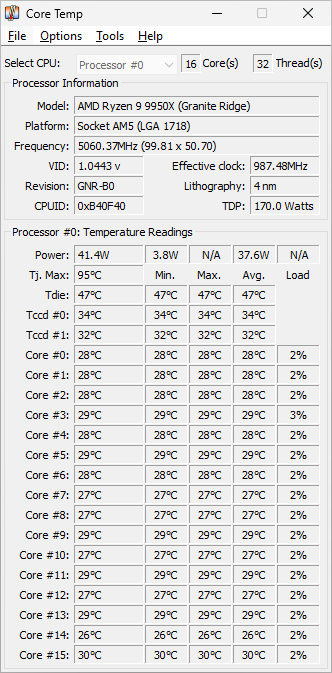
Monitoring temperature is a crucial step before attempting any adjustments. Free, available software like HWMonitor, Core Temp, and RealTemp can be used to track core temperatures in real-time. It is recommended to monitor:
- Temperature of each core separately.
- CPU Usage displayed as a percentage.
- Fan speeds (RPM) to ensure they are functioning properly.
Through this data, you can gauge the system’s response to stress conditions and peak times, helping to make informed decisions about improving cooling.
Ways to Solve the CPU Overheating Problem
Several practical and tested solutions are available to reduce temperature increases and cool the CPU effectively, and we will highlight the most notable ones below:
Estimated Time: 1 Minute (28).
How to Solve the CPU Overheating Problem
- Cleaning the Heatsink and Fans
Regular cleaning is the first maintenance step; dust accumulation hinders airflow and reduces the heatsink’s efficiency. Use compressed air to clear debris from heatsink and fan openings regularly every month or two in dusty environments.
- Replacing the Thermal Paste
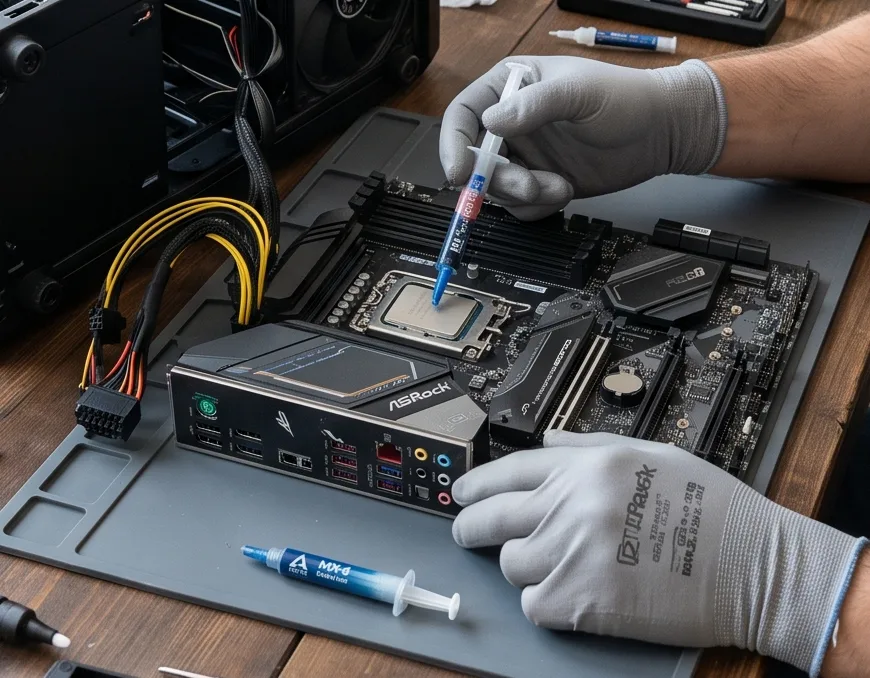
Thermal paste acts as a medium between the CPU surface and the heatsink base, helping in efficient heat transfer. After one to two years, the thermal paste begins to lose its properties and needs to be replaced with high-quality paste designed for high-performance computers.
- Improving Airflow Inside the Computer Case
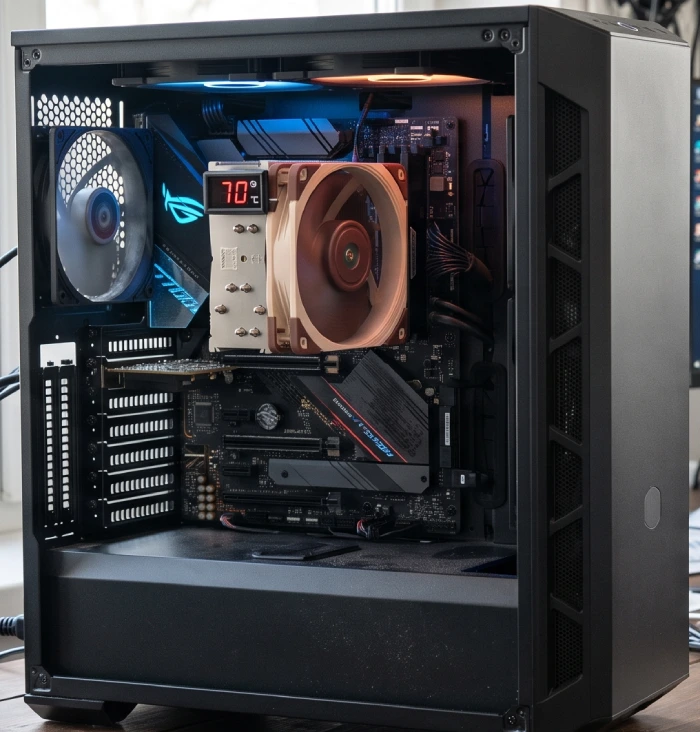
It is advised to organize the power cables inside the case to avoid obstructing airflow, and to add intake and exhaust fans in a balanced manner. It is better to direct airflow innovatively, where front fans intake cool air and top and rear fans expel hot air quickly.
- Using Advanced Cooling Systems
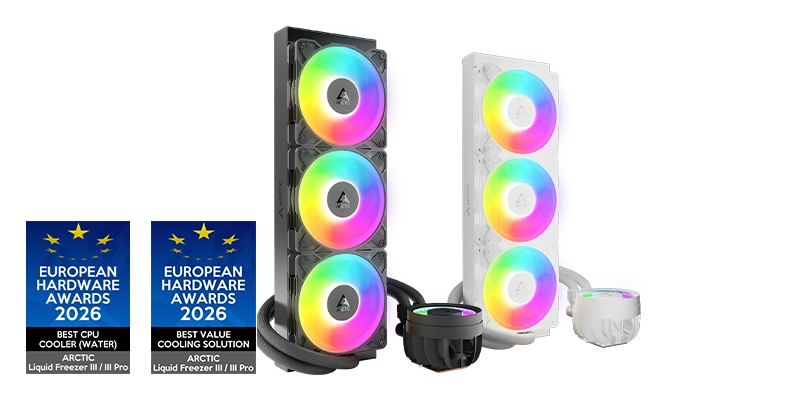
One can switch to AIO (All-In-One) water cooling or even a custom water cooling system for those seeking maximum temperature control. These systems excel at transporting heat away from the CPU more efficiently than traditional air coolers.
- Adjusting BIOS Settings and Power Management Software
In some cases, it is possible to lower the frequency (Underclocking) or adjust the operating voltage (Undervolting) of the CPU through BIOS settings or specialized software like Intel XTU or AMD Ryzen Master. This procedure reduces power consumption and thus heat generation.
For the AMD Ryzen™ Master Utility software for frequency control. Choose the appropriate software on their official site between the 2000 and the 3000 to 4000 series.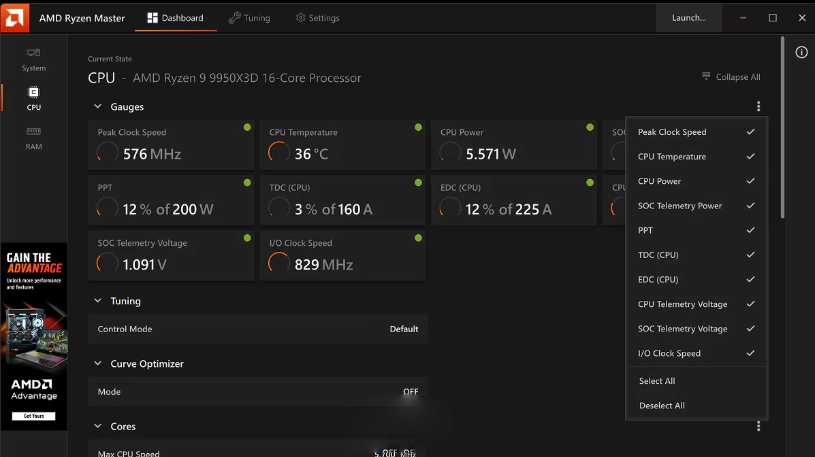
You may be interested in: Fixing the Blue Screen Problem When Starting Windows 10
Prevention and Regular Maintenance
To keep your device running for a long time and avoid the recurrence of CPU overheating issues, you can periodically follow the following tips:
- Conduct periodic inspections for dust accumulation every two months.
- Monitor temperatures during long gaming sessions.
- Update graphics card drivers and ensure power settings compatibility.
- Utilize smart cooling options in motherboard software.
Additional Tips
Alongside the previously mentioned steps, some practical guidelines can be beneficial:
- Elevate the computer slightly off the desktop to facilitate the entry of cool air under the case.
- Use cooling pads for laptops.
- Avoid gaming in extremely hot or completely closed rooms.
- Rely on LED lighting that does not produce additional heat inside the case.
Applying these tips helps to improve cooling fan performance and reduce thermal stress on the CPU during intensive use.
Read also: Solve the issue of the device not supporting the Windows 11 update
Frequently Asked Questions
Optimal temperatures for gaming processors under load range between 65°C and 80°C, and the maximum safe limit for some processors may reach 90°C before automatic shutdown for protection.
Certainly, overclocking increases power consumption and thermal generation, necessitating a stronger cooling system to maintain CPU stability.
One indicator is a general increase in CPU temperature by 5–10 degrees Celsius compared to the previous period, even under the same usage conditions.
This option is insufficient for gaming or high-stress processors; relying on a good heatsink is essential to ensure effective heat transfer away from the CPU.
By following practical steps, conducting regular maintenance, and relying on suitable cooling solutions, you can significantly reduce CPU temperature during gaming and stress, ensuring stable performance and longevity for your device components.