Contents
You may be interested in: Professional iPhone Space Clearing
Steps to Transfer Files from iPhone to Computer
Time required: One minute (4).
Transfer files and images via LocalSend application
- Download LocalSend Program for PC
 We go to LocalSend website via your computer browser or by clicking this link directly, we will click on the word Download, which will show you a new window containing all available operating systems to download and use LocalSend.
- Download LocalSend for different operating systems
 LocalSend file transfer application supports all systems from Windows, Mac, and Linux, to Android and iPhone, in our current experience we will select the Windows system from the top, then on the left we will click on one of the two options EXE or ZIP, and the program will start downloading directly to your computer.
- Download LocalSend App for iPhone
 We move to the App Store on iPhone and search for the LocalSend app and start the download and installation process on the phone as well.
- Select a file from iPhone to transfer to PC
 You can transfer all types of files via the LocalSend application, from images, videos, documents, to texts and messages, let’s go to the file manager in iPhone and select one of the documents in PDF format and by long press on the file then select Share and then select the icon of LocalSend application.
You can do the same step for any file or image; you will select what you want to transfer then choose share and press the app icon.
- Transfer the file via LocalSend on iPhone
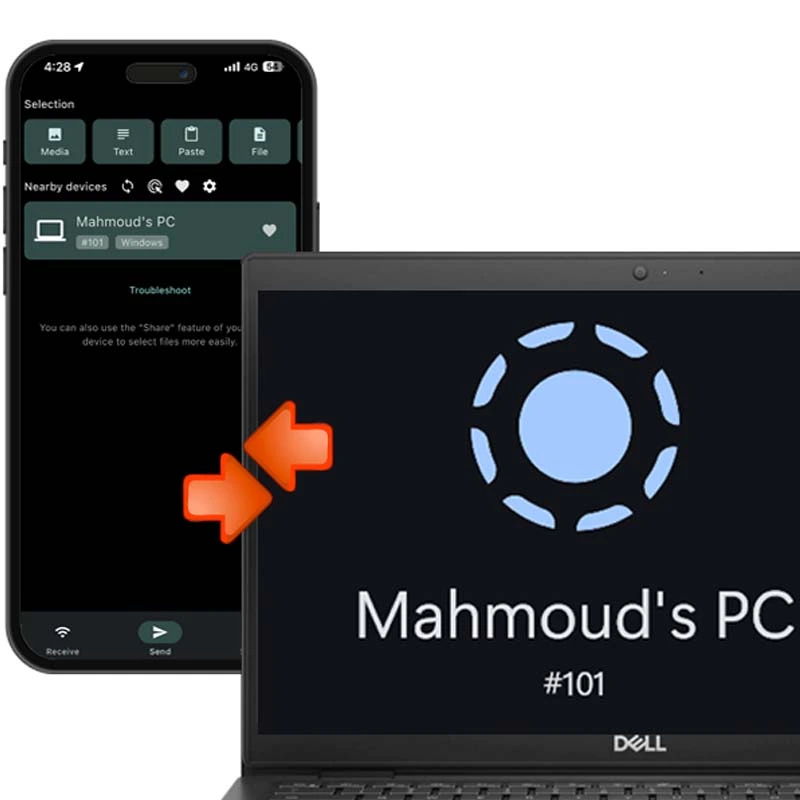
 You will be directed to the application, and you will find the files you want to send selected above, and below you will find the available and nearby devices on the same network, in this case, we will find my computer named Mahmoud’s PC we will press on it to start the transfer process directly.
- Receive the file through the computer
 On your computer, you will find a message from the LocalSend app informing you that there is a transfer from iPhone do you want to accept by clicking Accept or decline by clicking Decline, and once you accept, the file will be saved instantly on the computer.
- Select a file from PC and transfer it to iPhone
 You can also transfer your files and images from your computer to iPhone, select all the files you want to send and then we will choose Send To and through it we will find the LocalSend application and we will press it directly.
- Transfer the file from PC to iPhone
 The application will appear on your computer with the selected files for sending, and you will also find at the bottom the devices available for sharing on the same network – Nearby Devices , you will choose the available device and click on it to start the file sending process.
- Receive the file on iPhone
 On your phone, you will find a pop-up window informing you that there are files your phone needs to receive, and you can Accept, or Decline, and once you agree, the sent files or images will be saved on your phone with the same quality and dimensions.
Customizing the LocalSend Application

Quick Save Feature

3 Different Ways to Transfer Files to and From iPhone
We mentioned above the easiest way to transfer files to and from iPhone and computer wirelessly for free.- There are certainly other methods, whether through similar applications such as Xender or Blip but in experience, LocalSend is the best and fastest.
- You can use the old methods such as iTunes, but you need to download and install iTunes program first on your computer and then connect your iPhone to the computer using the cable and set it up.
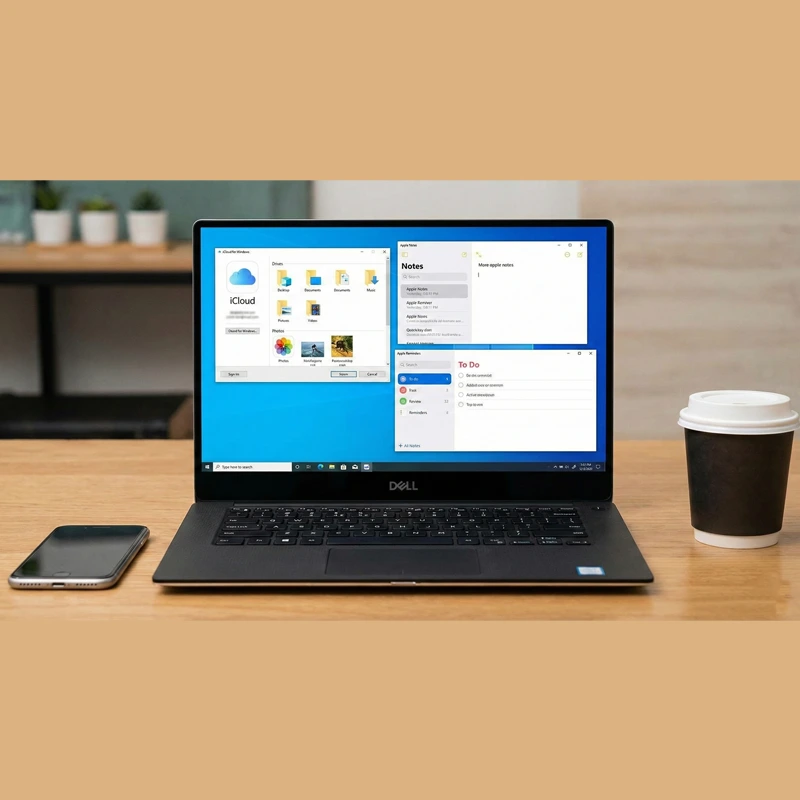
- There is also an official website for iCloud services, you can access it via your browser from this link, and this website allows you to access all your files and photos saved on the iCloud, from notes, photos, emails, etc. But it will show you the files and photos uploaded only to the iCloud storage and not the phone.