Share:

Transfer Files from iPhone to Computer Wirelessly

نقل الملفات من الايفون الى الكمبيوتر
The steps to transfer files from iPhone to computer have become extremely easy now, compared to the past which required a lot of settings and programs, making the transfer process uncomfortable especially if files are being transferred and received on different devices and not just your personal devices. We will provide you with a guide to transfer files from iPhone to computer wirelessly and completely free of charge, and the transfer and reception process will not require any personal data or profiles, all you need is your computer, your iPhone, and a Wi-Fi network.

You may be interested in: Professional iPhone Space Clearing

Steps to Transfer Files from iPhone to Computer

Time required: One minute (4).

Transfer files and images via LocalSend application

  1. Download LocalSend Program for PC

    We go to LocalSend website via your computer browser or by clicking this link directly, we will click on the word Download, which will show you a new window containing all available operating systems to download and use LocalSend.

  2. Download LocalSend for different operating systems

    Download LocalSend LocalSend file transfer application supports all systems from Windows, Mac, and Linux, to Android and iPhone, in our current experience we will select the Windows system from the top, then on the left we will click on one of the two options EXE or ZIP, and the program will start downloading directly to your computer.

  3. Download LocalSend App for iPhone

    We move to the App Store on iPhone and search for the LocalSend app and start the download and installation process on the phone as well.

  4. Select a file from iPhone to transfer to PC

    You can transfer all types of files via the LocalSend application, from images, videos, documents, to texts and messages, let’s go to the file manager in iPhone and select one of the documents in PDF format and by long press on the file then select Share and then select the icon of LocalSend application. You can do the same step for any file or image; you will select what you want to transfer then choose share and press the app icon.

  5. Transfer the file via LocalSend on iPhone

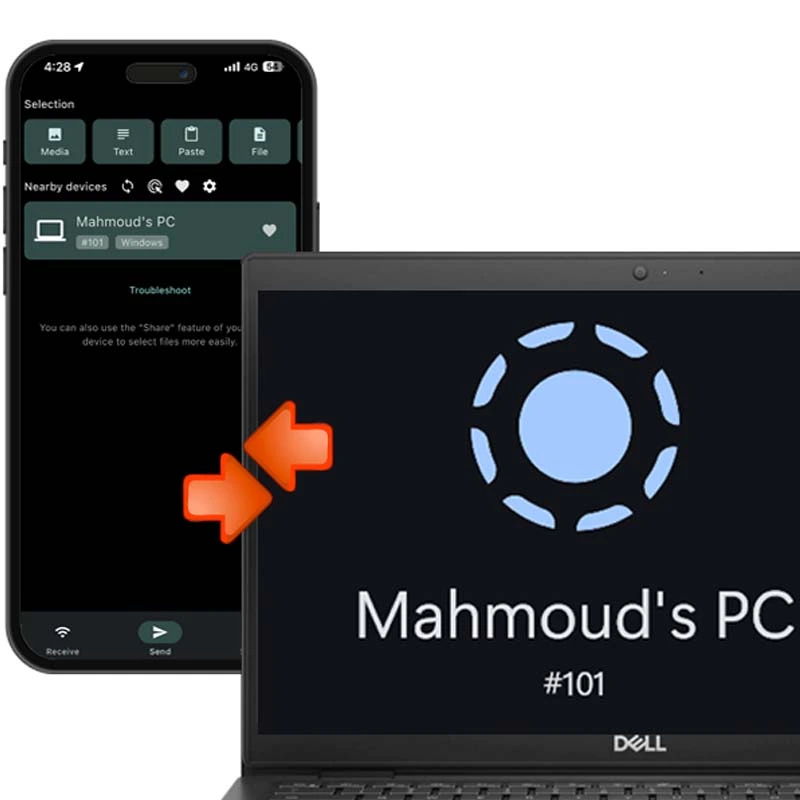
    You will be directed to the application, and you will find the files you want to send selected above, and below you will find the available and nearby devices on the same network, in this case, we will find my computer named Mahmoud’s PC we will press on it to start the transfer process directly.

  6. Receive the file through the computer

    On your computer, you will find a message from the LocalSend app informing you that there is a transfer from iPhone do you want to accept by clicking Accept or decline by clicking Decline, and once you accept, the file will be saved instantly on the computer.

  7. Select a file from PC and transfer it to iPhone

    You can also transfer your files and images from your computer to iPhone, select all the files you want to send and then we will choose Send To and through it we will find the LocalSend application and we will press it directly.

  8. Transfer the file from PC to iPhone

    The application will appear on your computer with the selected files for sending, and you will also find at the bottom the devices available for sharing on the same network – Nearby Devices , you will choose the available device and click on it to start the file sending process.

  9. Receive the file on iPhone

    On your phone, you will find a pop-up window informing you that there are files your phone needs to receive, and you can Accept, or Decline, and once you agree, the sent files or images will be saved on your phone with the same quality and dimensions.

Customizing the LocalSend Application

مميزات تطبيق LocalSend لنقل واستقبال الملفات
Of course, you can customize the application with some features available to you on all operating systems in the same steps, such as changing the device name, changing the user interface color, and changing the language including Arabic language, especially on iPhone you can change the program language without the need to change the entire device language. And many other options that facilitate the usage process including choosing the download folder and running the program automatically on Windows devices, and you can browse all the settings in the program and choose what is best for you.

Quick Save Feature

ميزة Quick Save لتطبيق LocalSend
If you noticed above during the transfer of files from and to iPhone and PC, you will find that you need to approve on iPhone or PC before sending or receiving files. But with the activation of the Quick Save feature, you can receive and send files without any permissions, making the transfer process faster but also poses the risk of receiving unknown files from other devices on the same Wi-Fi network, so LocalSend allows you the favorite feature, which is registering only known or personal devices in this list and activating the Quick Save feature for them only which is excellent. You can enable the Quick Save feature quickly at any time, when using the LocalSend application on any device, you will find the Quick Save option directly in the main page of the application, either to disable or enable it for the public or for favorites only.

3 Different Ways to Transfer Files to and From iPhone

We mentioned above the easiest way to transfer files to and from iPhone and computer wirelessly for free.
  1. There are certainly other methods, whether through similar applications such as Xender or Blip but in experience, LocalSend is the best and fastest.
  2. You can use the old methods such as iTunes, but you need to download and install iTunes program first on your computer and then connect your iPhone to the computer using the cable and set it up.
  3. There is also an official website for iCloud services, you can access it via your browser from this link, and this website allows you to access all your files and photos saved on the iCloud, from notes, photos, emails, etc. But it will show you the files and photos uploaded only to the iCloud storage and not the phone.

How to Transfer Files from iPhone to Mac and Vice Versa

Transferring files and images between Apple devices is very smooth, it is a strong marketing point from Apple to make the user use and purchase all devices from Apple, when you own an iPhone, Mac, iPad, and Apple Watch, or what is called the Apple ecosystem you will have an ideal experience in transitioning between these devices and transferring your files and images via the Airdrop feature which is the feature for transferring and receiving files between all these devices quickly and smoothly. You can continue what you write between the devices, and continue watching videos and even web pages instantly, Apple makes these different devices work as one device.

Conclusion

It has now become easy to own an iPhone with devices from other operating systems, there are many ways to connect the iPhone with Windows or Android, to facilitate the process of transferring files and images and completing tasks between multiple devices with multiple operating systems, including the process of transferring files and images between other operating systems as we mentioned in the article, which has now become extremely easy. Therefore, try this method, and if you encounter any issues in connecting your iPhone to your computer just let us know in the comments, and we will provide you with a complete explanation.

أكثر هواتف آيفون مبيعاً

إعلان الهاتف

آيفون 16 128 جيجابايت

آيفون 16 128 جيجابايت

يُقدم هاتف iPhone 16 تجربة ممتازة تجمع بين الأداء القوي والتصميم العملي، مدعوماً بمعالج A18 المصمم خصيصاً لدعم مهام الذكاء الاصطناعي (Apple Intelligence). ويأتي بشاشة Super Retina XDR زاهية، إلى جانب زر التحكم بالكاميرا الجديد (Camera Control) الذي يمنح المستخدمين وصولاً سريعاً وسلساً لالتقاط الصور والفيديوهات.

ملخص آراء أشهر المواقع التقنية

"معالج A18 القوي يوفر سرعة هائلة وأداءً سلساً للغاية في تشغيل التطبيقات والألعاب الحديثة دون أي تأخير."

TrustedReviews
★★★★★

"زر التحكم في الكاميرا الجديد يضيف لمسة عملية رائعة ومبتكرة تسرع من عملية التصوير باحترافية."

TechRadar
★★★★☆

"عمر البطارية شهد تحسناً ملحوظاً مقارنة بالأجيال السابقة ليصمد بكفاءة طوال اليوم."

The Verge
★★★★★

المميزات

  • معالج Apple A18 القوي الذي يضمن كفاءة عالية في استهلاك الطاقة ودعم كامل لتقنيات الذكاء الاصطناعي.
  • زر التحكم الجديد في الكاميرا (Camera Control) للوصول السريع والتحكم الدقيق بالإعدادات والتصوير.
  • شاشة Super Retina XDR ساطع وعالية الوضوح تقدم ألواناً دقيقة ورائعة.
  • نظام كاميرا خلفية مزدوج محسن بدقة 48 ميجابكسل مع عدسة فائقة الاتساع تدعم التصوير الماكرو.
  • زر الإجراءات (Action Button) القابل للتخصيص لتنفيذ المهام السريعة بضغطة واحدة.

العيوب

  • الشاشة لا تزال تقتصر على معدل تحديث 60 هرتز، وهو أمر مخيب للآمال مقارنة بالهواتف المنافسة في نفس الفئة السعرية.
  • سرعات الشحن السلكي واللاسلكي تعتبر بطيئة نسبياً مقارنة بما تقدمه الهواتف المنافسة في السوق.
  • التصميم الخارجي والشكل العام يشبهان إلى حد كبير الجيل السابق مع تغييرات طفيفة تتركز في تصميم الكاميرا الخلفية.

مواصفات الهاتف

اسم المنتج بالعربيآيفون 16
اسم المنتج بالإنجليزيiPhone 16
تاريخ التوفر20/09/2024
الشركة المصنعةapple
نظام التشغيلiOS 18, قابل للتحديث لـ iOS 26.5
المعالجApple A18 3 نانومتر Hexa-core (2x4.04 GHz + 4x2.20 GHz)
ذاكرة RAM8GB
سعة التخزين128GB
حجم الشاشة6.1 بوصة
الكاميرا الخلفية48 ميجابكسل f/1.6
الكاميرا الأمامية12 ميجابكسل f/1.9
الصوتستيريو
وصلة سماعة 3.5غيرمتوفر
البطاريةLi-Ion 3561 ميللي أمبير
الشحن اللاسلكيمدعوم 25W
الألوان المتوفرةأسود/أبيض/زهري/أخضر فاتح Teal/أزرق بحري Ultramarine

إعلان الهاتف

آيفون 17 برو ماكس

آيفون 17 برو ماكس

يُعد هاتف iPhone 17 Pro Max قمة ما توفره أبل في عالم الهواتف الذكية، حيث يجمع بين التصميم العصري الجذاب بلونه البرتقالي الكوني والأداء الفائق بفضل معالج A19 Pro. ويقدم الهاتف تجربة بصرية مذهلة عبر شاشة Super Retina XDR العملاقة بحجم 6.9 بوصة، مدعومة بمنظومة تصوير متطورة تلبي طموحات عشاق المحتوى الاحترافي.

ملخص آراء أشهر المواقع التقنية

"«الشاشة الكبيرة والساطعة بحجم 6.9 بوصة تجعل مشاهدة المحتويات والألعاب تجربة غامرة بحق.»"

TrustedReviews
★★★★☆

"«نظام الكاميرات الثلاثي بدقة 48 ميجابكسل يقدم تفاصيل مذهلة وثباتاً استثنائياً في تصوير الفيديو الاحترافي.»"

TechRadar
★★★★☆

"«البطارية القوية مع معالجة الحرارة المحسنة تضمن أداءً مستداماً وطويلاً طوال اليوم دون أي تباطؤ.»"

The Verge
★★★★☆

المميزات

  • شاشة LTPO OLED فائقة السطوع بحجم 6.9 بوصة تدعم معدل تحديث 120 هرتز وتقنية Dolby Vision.
  • معالج Apple A19 Pro القوي المصمم بدقة 3 نانومتر لتقديم أداء سلس ومعالجة متقدمة لمهام الذكاء الاصطناعي.
  • منظومة كاميرات خلفية ثلاثية بدقة 48 ميجابكسل مع تقريب بصري محسن وكاميرا أمامية مبتكرة.
  • نظام تبريد متطور (غرفة بخار) يحافظ على استقرار الأداء وثباته خلال الاستخدام المكثف والألعاب.
  • عمر بطارية طويل ودعم للشحن السريع واللاسلكي المطور عبر تقنية MagSafe.

العيوب

  • الوزن والحجم الكبيران قد يجعلا استخدام الهاتف بـيد واحدة أمراً شاقاً وغير مريح لبعض المستخدمين لفترات طويلة.
  • ارتفاع السعر بشكل ملحوظ لكونه الإصدار الرائد الأعلى في عائلة أبل.
  • غياب مفردات التخزين القابلة للتوسعة (لا يدعم بطاقات الذاكرة الخارجية MicroSD).
  • سرعات الشحن السلكي واللاسلكي -رغم تحسنها- لا تزال تتخلف عن بعض الهواتف المنافسة في الفئة الرائدة.
  • خيارات التقريب البصري ما زالت تحتاج لتطوير أكبر لتنافس بعض القدرات الفائقة الموجودة لدى المنافسين.

مواصفات الهاتف

العنصرالمواصفات
المعالجشريحة A19 Pro وحدة معالجة مركزية مع 6 نوى
الكاميرا الخلفية48 ميجابكسل
سعة التخزين256 جيجابايت
حجم الشاشة6.9 بوصة
دقة الشاشة2868 × 1320
اسم الموديلiPhone 17 Pro Max
شبكة الاتصالمفتوح لجميع شبكات الاتصال
تقنية الاتصال الخلوي5G
تقنيات الاتصالBluetooth، NFC، USB، Wi-Fi
اللونبرتقالي كوني (Cosmic Orange)
Shopping Cart
×