Contents
The recording feature in Google Meet is an essential tool for users who wish to save lectures, presentations, or even official meetings for future reference. Thanks to its ease of use on smartphones, lecturers, students, and business people can now record their sessions from anywhere they are.
This detailed guide outlines the steps necessary to activate the recording feature for Google Meet meetings from mobile, highlighting the requirements, best practices, and additional tips to ensure an optimal experience.
You may be interested in: How to Open Zoom on Mobile or Computer
Requirements for Recording Google Meet Meeting from Mobile
Before proceeding with the recording steps, you must first ensure that some basic requirements are met. The first is to have an account under one of the paid Google Workspace plans; the recording feature is not available on free accounts. Also, the recording permission must be enabled by the account administrator via the Google Workspace admin console.
It is worth noting the necessity of having sufficient storage space in the Google Drive linked to your account, as recording files are uploaded automatically after they finish. Additionally, the phone needs a stable internet connection, preferably a Wi-Fi network to avoid high data usage.
Moreover, it is essential that all participants agree to the recording.
Basic conditions for recording the meeting:
- The recording is only available on computers and Android devices.
- Participants can only record if the host has permission to record.
Related: Open Discord on Google Chrome Browser
Steps to Record Google Meet Meeting on Android Phone
Step One: Open the Google Meet App
Start by launching the Google Meet app on your Android smartphone. Ensure you are logged in to the account that includes the appropriate Google Workspace package. In the app interface,
Step Two: Join or Start the Meeting
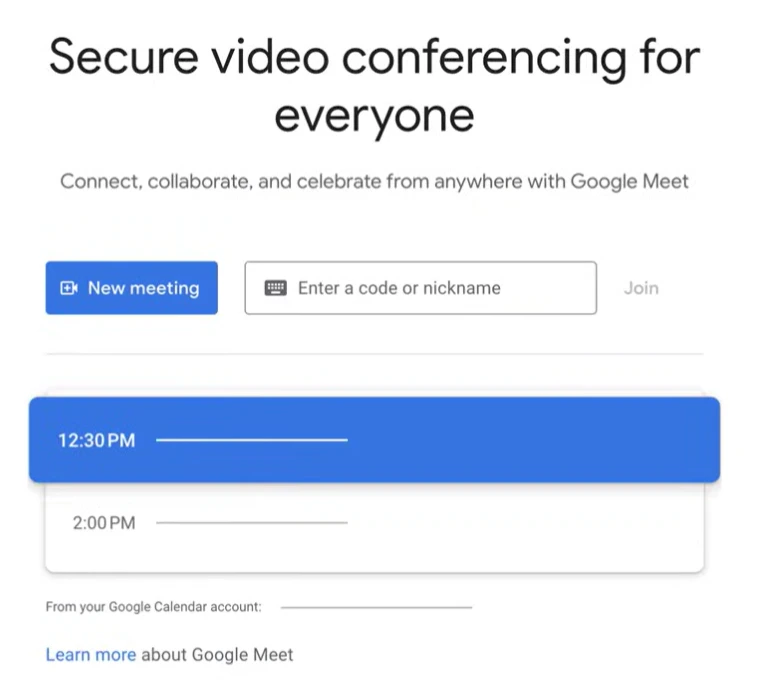
You will find two options: either join a meeting with a code or start a new meeting using the blue button at the bottom of the screen. After clicking on “New Meeting” or entering the meeting code, all participants will join the session. A pop-up window may appear requesting permission to access the phone’s camera and microphone; please agree to ensure good audio and video recording quality.
Step Three: Begin Recording the Meeting
Once the host joins the meeting, you can start recording by:
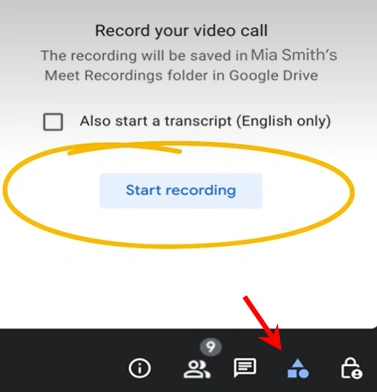
- Press the three vertical dots button at the bottom of the screen or the triangle, square, and cylinder button as shown in the image below.
- Click the “Record Meeting” (Start recording) button.
A notification message will appear to participants stating that recording will begin; this is necessary for user privacy. Wait a few seconds for the app to confirm that recording has started.
Step Four: Stop and Save the Recording
To display the control bar during the session, tap again on the three dots or the triangle and square button, then select “Stop Recording” (Stop recording) in the bottom corner (if the button is not visible, tap on the recording phrase displayed in the upper corner of the screen).
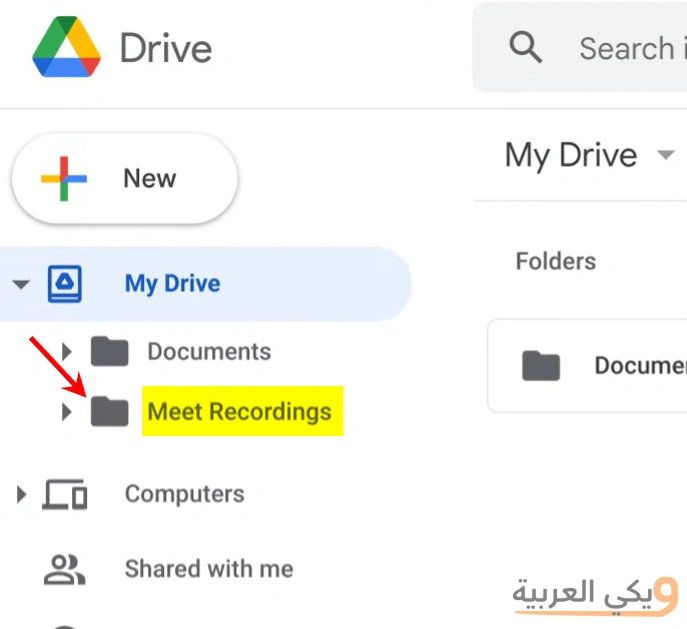
When you finish recording. The recording will also stop automatically when the host leaves or the meeting ends, and the video will be uploaded to the “Meet Recordings” folder in your Google Drive within a few minutes.
Accounts That Can Record Google Meet Meetings
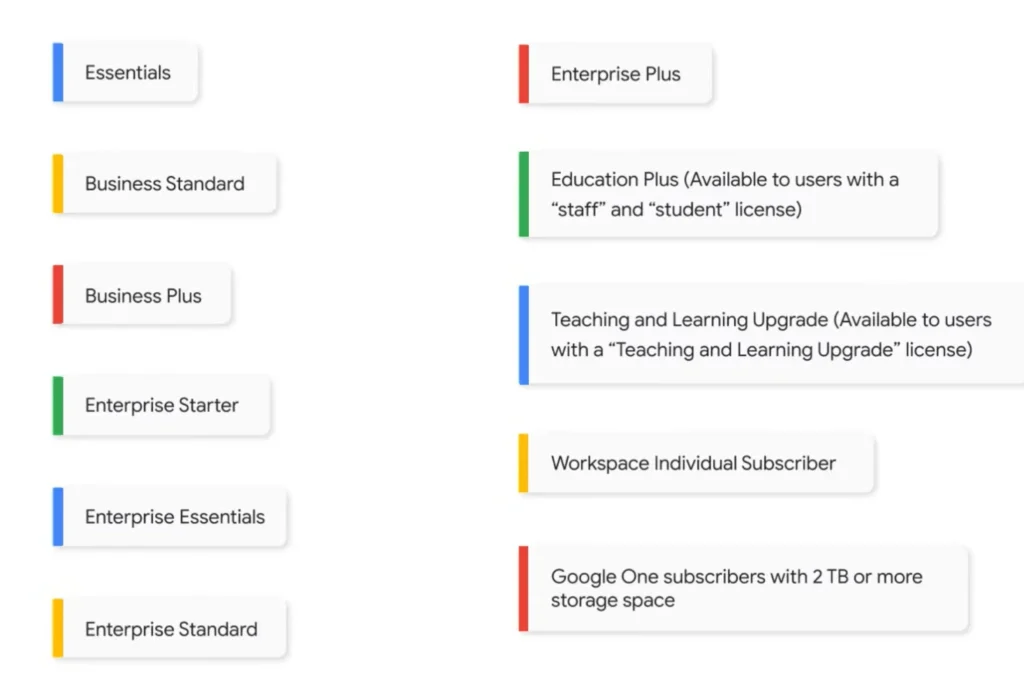
These are the types of accounts that can record in Google Meet:
- Business Plus
- Business Standard
- Essentials
- Education Plus. This is available to users with a “Staff” or “Student” license.
- Enterprise Essentials
- Enterprise Plus
- Enterprise Standard
- Enterprise Starter
- Google One subscribers with 2 TB or more storage space
- Teaching and Learning Upgrade. This is available to users with a “Teaching and Learning Upgrade” license.
- Workspace Individual Subscriber
Who Can Record Google Meet Meetings?
Google has specified the individuals who can record the meeting based on the condition:
- Primary host: You are the organizer and host of the meeting.
- External co-host: You belong to outside the host’s organization and have been promoted to be a co-host.
- Host Management Disabled: You are within the host’s organization, and the “Host Management” feature is disabled.
- Teachers in classrooms: You are a teacher or teaching assistant for meetings created via the Google Classroom platform.
- Basic condition for recording permission: Even if you have sufficient permissions, you can only record if the primary host also has the permission to record.
Note: You can’t start recording the meeting if you joined it just to present. The correct way is to join the video meeting first, then start presenting, and after that, you can start recording.
Recording Control Options and Sharing the Video Link
After completing the recording, you can access the file through the Google Drive app on your phone or via the web. The app gives you the option to change sharing permissions so that it can be made available to a specific group of users or be publicly viewable by anyone with the link. To modify the settings, tap on the file in Drive and then select “Share”, specify people via email and set viewing permissions only to avoid unwanted edits.
Best Practices When Recording Meetings
To ensure recording quality and effective content reception, it is recommended to follow some guidelines. First, ensure adequate lighting on the speakers for clear visibility in the video. Secondly, inform all participants in advance about the intention to record for professional and legal reasons. Thirdly, test the audio quality before starting the main session and create a brief test to ensure the microphone works without interference. Fourthly, keep the duration of the meeting within a reasonable limit to avoid memory exhaustion or overwhelming the listeners.
Additional Tips
When you plan to record a Google Meet meeting from mobile, try using external headphones with a good microphone to reduce surrounding noise. If you have more than one host, divide the roles before the session and record from only one account to avoid creating separate files. If you are in an environment with fluctuating internet speed, it is advised to enable the “use cellular data” option in the app settings so that recording does not suddenly stop when switching networks.
It is also recommended to look for alternatives to locally save the recording in case you encounter an issue uploading it to Drive. There are some external apps that allow screen recording as a video file, but caution should be exercised regarding security and not violating privacy policies.
Frequently Asked Questions
Can regular participants start recording the meeting?
No, regular participants cannot record the meeting. The recording right is limited solely to:
- Primary host (Host).
- Co-host, whether from inside the organization or promoted from outside it.
- Teacher or teaching assistant in meetings created via Google Classroom.
Basic condition: The person must not have joined merely for the presentation, and the primary host must have permission to record originally for these options to appear.
Where is the recording file saved and how can I retrieve it?
The file is automatically uploaded to the “Meet Recordings” folder in the Google Drive linked to the host’s account. It can be retrieved through the Drive app or via web browser at drive.google.com.
Is recording available to all Google Meet users?
Recording is limited to paid Google Workspace users such as (Business Standard, Business Plus, Enterprise), and this feature is not available in free accounts.
What is the quality of video and audio in the recording?
The quality of the recording depends on the internet connection quality and the camera and microphone settings on your phone. Google Meet typically offers a resolution of up to 720p when good network conditions are available.
How can I share the recording with those who were not present?
After accessing the video file in Google Drive, use the “Share” option to generate a public or specific link. Send the link via email or any other communication method so that the recipients can view it.
Source: Google Support Files. Last updated: 26/7/2026