Contents
The WhatsApp sticker experience aims to give users a larger space to express emotions and ideas in a fun and personal way, allowing you to design your own stickers with your personal photos without the need to install external applications or complicated software.
In this article, we will present a detailed guide based on reputable foreign sources that outlines the steps step by step, along with professional tips and frequently asked questions to help you stand out in creating your own WhatsApp stickers.
Check out the article: 10 Secret WhatsApp Features Many People Don’t Know About
Basic Requirements for Creating WhatsApp Stickers Without Software
Before starting to design WhatsApp stickers from your personal photos, make sure the following items are available on your phone:
- High-resolution image: It is preferred that the dimensions are 512×512 pixels to ensure the clarity of the sticker.
- Transparent background: This helps seamlessly blend the sticker with chat backgrounds.
- Updated WhatsApp application: Ensure you are using the latest version to take advantage of the new customization tools.
1. High-Quality Image
Choose a clear image that has a central subject (face, cartoon character, or specific object). Avoid blurry images or those with low lighting as they affect the sticker’s experience in chat.
2. Transparent Background
Stickers look best when they do not have a colored background. Later, we will learn how to crop the desired shape using built-in methods in the operating system, achieving a transparent background automatically.
3. Update WhatsApp Application
WhatsApp includes basic editing features since version 2.21.3.13 and later, so be sure to update from the App Store or Google Play to ensure cropping and trimming options are available.
You may also be interested in: Download Second WhatsApp on the Same Device Samsung or iPhone or Huawei
How to Convert Photos into WhatsApp Stickers Directly from Your Phone
Both iOS and Android systems have built-in editing tools that can be used to create stickers without installing additional applications.
1. Open a WhatsApp Chat and Select an Image
Open the WhatsApp application and go to any chat, then tap the sticker icon (Emoji > Sticker) which looks like a face.
Choose the stickers tab then press the “Create Sticker” button
- For Android: The gallery will open directly. Scroll down to choose an image
- For iOS: Tap the “+” sign then “Gallery” to import an image.
2. Design and Edit a Sticker in WhatsApp
Once you select the image from the gallery:
- WhatsApp will automatically crop the image (you cannot control this. Thus, we will talk about a better method in the next paragraph)
- You can now add faces or effects or draw random lines or write texts for the sticker.
Creating the sticker relies on WhatsApp’s machine learning technology. So be connected to the internet while creating the sticker.
3. Save the Sticker
After completing the edits on the sticker do the following:
- Either save the sticker by pressing the Save button on the left for later use.
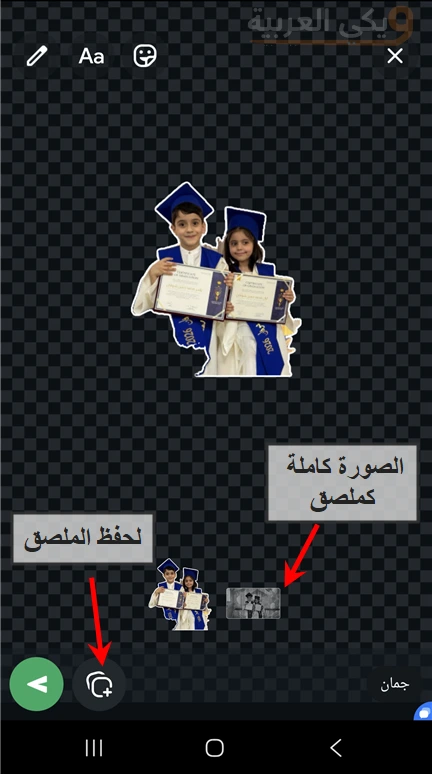
- Or send it directly to the chat without saving
Remember that stickers with simple expressions are more accepted and popular among users.
By clicking on “Save”, the new stickers move to your library within WhatsApp. They can be reordered or deleted from the settings whenever you wish.
Check out: Sending WhatsApp Without Saving the Number: The Fastest Way to Convert the Number to a Link
Innovative Ways to Convert Photos into Stickers Without External Applications
Besides WhatsApp tools, you can harness the capabilities of your phone’s operating system to achieve better results without installing add-ons.
Using Cropping Features in iOS
In iOS 16 and later, there is a feature called “Visual Look Up” to automatically crop elements from images:
- Open the “Photos” app and select the image.
- Press and hold on the element you want to crop until a watermark highlighting appears.
- Choose “Copy Subject” then paste it in WhatsApp as a sticker.
Using the Default Photo Editor in Android
Some modern Android phones come with an editor that supports smart cropping: there are several ways to start with the easiest:
- Make sure you are connected to the internet as this feature relies on artificial intelligence.
- Open the desired image in the photo gallery.
- Press and hold on the person or thing you want to take as a sticker.
- You will notice it has been cropped successfully and is now moving with your finger.
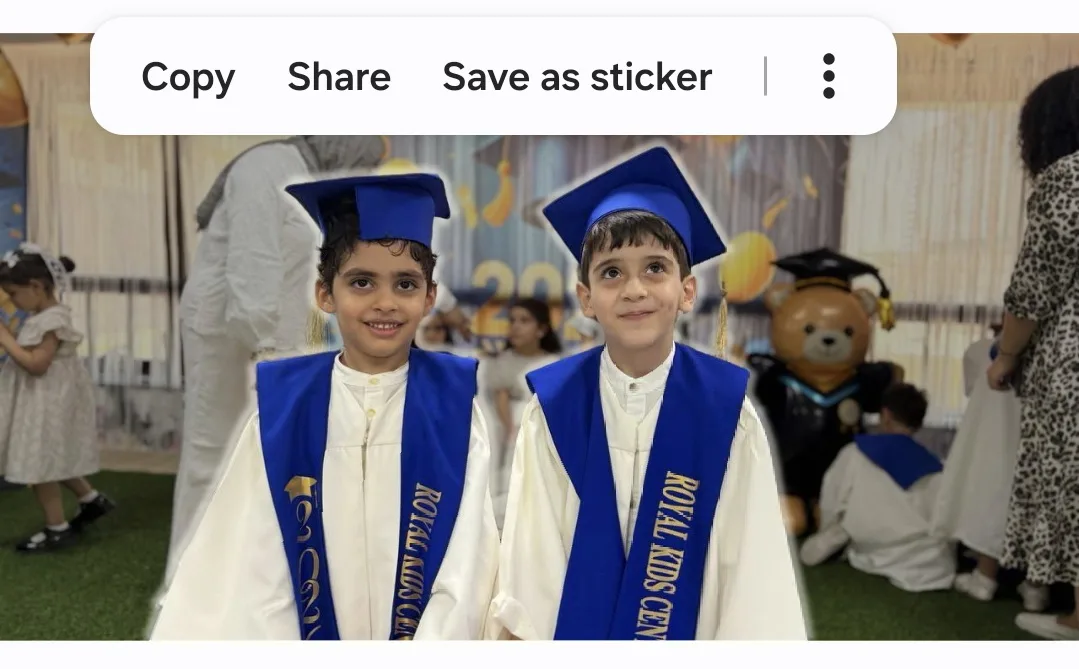
- Once it is cropped, a menu and the save as sticker button will appear.
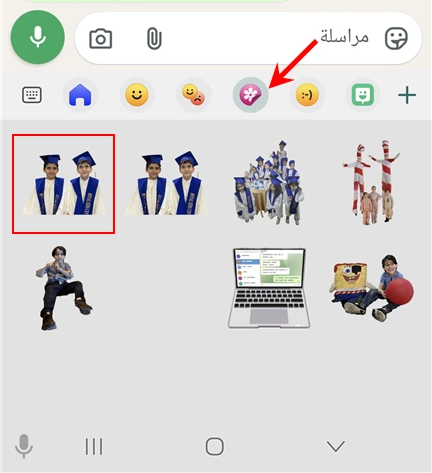
- The sticker will be saved on your device and you can access it through the keyboard.
- Open a chat in WhatsApp and press the emojis icon.
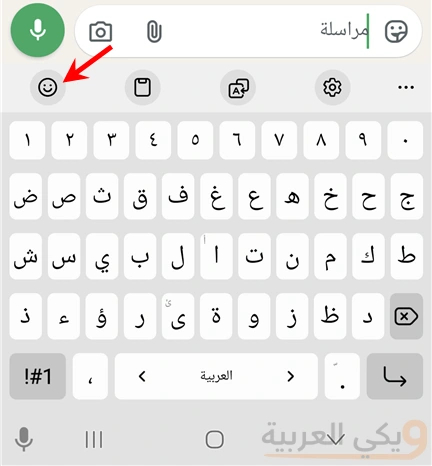
- Now press the gallery icon and you will find the stickers you saved.
The second method:
It is somewhat similar to the first method. We will execute the steps from 1 to 4. But in step four, we will not save the image as a sticker but will tap on the three dots icon then select Save as Image.
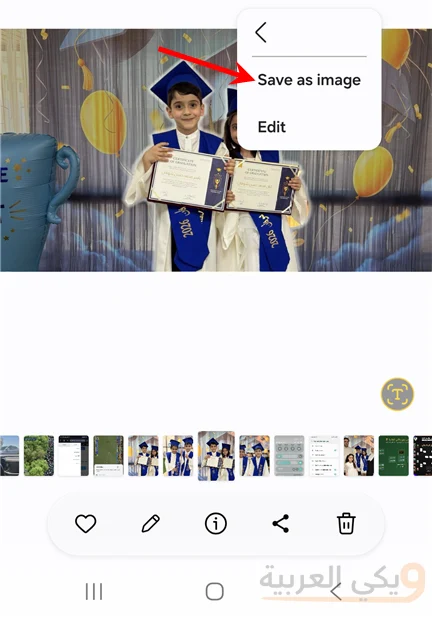
Then we go to WhatsApp and complete the steps in the previous paragraph. The aim of this is to save stickers in the WhatsApp list instead of the Android keyboard list.
Note: In this step, WhatsApp may recreate the icon and errors may occur due to WhatsApp’s image processor.
Tips for Improving Sticker Quality
- Keep the sticker size below 100KB to ensure fast loading.
- Use contrasting colors between the background and the shape for clarity.
- Make the text short and clear, and avoid decorative fonts.
- Try adding a thin frame around the shape (Stroke) in a neutral color to enhance clarity.
- Vary between emotional and realistic stickers to meet your friends’ needs.
Frequently Asked Questions
1. Can I share a sticker pack I have created?
Yes, tap “Share” inside the sticker pack in WhatsApp and then select the contact or groups you want to send the pack to.
2. How can I recover a sticker I accidentally deleted?
There is no recovery feature in WhatsApp, but you can recreate the sticker using the same image and cropping tools.
3. Does adding text affect the sticker’s compatibility with emojis?
No, the sticker can be edited to be either text-based or without text according to your preference, and it will not conflict with WhatsApp’s sticker system.
4. What is the best format to save the image before conversion?
It is preferable to use PNG to achieve a transparent background and fine details.
Conclusion
By following these simple steps, you can convert your personal photos into attractive and unique WhatsApp stickers without the need for external programs. Make use of your smartphone tools and WhatsApp’s built-in editor to achieve the best results, and create sticker packs that match your personality and mood, as uniqueness in expression is the key to effective communication.