Contents
Samsung Smart TVs are among the leading devices globally thanks to their superior picture quality and integrated smart operating system. However, over time, with frequent use and data accumulation, the screen may encounter some sudden technical issues, such as system freezing (lag), slow app response, internet connection failure, and even color and sound interference problems.
Before you consider hiring a maintenance technician, Samsung provides you with built-in software options to overcome these obstacles. This guide extends to provide you with professional ways to get rid of these problems, starting with quick and light solutions, up to the radical solution which is a complete factory reset of the TV, while reviewing the most important codes and default symbols you will need during this process.
You might also like: Solving the lagging issue in Android Smart TVs
An important step before starting: Updating the operating system
Samsung always recommends checking for available updates on the TV before taking any step to reset. Often, slowdowns or software glitches are caused by a temporary bug that has already been fixed in the latest update released by the company. If you update the TV to the latest version of the Tizen operating system, the problem may be solved immediately without losing your data or favorite settings.
Soft Reset without data loss
If you start noticing that apps like Netflix or YouTube are not opening as desired, or that the TV takes a long time to respond to remote control commands, the problem is usually related to a full RAM or the accumulation of excess static electrical charges inside the TV’s electronic board. This is where a “soft restart” comes in, which is a quick cleanup process that does not delete any files:
1. Method 1: Using the remote control


- While the TV is turned on, press and hold the Power button on the remote control.
- Keep holding for about 5 seconds.
- You will notice the TV turns off completely. Wait a little bit until the Samsung Logo appears on the screen again and it turns on automatically. This process fully refreshes the system.
2. Method 2: Physical power disconnection (if the remote is unresponsive)
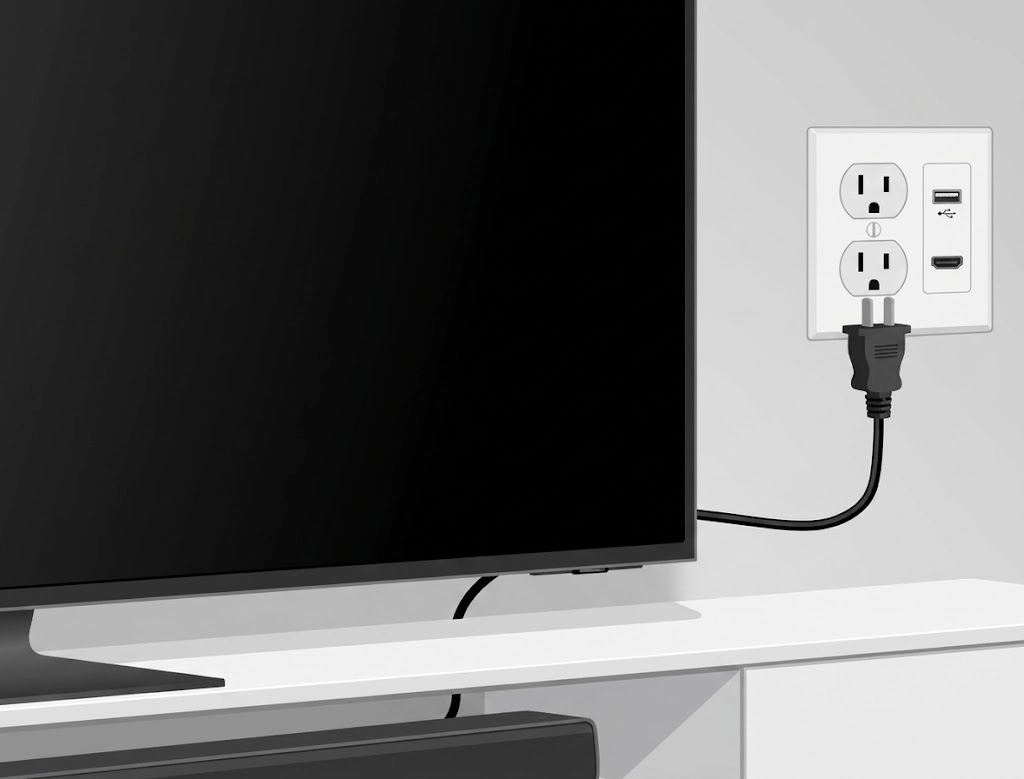
- Leave the TV running, then go straight to the wall outlet and unplug the power cable.
- Wait for a full 30 seconds to discharge the remaining electrical charges in the internal capacitors.
- Reconnect the power cable to the socket and turn the TV back on.
💡 Note: If your TV is connected to other devices like a router or receivers over the same network, it is preferable to give these devices a full minute to reconnect with each other and stabilize the network before testing TV performance.
Read also: How to cast phone screen to TV
Resetting specific sections
If the soft restart feature does not work, and your problem is confined to a specific sector within the TV (such as apps only or sound only), you can perform a localized reset and avoid wiping the entire TV:
1. Reset Smart Hub
This option is ideal if your problem is limited to apps not working or errors appearing in the Samsung store. When applied, the smart interface settings will return to factory state, and you will be signed out of your Samsung account and associated apps, clearing terms of use agreements:
- Go to Settings then choose All Settings.
- Go to the Support section.
- Choose Device Care, then click on Self Diagnosis.
- Select the Reset Smart Hub option, and enter the security PIN code for the TV to complete the process.
2. Reset Network Settings
In case your TV has difficulty finding Wi-Fi networks, or the connection drops continuously despite the router working perfectly with the rest of the devices:
- Open Settings > All Settings.
- Choose Connections then go to Network.
- Click on the Reset Network option and accept confirmation. After it finishes, click on network settings to reconnect the TV to Wi-Fi and re-enter the password.
Read also: How to recover files after computer factory reset
3. Picture & Sound Reset
If you messed up the color levels, lighting, or surround sound distribution and are no longer able to balance them manually:
- For picture: Go to Settings > Picture > Expert Settings > Reset Picture.
- For sound: Go to Settings > Sound > Expert Settings > Reset Sound.

Factory Reset
When software problems completely persist, or when you wish to sell the TV or gift it to someone else, the comprehensive “Factory Reset” option becomes imperative. This procedure will wipe everything completely: stored channels, your digital accounts, Wi-Fi passwords, and downloaded apps, returning the TV to the condition it came out of its box for the very first time.
⚠ Important proactive step: Before executing, please write down your Wi-Fi network names and passwords, favorite channel order, or any other important data so it is easy for you to set up the TV again.
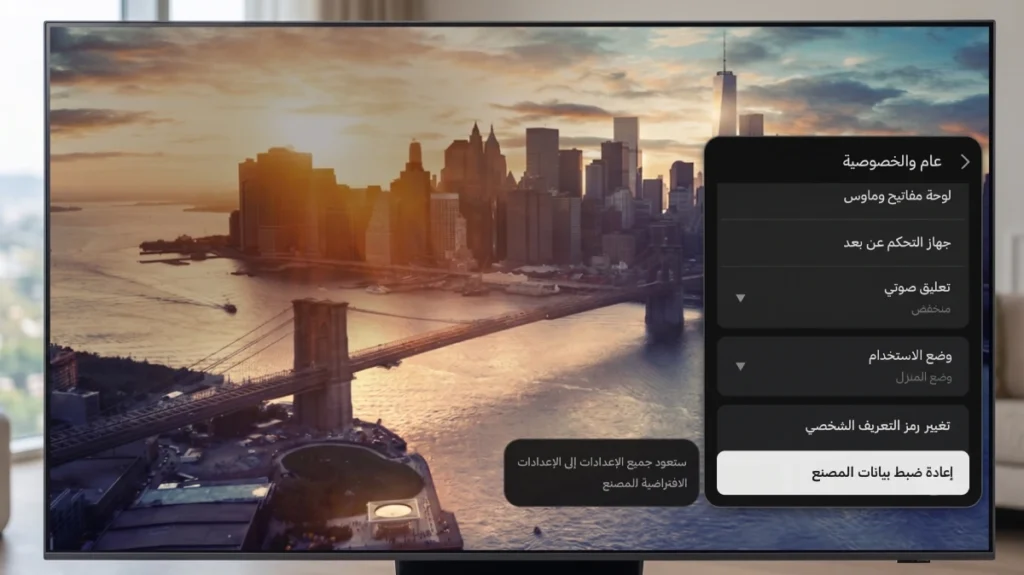
Factory reset steps (for modern models 2024 – 2025):
Time needed: 2 minutes
Factory data reset for Samsung Smart TV:
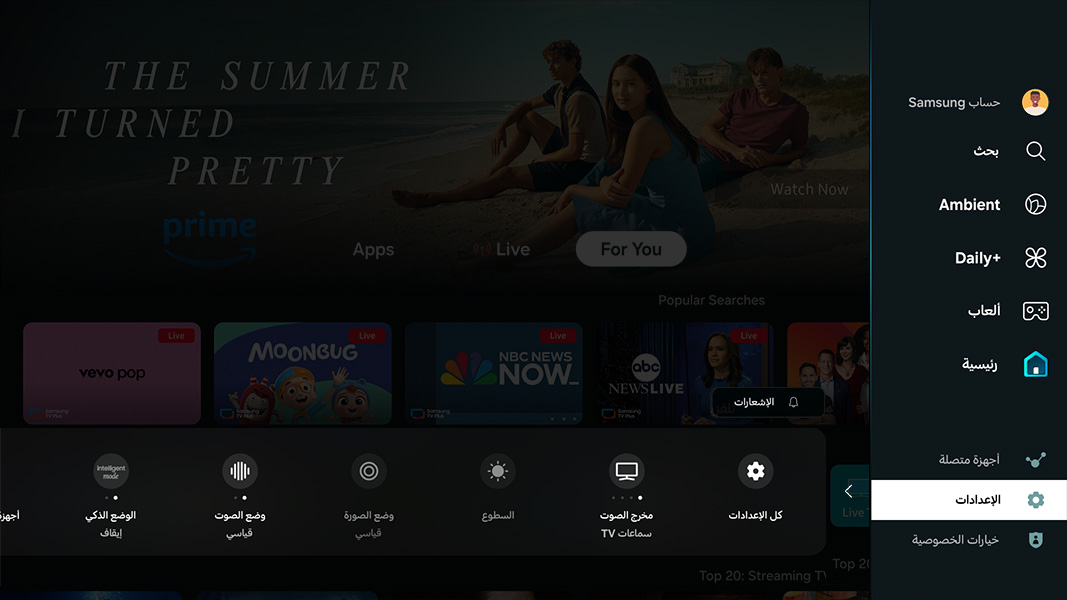
- Settings
Open the Settings menu from the remote, then choose All Settings.
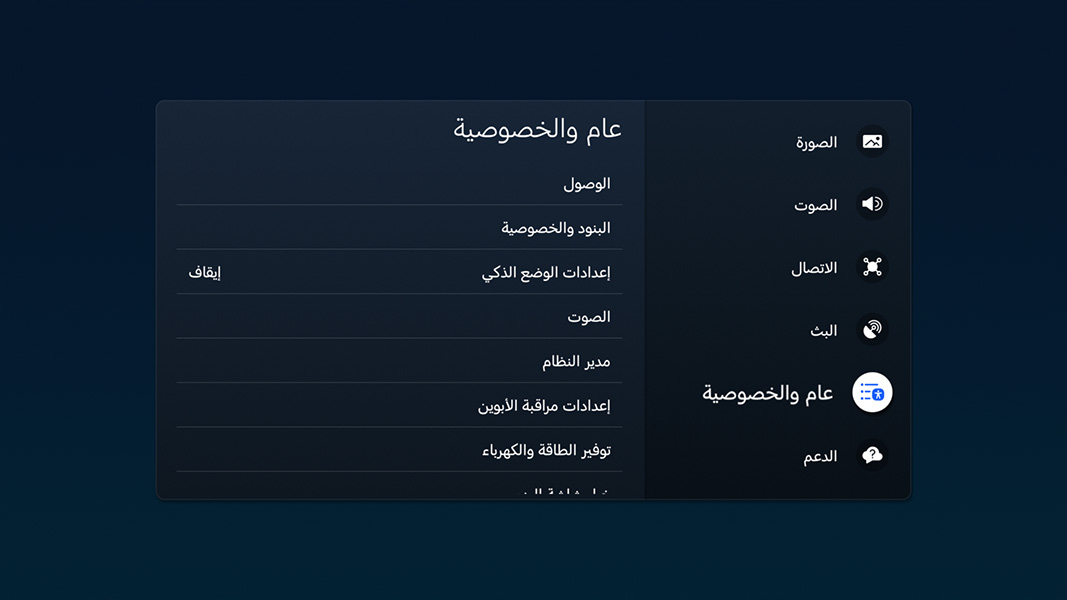
- Privacy
Go down to the General & Privacy section.
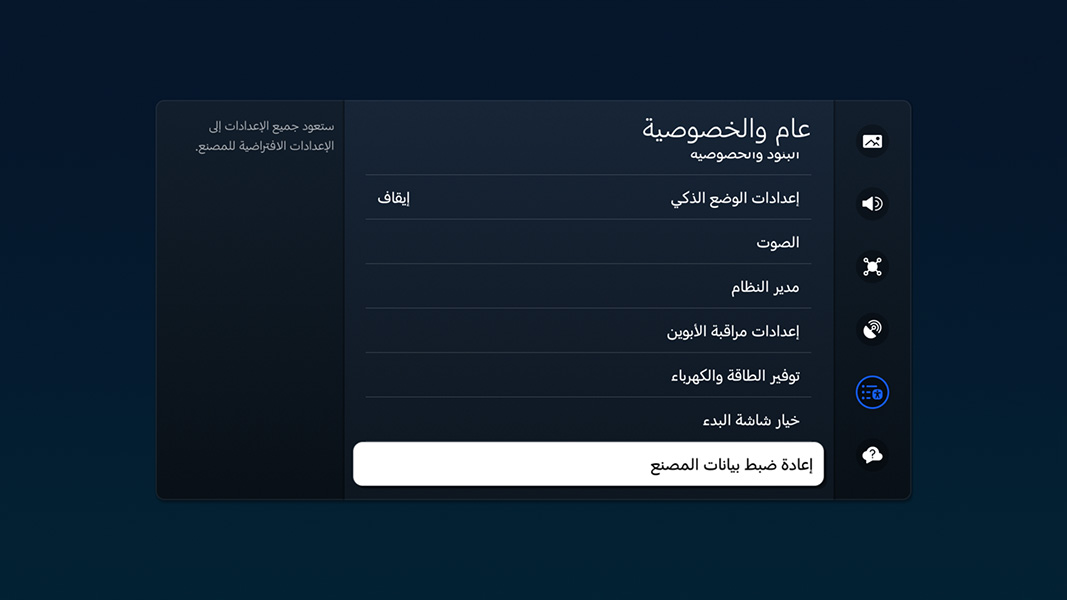
- Factory Data Reset
Scroll down the menu completely until you find the Reset option.
- Entering the Reset Code of the TV
The system will ask you to enter the Samsung TV reset code (PIN), type it and then confirm your desire by clicking Reset.

- Approval and restarting the TV
Click on OK or Reset, and the TV will restart itself automatically and display the initial setup screen to choose the language and country and start setting it up again.

Note: In slightly older models, you might find the comprehensive reset option hidden within a different path: (Settings > Support > Self Diagnosis > Reset).
Models 2024 – 2025 do not differ from each other at all except for the display interface.
You might also like: Factory reset without deleting data
Samsung TV Reset Code Default PIN
During your attempt to reset the Smart Hub or perform a comprehensive factory reset, you will encounter a security step asking you to enter a Personal Identification Number (PIN) to prevent children or unintentional tampering from resetting the system.
- The default code for all Samsung TVs is:
0000(four zeros).
If you haven’t changed this code before, once you enter the four zeros, access will open immediately for you to complete the initialization process.
How do you change this code to a custom code of your own?
If you want to raise the security level of your TV and set a custom code instead of the default zeros, follow this path:
Go to
- Settings > All Settings
- Choose General & Privacy
- Then move to System Manager (this step is in older versions)
- And click on Change PIN.
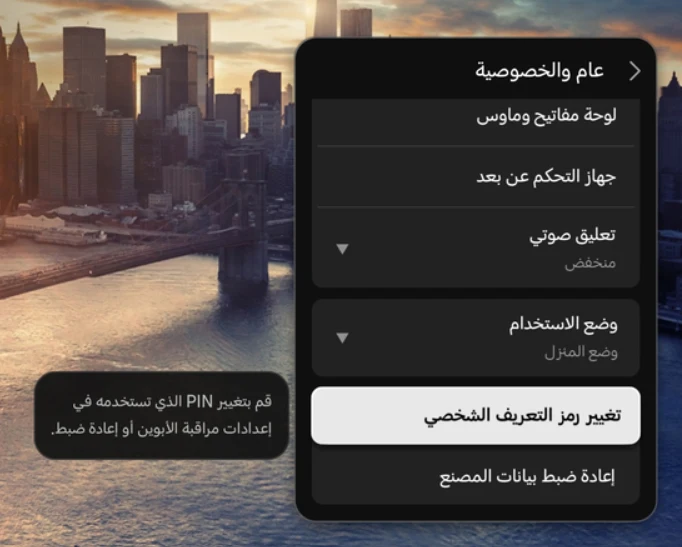
- After that, the system will ask you to enter the old code, then set a new code and confirm your new code successfully.
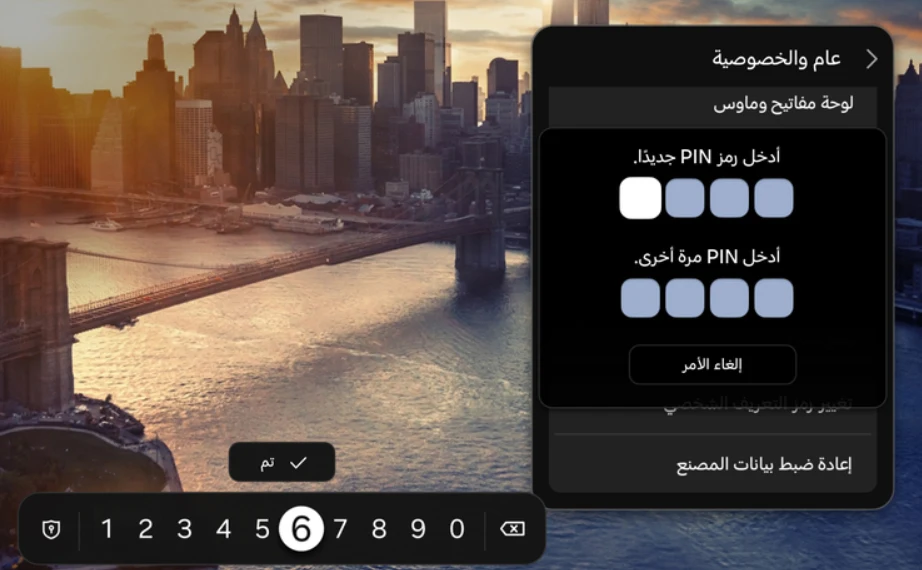
Behind these simple programming steps lies the solution to more than 90% of Samsung Smart TV problems. Understanding these tools gives you the ability to manage your device smartly and maintain its smooth performance for long years.
Source:
- Samsung [How to reset your Samsung TV]
- Samsung [Samsung Simulator]